
 English
 Svenska
Categories
Store admin notifications
Manage store admin email notifications, recipients, and low stock alerts.
On this page
Admin notifications are emails sent to a store owner after a new order is placed and when products get low in stock. You can change the email address for admin notifications and add your staff’s emails so they receive admin notifications as well. A store owner can also receive copies of all email notifications sent to customers.
You can enable or disable admin notifications in your store admin, Settings → Notifications.
Enabling or disabling admin notifications
When you create a store account, all admin notifications in your store are enabled by default. If you do not need some of the admin notifications, you can disable them to keep your inbox clean. For example, you can disable the “New order” email notifications and instead get push notifications in the mobile app for Android or iOS each time you receive a new order.
To enable or disable admin email notifications:
- From your store admin, go to Settings → Notifications.
- Scroll down to the Admin notifications section.
- Click the toggle next to a notification to enable or disable it.
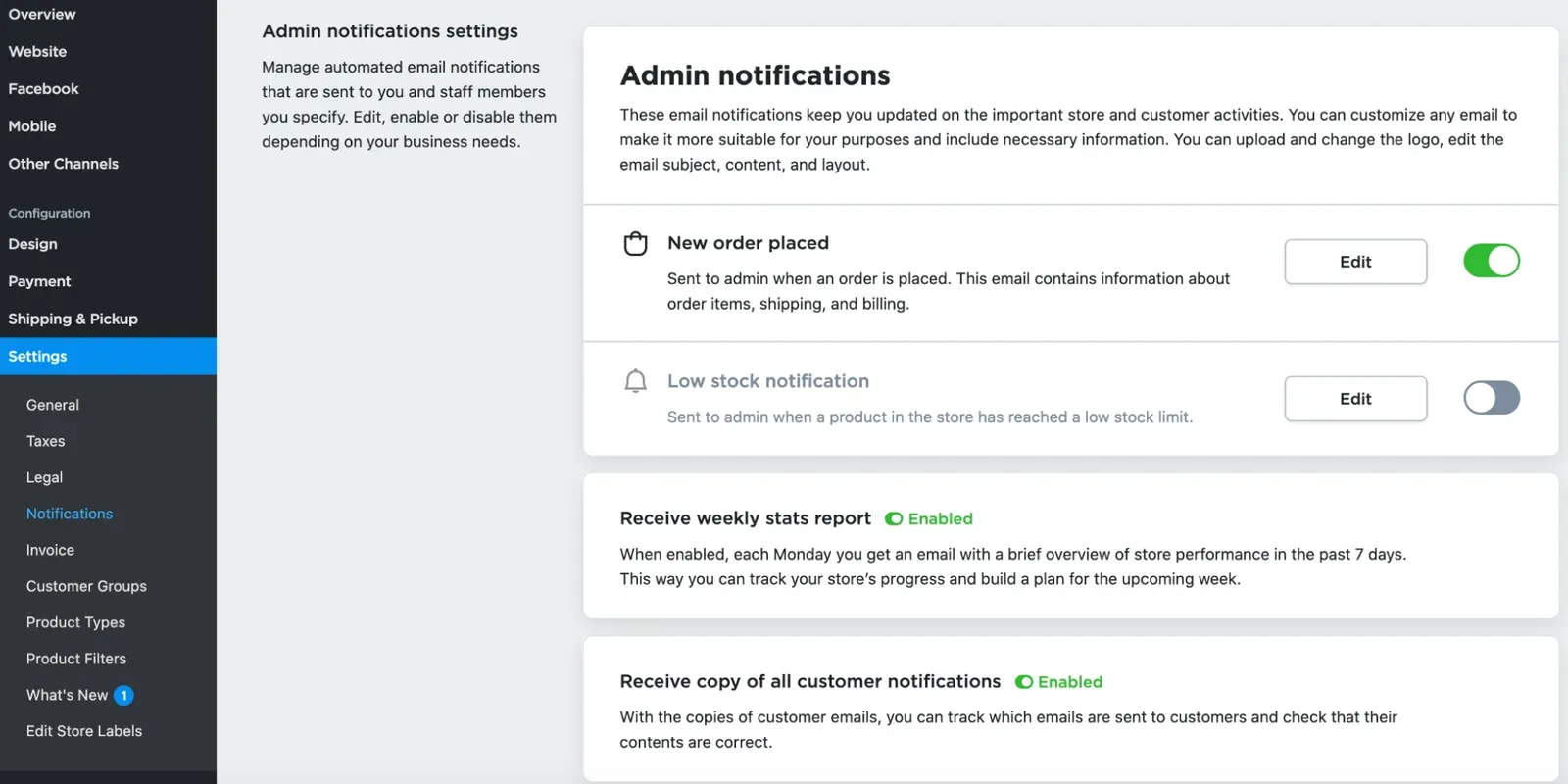
You can re-enable admin notifications at any time.
Receiving a copy of customer email notifications
After you create an online store, you receive a copy of all customer emails by default. That way, you can check how notifications look in your clients’ inboxes. You can disable or re-enable receiving copies of customer emails at any time.
To stop receiving a copy of customer notifications:
- From your store admin, go to Settings → Notifications.
- Scroll down to the Admin notifications section.
- Turn off the toggle next to Receive copy of all customer notifications.
To start receiving a copy of customer email notifications again, turn the toggle back on.
Changing the email that receives admin notifications
Your login email is automatically set as your email address for admin notifications. However, you can choose another address to receive admin notifications.
To change the email address for store admin notifications:
- From your store admin, go to Settings → Notifications.
- Scroll down to the Admin notifications section.
- Click Edit next to Admin email addresses.
- Specify the email at which you want to receive your admin notifications.
- Click Save.
Once you make this change, all new store admin notifications are sent to the email address that you specified.
Adding a recipient for admin notifications
You can select several email addresses to receive admin notifications. For example, you can add the emails of your employees who pack orders so they know about new orders immediately.
To add a new recipient for admin notifications:
- From your store admin, go to Settings → Notifications.
- Scroll down to the Admin notifications settings section.
- Click Edit next to Admin email addresses.
- Click + Add email address.
- In the opened field, type in the email that should receive store admin notifications.
- (Optional) Repeat the process to add multiple email addresses.
- Click Save.
That is it. Now new admin email notifications are sent to the added email addresses.
Setting low stock email notifications
To get low stock notifications, you should set up a low stock limit in your catalog. When a product’s stock reaches this limit, you receive an email notification informing you that your stock is low.
To set a low stock limit for a product:
- From your store admin, go to Catalog → Products.
- Open the product whose stock you want to track.
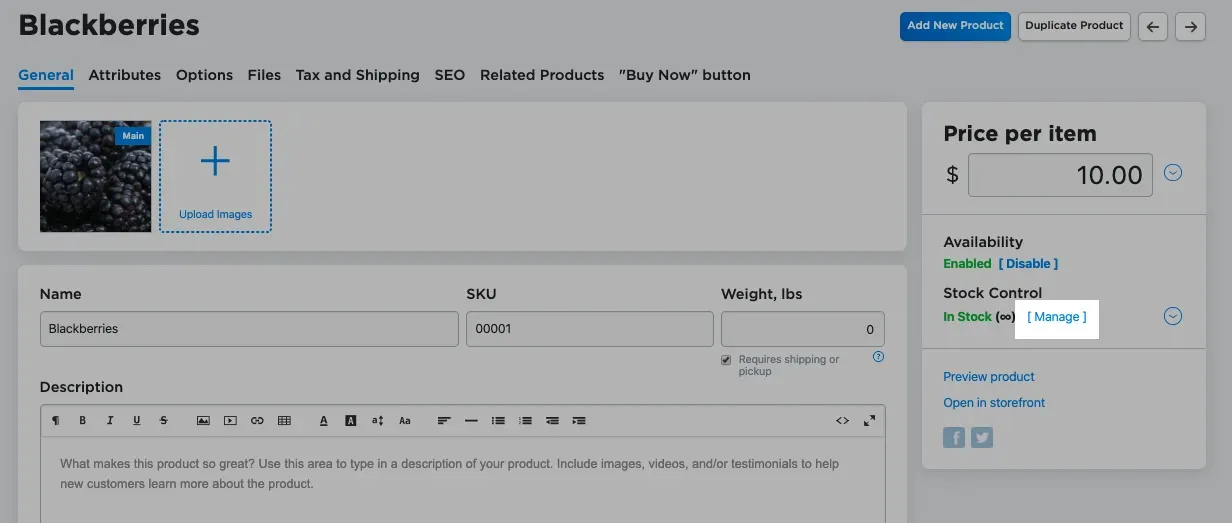
- In the right panel, click Manage under the Stock Control block.
- Enter the quantity at which you want to receive a low stock notification for this product.
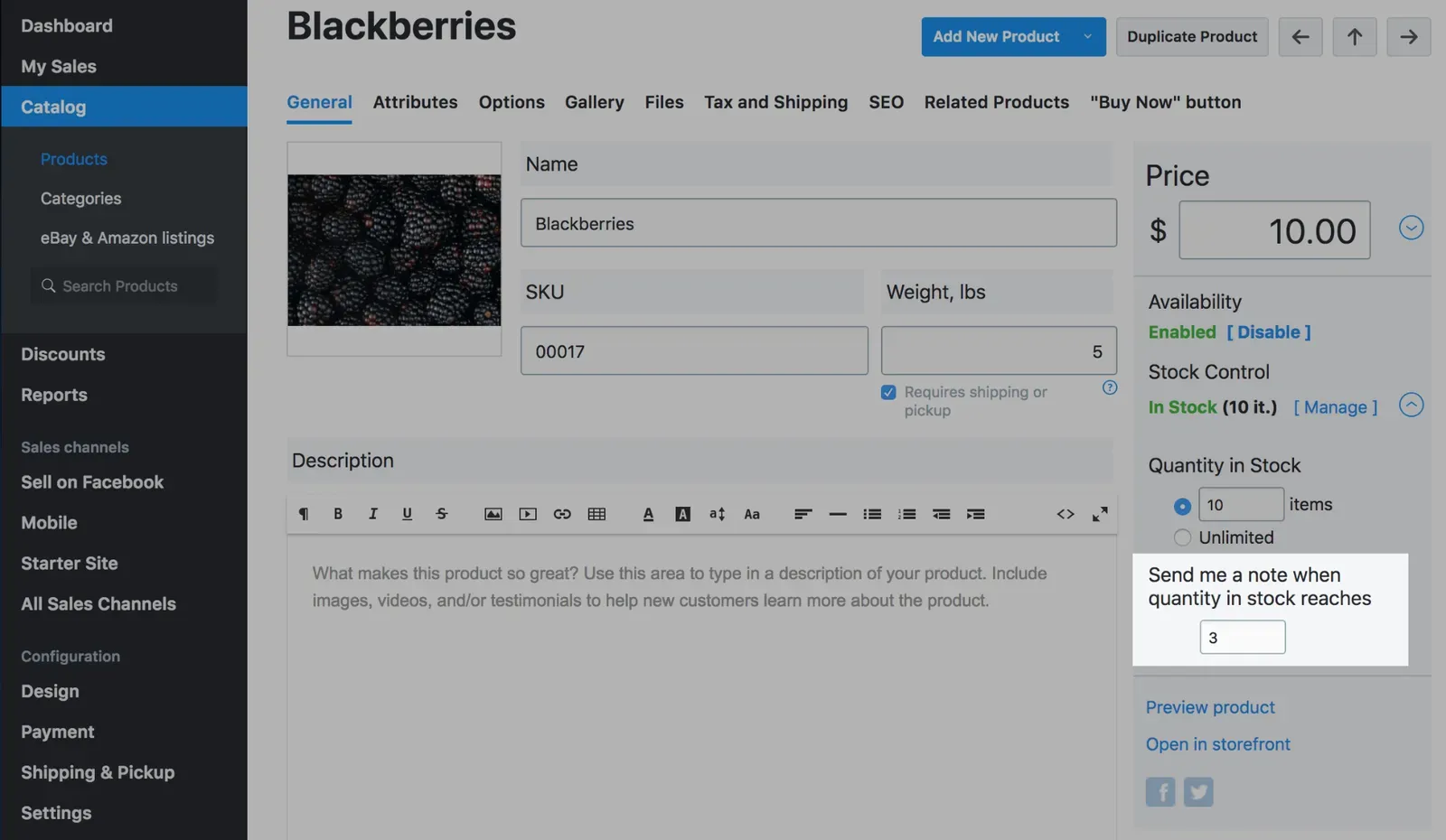
Using this example, the store owner would get a low stock notification when three items remain in stock.
Related articles
- Introduction to product inventoryTrack product stock, choose out-of-stock behavior, and prevent overselling in your online store.
- Setting up taxesSet up automatic or manual taxes so the right rates apply at checkout.
- Choosing a shipping strategy for your storeCompare shipping strategies and set up shipping methods, origin, and zones for your store.
Can’t find what you need?
Contact our team. We’re here 24/7 by email and ticket.