
 English
 Svenska
Categories
Choosing a shipping strategy for your store
Compare shipping strategies and set up shipping methods, origin, and zones for your store.
On this page
Before your first order, you must decide how you want to send your products to customers and how much to charge them for shipping. You can combine several shipping strategies in your store to cover all of your products and delivery locations.
Digital and service products
If you sell services or downloadable products, you can skip the shipping step at checkout.
Calculating shipping costs
Different factors can affect the actual cost of sending your products to the buyer, such as:
- Package weight and dimensions. Shipping carriers like USPS, FedEx, and UPS calculate shipping charges based on the actual weight of the package or its dimensional weight.
- Shipping destination. Your shipping costs are higher if you offer international shipping in your store.
- Value of shipped products. If you sell high-value products, you may want to insure their shipment, which increases shipping costs.
- Delivery times. Some buyers prefer to pay for expedited shipping. This cost is based on where the buyer is located.
After you find a shipping service to use, calculate your shipping costs to make sure your margins can stay high.
Here is an example of how much an online order can cost:
- Product cost: $30.00
- Shipping fee: $5.00
- Packaging cost: $0.75
- Credit card processing: $0.85
That brings the total cost to $36.60. To make a profit of roughly 50% on this product, you would sell it at $54.99.
Calculating shipping costs helps you choose a shipping strategy and decide at what price to sell the products. If your margin is high, you may want to absorb the cost of shipping domestic orders and offer free shipping to your local customers. To compensate for shipping expenses, you can slightly increase product prices in your online store.
Alternatively, you can choose to charge your customers the exact amount that you pay to get their order shipped. You can use online calculators to check how much shipping carriers charge to ship products of different weights and dimensions to different destinations from your location:
- UPS rates calculator (opens in a new tab)
- USPS rates calculator (opens in a new tab)
- FedEx rates calculator (opens in a new tab)
If you have just started your online business and sell locally, you can offer a local pickup or deliver the ordered goods yourself. You can also use simple packaging for orders and hand-write shipping labels to reduce expenses at the start.
Outsourcing fulfillment
If you have been in the market for a while and sell many products, it might be cost-effective to use third-party logistics (3PL) like eFulfillment Service to outsource warehousing, packing, and shipping.
While your business is growing, review your shipping strategy from time to time and make any necessary adjustments.
Choosing a shipping strategy
Now that you have calculated the shipping costs for your product line, you need to set it up and decide whether you, the buyer, or some combination will pay for the shipping expenses. You can add as many shipping methods as you need to cover all of your products and destination zones.
There are four popular shipping strategies.
Allow a local pickup for free or for a small fee
If you have an offline store, you can offer a local pickup to customers who prefer to purchase online and then pick up orders themselves. It is actually a good idea to offer a local pickup even if you do not have an offline store.
You can offer a free pickup, charge a small fee (to compensate for delivering products from your warehouse to the pickup point), or give a discount to customers who choose pickup at checkout (for example, a discount coupon with their order).
Free shipping
Statistically, shipping cost is among the main reasons why shoppers abandon shopping carts. Consider offering free shipping whenever you can to increase conversion in your online store. Usually the cost of shipping is almost negligible for domestic orders, especially if your margin is high and you are shipping products that do not require extra packing or handling. To compensate for your shipping expenses, you can slightly increase your product prices.
You can also offer free shipping on orders over a certain subtotal amount to encourage customers to buy more. Or you can offer free shipping to certain customers by giving them a discount coupon code that they can redeem at checkout.
Charging the exact shipping cost
If you use a popular service like USPS, FedEx, or UPS to ship your products, you can charge your customers the exact rate that you pay these carriers for each order. To do this, you can set up your store to receive automatic online shipping rates from carriers at checkout.
If you use a carrier that is not integrated with the store for live rates (for example, Sendle or Mondial Relay), you can manually add this carrier’s shipping rates for various order weight ranges.
Flat rate shipping
If you deliver products yourself or your products have a similar weight and size, you can offer flat rate shipping for delivering your products to the customer’s location. For example, you can charge $5 for the local delivery of any order in your store.
If you need a more complex shipping cost calculation than flat rates, consider using tiered rates that you can base on order subtotals or different order weights. You can use flexible tiered rates to charge different shipping costs for different order subtotals, to charge for shipping large products by freight, or for any other shipping setup you may want in your store.
Setting up shipping in your store
Regardless of which shipping options you choose, you should first go through the initial shipping setup.
Step 1: Mark products as shippable and enter the product’s weight
You should specify weight and tick the “Requires shipping or pickup” setting for the products that you are going to ship. You can do this on the product editing pages:
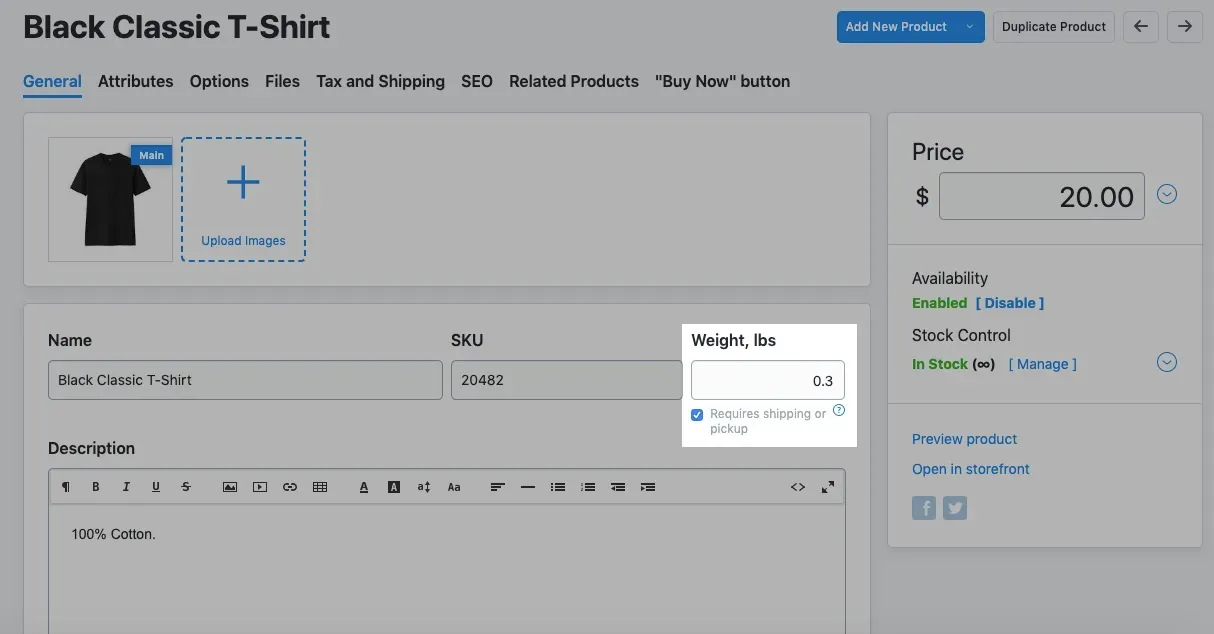
Weight unit
You can choose the weight unit for your store in your store admin: go to Settings → General → Regional Settings, “Weight & Size” field.
Step 2: Specify your shipping origin (if you use live shipping rates)
The shipping origin address is the location from where you ship your orders. It is used by integrated carriers as a ship-from address when calculating shipping rates in real time. Shipping origin is automatically set as the company address you entered in your store profile at the initial store setup. Make sure you enter the right address if you are using real-time shipping rates in your store.
If you ship products from another place, specify that address as your shipping origin to receive precise shipping quotes from the carrier enabled in your store.
To edit the shipping origin address (if it is different from your company address):
- From your store admin, go to Shipping & Pickup.
- Under the Settings block, find the Shipping Origin section.
- Click Change Address.
- Select the option I ship orders from a warehouse or another location and edit the address.
- Click Submit to save the changes.
Step 3: Set up destination zones
Destination zones are the areas where you ship products. You can offer different shipping methods for customers from different zones, for example, ship via USPS within the continental United States and ship via FedEx to the Hawaiian Islands. See the article on adding and managing destination zones for detailed instructions on how to create destination zones.
Once you have decided which shipping strategy to use, you can go ahead and add your shipping methods in your store admin in Shipping & Pickup.
Optimizing shipping rates
You may need to cover extra expenses related to packing and shipping products to customers. You can charge your customers a small extra fee using one of these options:
- Handling fee. This fee applies to all orders and is shown at checkout as a separate line. It is typically used to compensate for the time and cost it takes to package an order.
- To cover shipping expenses just for certain products (for example, fragile or large items), you can add a hidden fee as a fixed rate per item on top of your regular shipping costs.
- Shipping markup. This hidden fee is added to the live rates returned by the carriers you have enabled in your store.
Be careful when adding extra fees, as you want to keep your prices competitive on the market.
If you are using real-time shipping rates from the integrated carriers:
- specify the right product weight and dimensions so that accurate shipping rates are paid by your customers at checkout;
- if you have negotiated shipping rates with a carrier and want to offer these discounted rates at checkout, add your own account information with this carrier in your store’s settings instead of using the default account.
Related articles
- Introduction to product inventoryTrack product stock, choose out-of-stock behavior, and prevent overselling in your online store.
- Setting up taxesSet up automatic or manual taxes so the right rates apply at checkout.
- Adjusting your storefront designCustomize your storefront's product cards, product pages, categories, and navigation.
Can’t find what you need?
Contact our team. We’re here 24/7 by email and ticket.