
 English
 Svenska
Categories
Introduction to product inventory
Track product stock, choose out-of-stock behavior, and prevent overselling in your online store.
On this page
Inventory is the quantity of a particular product that is available for sale.
It is important to keep your inventory accurate and track the quantity of each product in your store. Accurate inventory helps you avoid selling more products than you actually have, reminds you to replenish your stock before you run out, and communicates stock levels and product availability to your shoppers.
You can set up inventory tracking for each product and its variants, view your inventory, and adjust your inventory counts in the store admin or in the mobile app for iOS or Android. For products that are out of stock, you can opt into accepting pre-orders.
Inventory strategies
Before you open your store to the public, you need to decide whether you will use your store to track the stock of the products you sell. You can use different settings to control your inventory and to provide information on the available stock to your customers.
When you add new products to your store, by default they have an unlimited quantity:
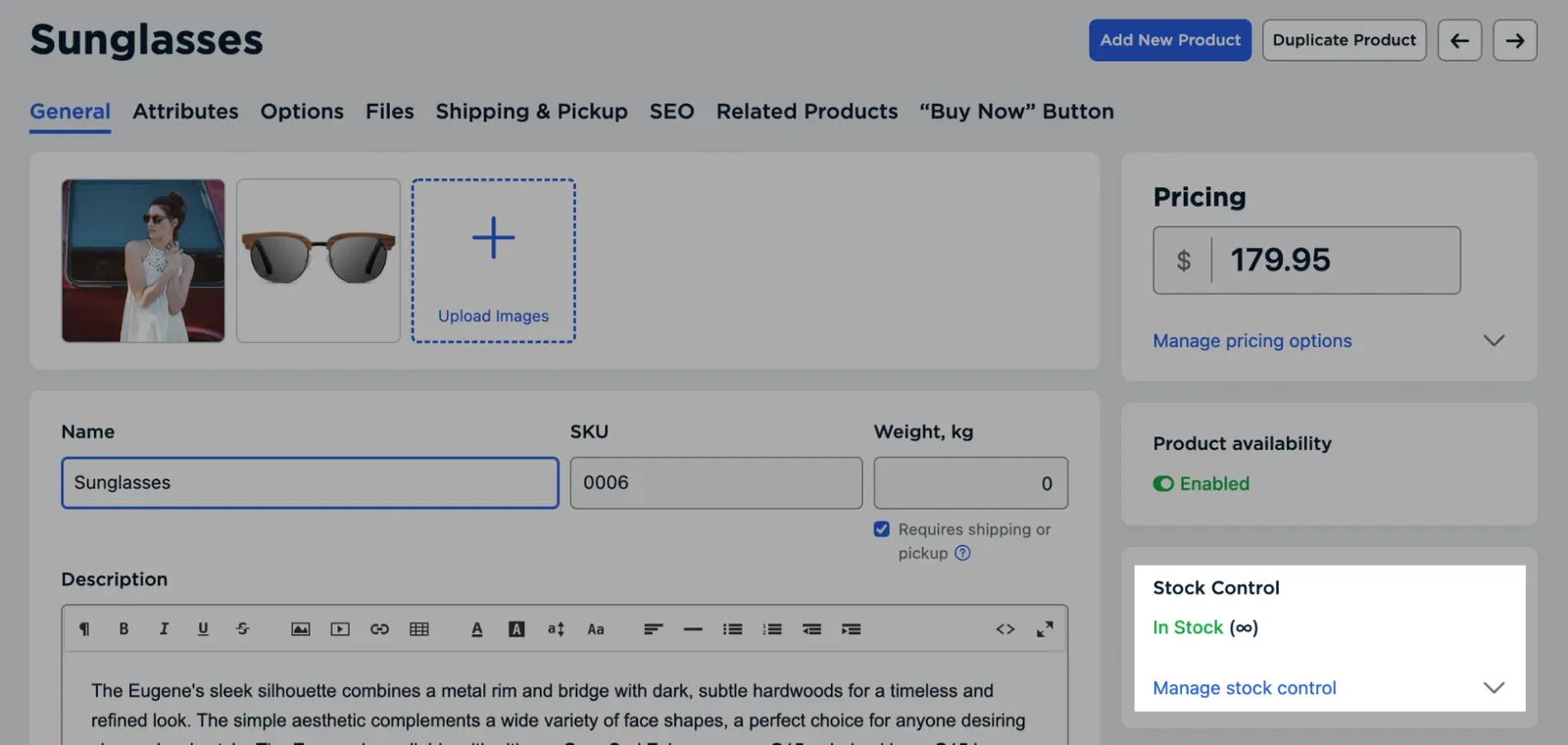
“Unlimited” means that the product is always in stock and available for purchase. Since the product quantity never reaches zero, the product is never marked as sold out. This setting works well if you sell services and digital products, or if you want to track the stock for your store yourself.
Pausing a product
If you stop selling a digital product or temporarily do not provide a service, you can simply disable these products in your store admin. This way, they are no longer displayed in your store.
However, if you sell tangible products that you receive from a supplier or produce yourself, you may need to track the products’ stock levels:
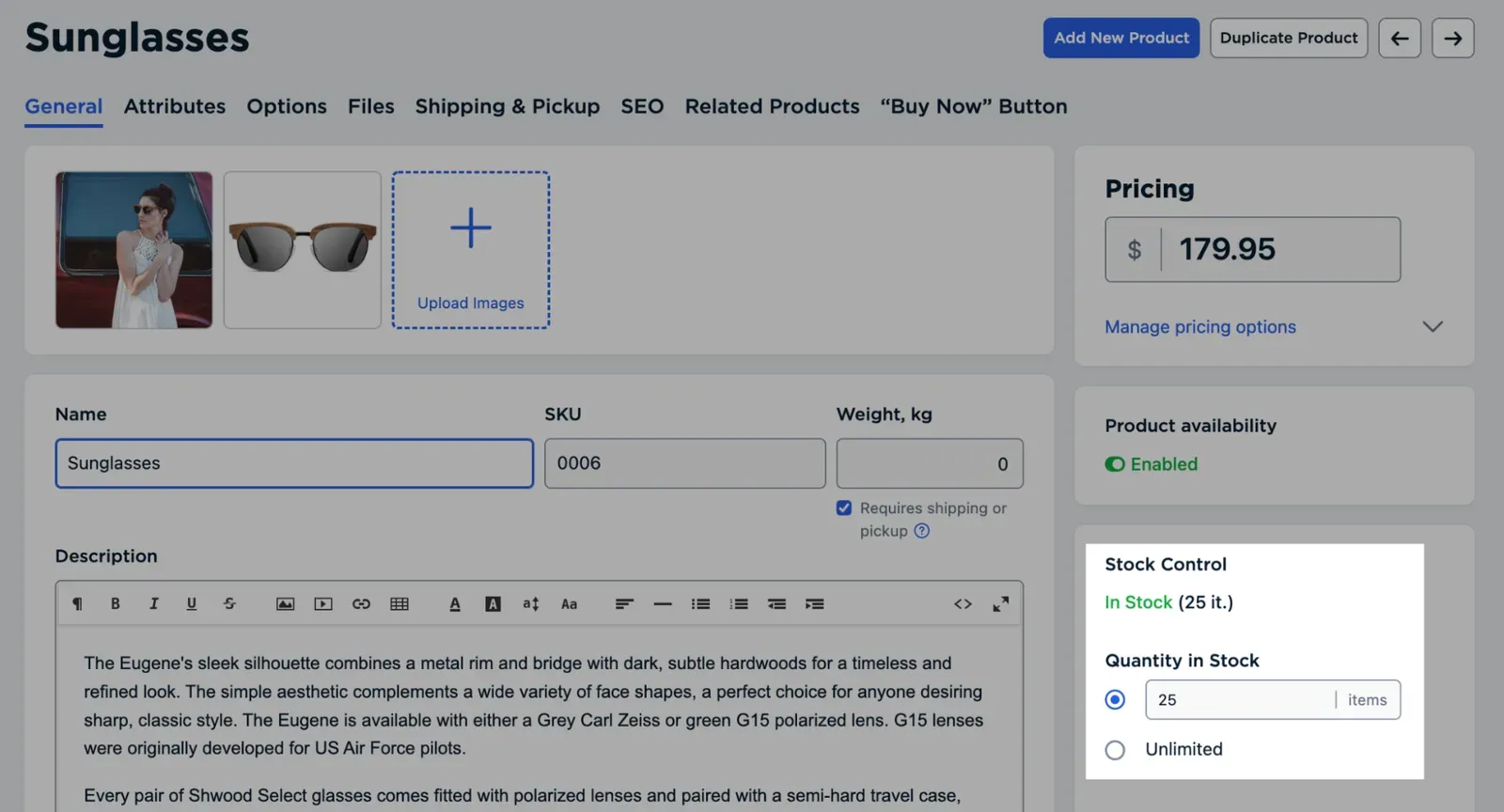
If you turn stock control on, you will know how many units of a product you have available for sale and when it is time to restock. Once a product’s stock reaches zero, it is labeled “Out of stock” in your store admin. For the storefront, you can choose from three out-of-stock behavior options for each product:
- Hide the product from your storefront so that customers do not browse into it until you replenish the stock. Hidden products remain available by direct link and show a “Sold Out” label. There is no “Add to Bag” button on the product page, so customers cannot add them to the cart.
- Show the product on your storefront when it is out of stock. The product is marked “Out of stock” or “Sold Out”, and customers cannot add it to their cart, but they can see that you sell it.
- Accept pre-orders for the product when it is out of stock. The product is marked “Pre-order” in your store, and customers can add it to their cart to place a pre-order.
To know when it is time to replenish a product’s stock, you can opt into receiving an automated stock alert message from your store informing you that a product’s stock has reached a certain limit.
If you sell products with options, you can also track stock levels of each product option, for example, how many items of a shoe size 9 or a Yellow t-shirt in size XL you have. This becomes possible once you create variations out of options and assign a unique SKU and stock level to each variation, so it can be treated as an independent product in your store. You can accept pre-orders for individual product variations as well.
What is a SKU?
SKUs, or Stock Keeping Units, are unique identifiers used for tracking inventory. They can be assigned to simple products and to products with variants like different sizes or colors.
Understanding when inventory gets updated
In your store, inventory quantities update as soon as an order is placed, either with a Paid or Awaiting Payment status (when it is placed with an offline payment method). In other words, your inventory reduces as soon as your customer checks out. If you later change the payment status for an order to Canceled or Refunded, the quantity of the products from that order is automatically re-added to the inventory.
While a product is in stock, any shopper can put it in the cart and buy it, even if it is already present in someone else’s cart. Products are not reserved in the cart for a particular customer. This way, you can get more sales and avoid a situation where abandoned carts block new orders.
When the quantity of a certain product reaches zero, the product receives a “Sold Out” label in your store and becomes unavailable for purchase to anyone, even if a customer added the item to the cart before that. If you have enabled pre-orders for this product, it automatically becomes available for pre-order when sold out.
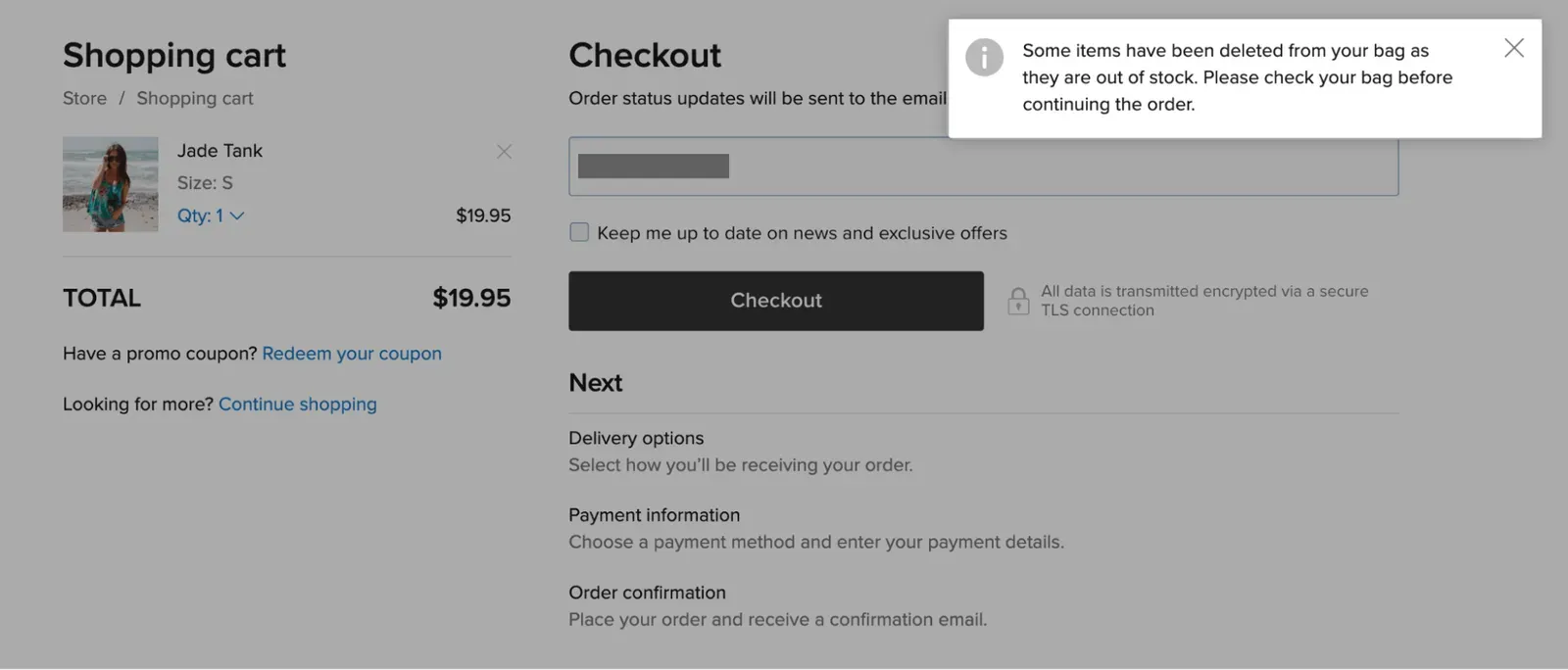
In both cases, a customer is warned at checkout:
- If the product sits in someone’s cart for a while, then sells out and becomes unavailable for purchase, it is automatically removed from the cart with the message “Some or all items have been deleted from your bag as they are out of stock”.
- If you have pre-orders enabled for this product, customers see a message that the item is currently out of stock and is only available for pre-order. The product is immediately marked with the “Pre-order” label in the cart.
Real-time stock checks
Your store always checks products in shoppers’ carts against the inventory in real time to help you avoid overselling.
Best practice: preparing your store for a sale
If you run a flash sale or face another high-traffic situation when several customers simultaneously hit Pay and try to purchase an item that is about to run out (for example, you sell event tickets that sell out in 5 minutes), it increases the likelihood that customers could purchase more items than you have in stock. The reason is that it takes some time for the payment callbacks to arrive from your payment gateway to your store and for the stock to be reduced afterwards (with online payments, the stock is reduced only after the callbacks are processed).
There are several options you can use to prevent overselling if you plan to run a flash sale or use a similar business model:
- Enter lower stock quantities than you actually have in the “Quantity in Stock” field on the product details page in your store admin. For example, you can enter 50 instead of the 55 that you have. Even if you oversell by 5 during your sale, you still have the additional 5 items to provide.
- Collect pre-orders instead of regular sales. You can enter “0” in the “Quantity in Stock” field on the product details page before the sale starts. In this case, all orders for this product are processed as pre-orders.
- Use payment systems like Authorize.net that allow you to place a temporary hold on the customer’s card and complete the transaction later when needed. This option goes well with pre-orders, because you take the money only when you check the final number of orders after the sale (and customers know it is only a pre-order or booking that they have made).
- Use post-payment. You can use an offline payment method to avoid overselling limited items during a sales campaign. Create an offline payment method in your store, rename it (for example, “Pay by cash” or “Pay by invoice”), and describe how the orders are processed in the instructions for this payment method. You can then contact the customers who placed such orders by email and receive payments outside of the store interface (for example, by sending them PayPal invoices (opens in a new tab) via email).
- Do not make refunds for the products that participate in the sale before it is over, unless you want to return these items to your store stock for further purchases.
When traffic reduces to normal levels, you can change the settings back to usual.
Related articles
- Setting up taxesSet up automatic or manual taxes so the right rates apply at checkout.
- Choosing a shipping strategy for your storeCompare shipping strategies and set up shipping methods, origin, and zones for your store.
- Adjusting your storefront designCustomize your storefront's product cards, product pages, categories, and navigation.
Can’t find what you need?
Contact our team. We’re here 24/7 by email and ticket.