
 English
 Svenska
Categories
Accepting order withdrawal requests in your store
Let customers request order withdrawals and manage those requests in your store.
On this page
Under EU Directive 2023/2673 (opens in a new tab), effective June 19, 2026, any business worldwide selling goods, services, or digital products online to EU consumers must provide customers with an easy way to withdraw from a purchase. This means you might be required to display a prominent “withdrawal button” in your online store so that customers can submit a request to cancel orders or reverse their purchases.
You can enable order withdrawal requests in your online store and customize the period during which customers are allowed to back out of a purchase for individual products. For products that are not eligible for withdrawal, you can turn the withdrawal option off.
Check your legal obligations
The requirement to display order withdrawal buttons depends on the type of products you sell. Some items may be legally exempt. Consult with a legal professional if you are not sure you need to provide customers with an easy option to withdraw from an order in your online store.
Enabling order withdrawal requests in your store
After you enable order withdrawal requests in your online store, customers can fill out and submit withdrawal requests for their orders by clicking a dedicated order withdrawal button or link.
Return policy
You can explain how order withdrawals work in your online store in your Return Policy.
To enable order withdrawal requests:
- From your store admin, go to Settings → Cart & Checkout.
- Scroll down to the Order withdrawal request block.
- Turn on the toggle.
- Save the changes.
That is it. Now customers can request order cancellation online for products they purchased in your online store.
By default, order withdrawal requests are enabled for all products in your store and remain available for 14 days after an order gets the Delivered order status in your store admin. You can extend the order withdrawal period or turn this option off for individual products that are exempt.
When a customer submits a withdrawal request for an order, you are notified in your store admin panel and by email. Submitting a withdrawal request does not automatically cancel the order or guarantee the customer a refund. You need to review the request and decide how to handle it.
Placing an order withdrawal request: customer experience
Any customer who has previously purchased a product in your online store can place a withdrawal request. This applies to all eligible products within the withdrawal period set for a specific product. After the period is over, the option to place a request is no longer available.
Here is how customers can place order withdrawal requests:
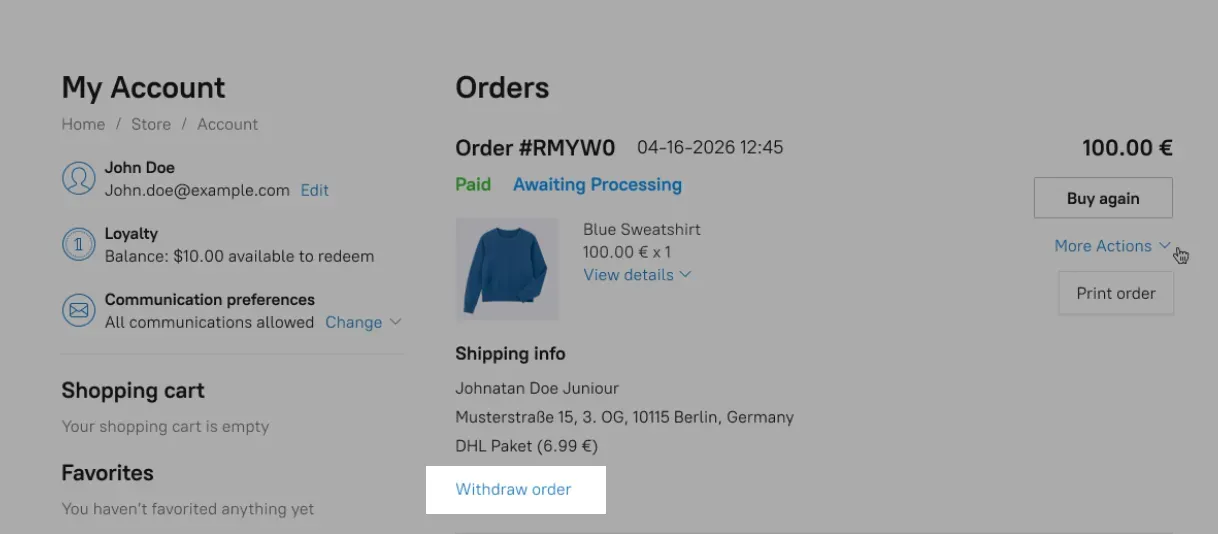
- From their customer accounts. The customer clicks the “Withdraw order” link next to the order and follows the steps to place the request.
- From the Order confirmation notification. The customer clicks the “submit a withdrawal request” link in the email and follows the steps to place the request.
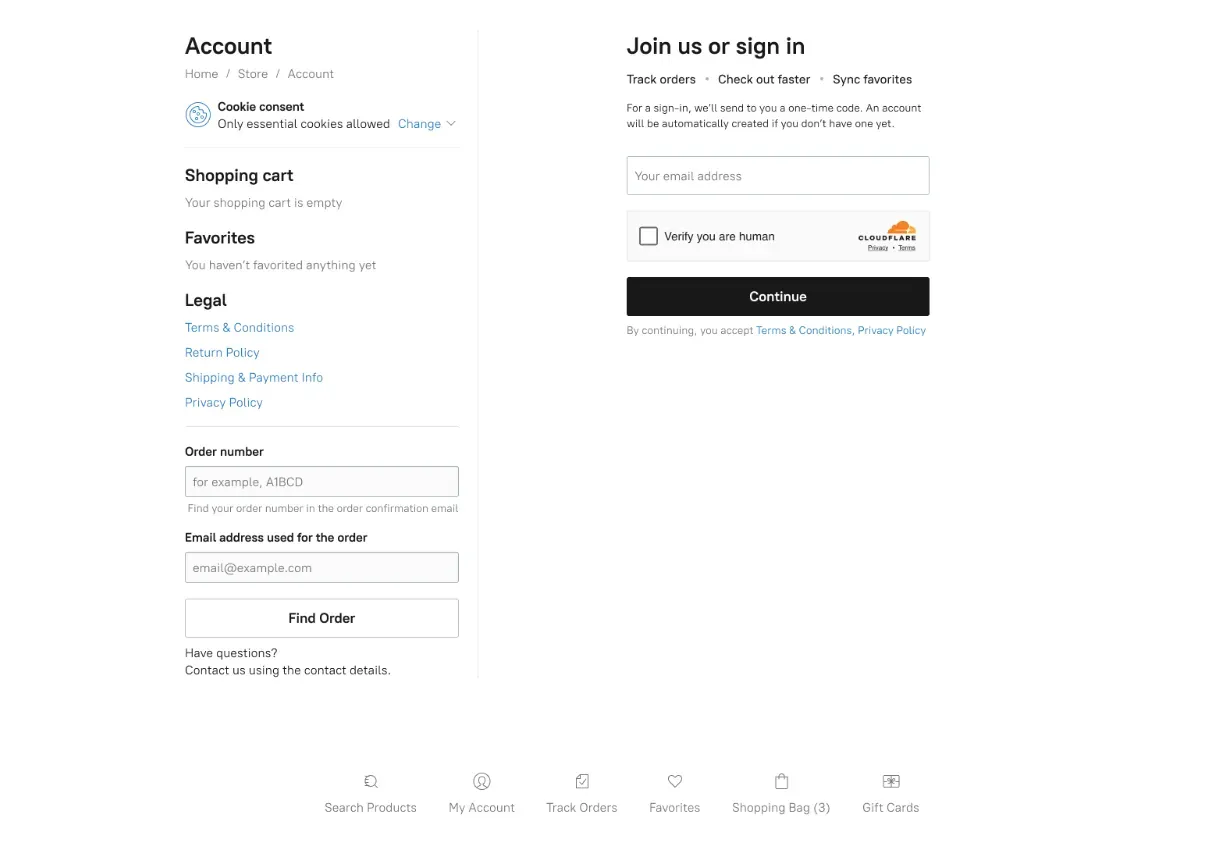
- (For non-logged-in customers) From the My Account page in your online store. The customer clicks the “Request withdrawal” link on the page and specifies the order number and email address used for the order. After that, they click Find Order to get an email with the withdrawal link and follow the steps to place the request.
After submitting the order withdrawal request, a customer receives the “Withdrawal request submitted for order” email in their inbox.
If a customer changes their mind, they can cancel their withdrawal request. This can be done by clicking the “Cancel withdrawal request” link that appears:
- On the withdrawal form page after submitting the request (when withdrawing from email);
- Next to the order in the customer account.
Customizing the order withdrawal period for individual products
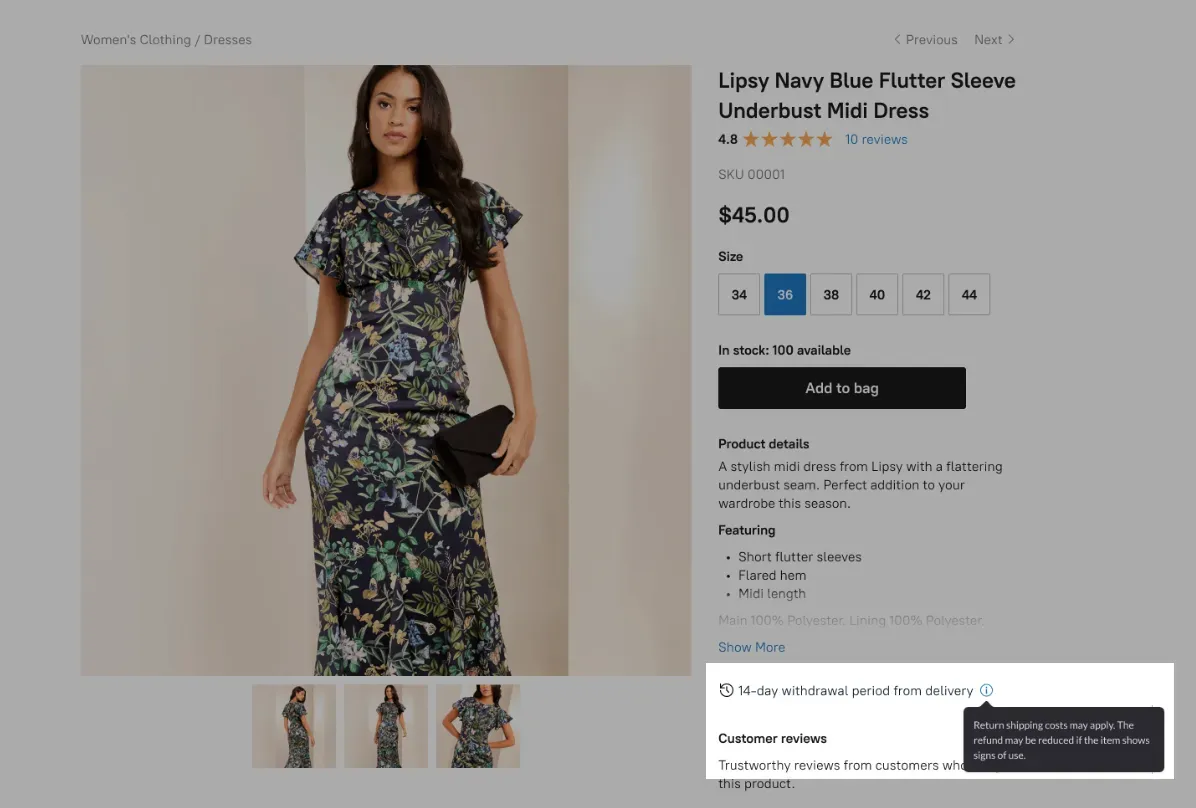
After you enable withdrawal requests, a 14-day withdrawal period is set for all the products in your online store. This means that customers can back out of a purchase no later than 14 days after the order gets the Delivered order status in your store admin.
You can extend the withdrawal period for individual products if you like, for example, if this strategy suits your business better.
To customize the order withdrawal period for a product:
- From your store admin, go to Catalog → Products.
- Open the product you want to edit.
- Click Manage withdrawal settings on the right.
- In the Withdrawal period field, specify the number of days.
- Save the changes.
That is it. You have updated the period during which customers can place an order withdrawal request for a product purchased in your online store. This information is displayed on the product page in your online storefront. Customers can hover over it to see a tooltip with more details.
Customizing tooltip text
To customize the text inside the withdrawal period tooltip, you can use the Store Label Editor.
Turning off order withdrawal requests for a product
You can turn off the order withdrawal option for individual products in your online store if these products are exempt by law. For example, they might be custom-made items or highly perishable goods.
To turn off order withdrawal requests for a product:
- From your store admin, go to Catalog → Products.
- Open the product you want to edit.
- Switch off the Eligible for withdrawal toggle on the right.
- Save the changes.
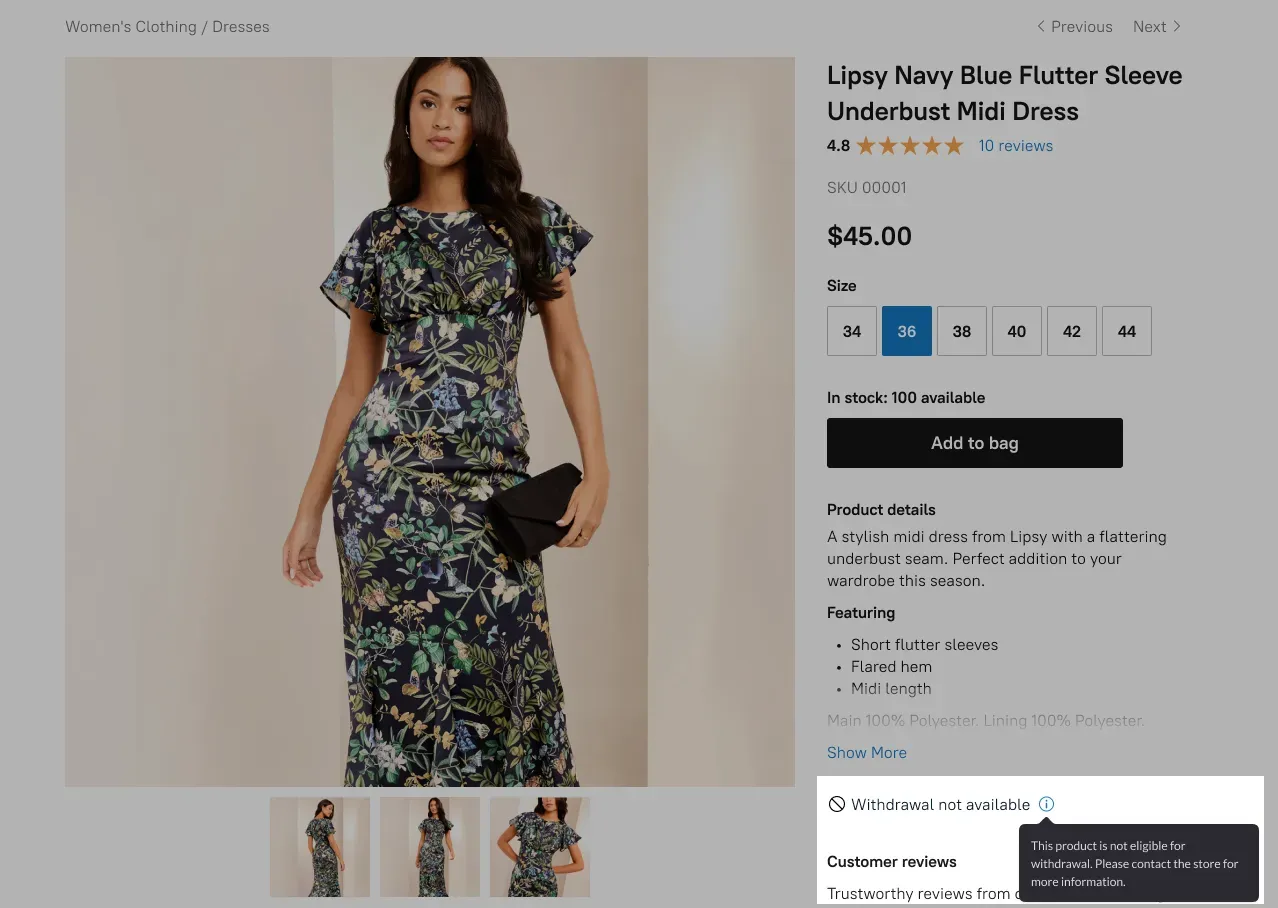
That is it. Now the order withdrawal request option does not appear for this product in your online store. Information that this item is not available for withdrawal is displayed on the product page in your online storefront.
Managing order withdrawal requests placed in your store
After a customer submits an order withdrawal request for a product purchased in your online store, an email letting you know that an order is awaiting a withdrawal decision is sent to the email address or addresses you set to receive admin notifications. You also get a notification in the “To-do list” section on the Dashboard page in your store admin.
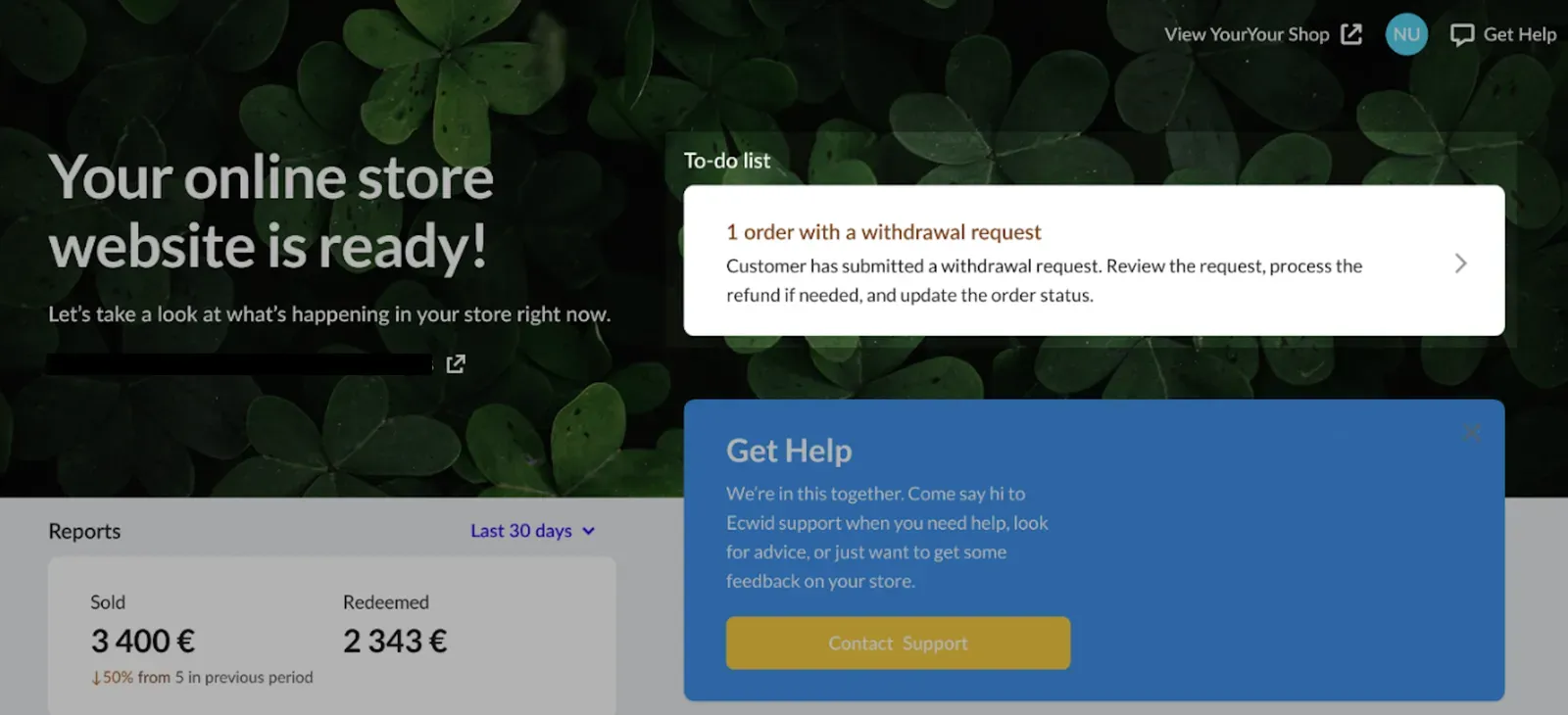
Orders with submitted withdrawal requests are marked as such on the My Sales → Orders page in your store admin. You can use the filters in the upper-left corner of the Orders page to find all orders with withdrawal requests.
After you receive a withdrawal request, you can review it, contact the customer, arrange shipping if needed, and issue a refund in accordance with your return policy and applicable country legislation. After the return is processed, you can update the order status to “Delivery cancelled” or “Returned” on the My Sales → Orders page in your store admin.
Related articles
- Introduction to product inventoryTrack product stock, choose out-of-stock behavior, and prevent overselling in your online store.
- Setting up taxesSet up automatic or manual taxes so the right rates apply at checkout.
- Choosing a shipping strategy for your storeCompare shipping strategies and set up shipping methods, origin, and zones for your store.
Can’t find what you need?
Contact our team. We’re here 24/7 by email and ticket.