
 English
 Svenska
Categories
Customizing your page SEO settings
Add a search friendly title, description, and keywords to each page of your Website Builder site.
On this page
Search engine optimization (SEO) helps Google and other search engines find and evaluate your content so it can appear in response to someone’s search. The more relevant your content is to the query, the higher your page can appear on search engine result pages (SERPs).
Getting a high ranking depends on the effort you put into optimizing your pages. The Website Builder gives you many tools to get the best SEO for your page.
Accessing page SEO settings
For your convenience, the page SEO settings are gathered in one tab where you can add a search friendly title, description, and tags to each page of your website. To open the SEO tab, follow these steps:
-
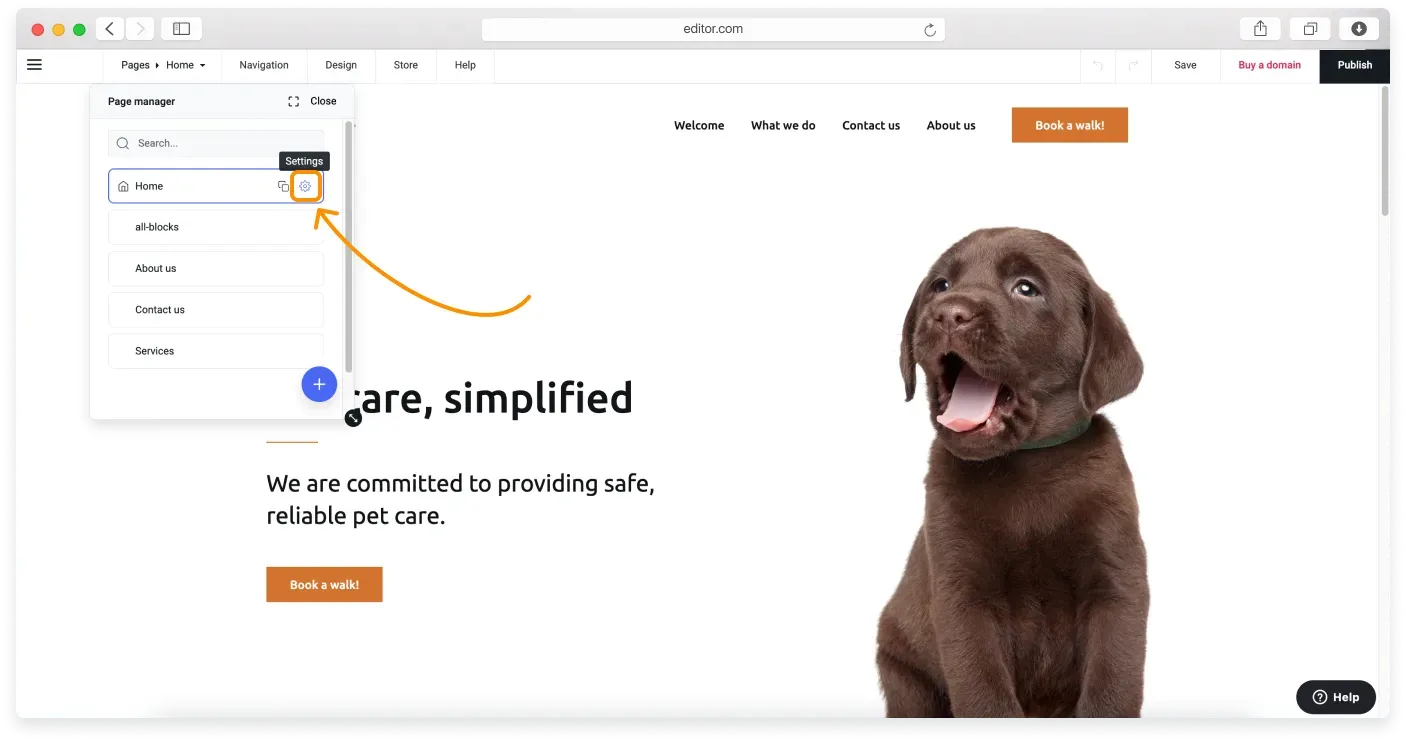
When in the editor, click Pages on the Topbar to open the Page manager.
-
Click the gear icon next to the page you want to manage.
-
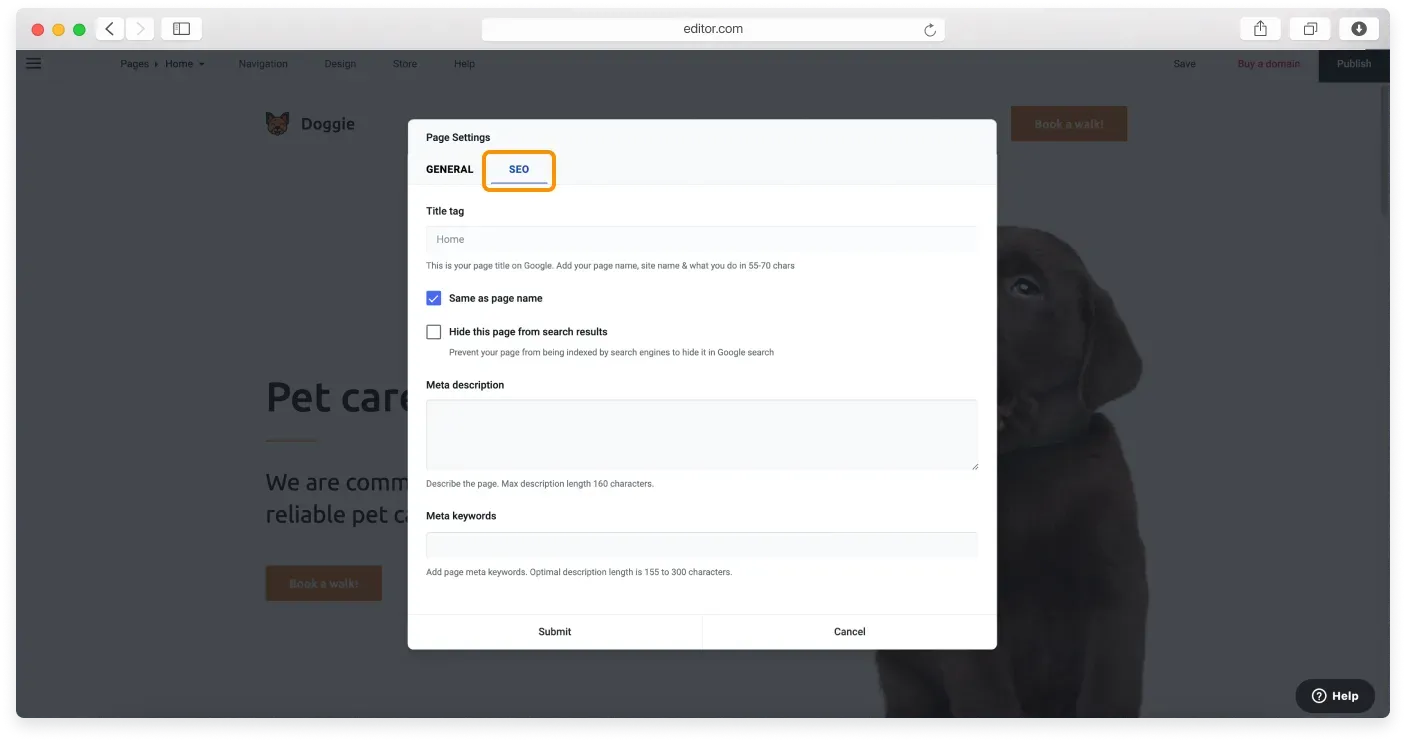
In the next window, go to the SEO tab.
-
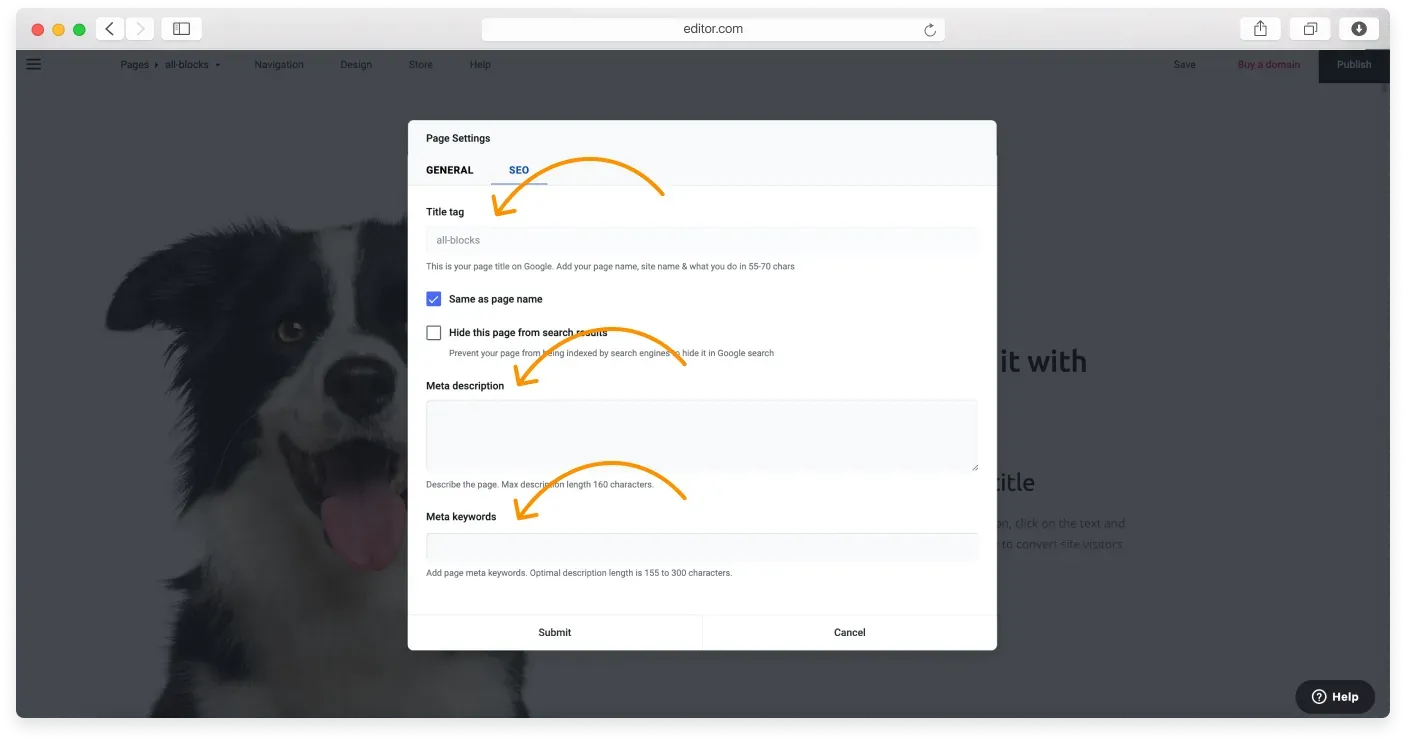
Fill in the title tag, meta description, and meta keywords fields using the recommendations below.
-
Click Submit to save your changes.
Adding an SEO friendly page title tag
The Website Builder uses your page name as your title tag, for example “Home”, “About us”, or “Services”, unless you change it manually. As you can see in the image below, the Same as page name checkbox is ticked by default.
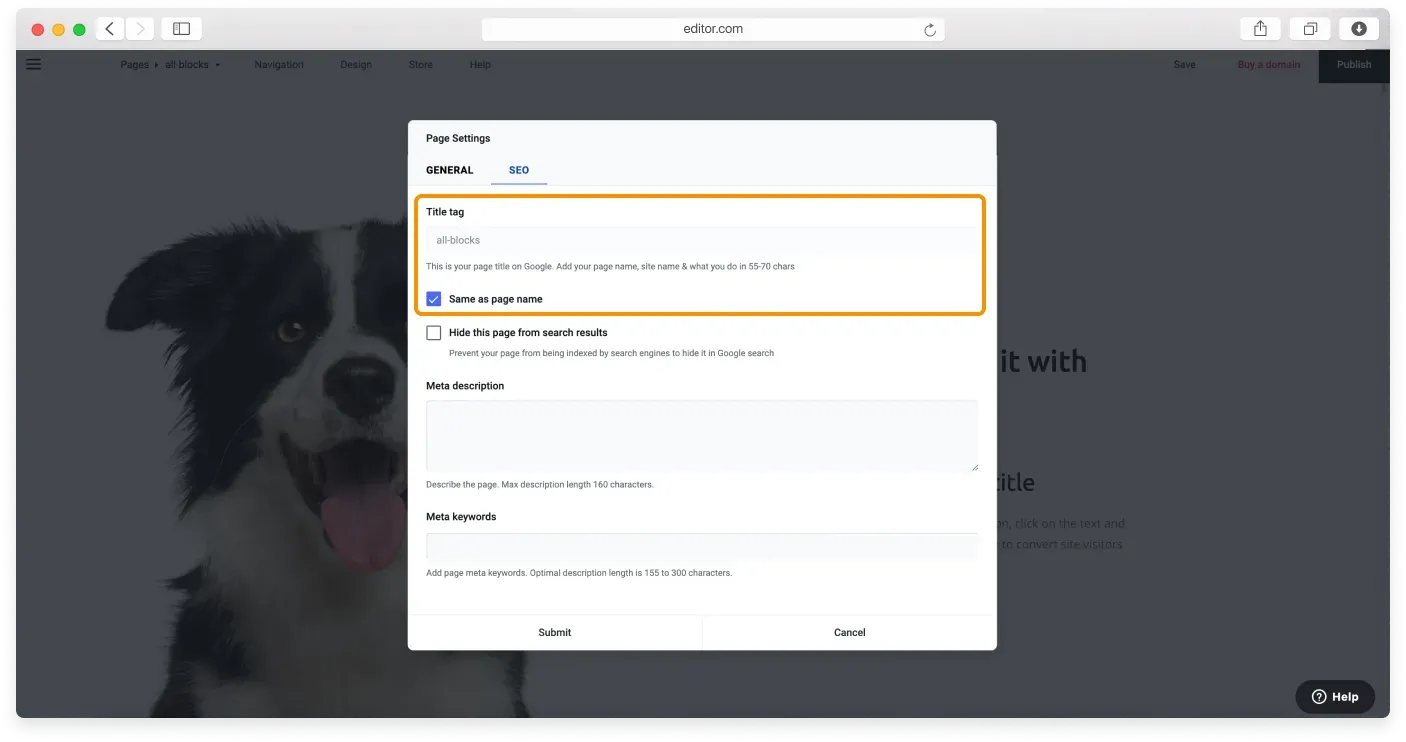
However, it is a good idea to have a unique title to set yourself apart from competitors on the SERP.
To activate the title tag field and add a search optimized page name, untick the Same as page name checkbox.
Title tag tips
Make sure your title gives an accurate and informative description of the page’s content, and use your main target keywords in it. Do not add special characters (including the double quote, forward slash, vertical bar, and ampersand) to the title, because some search engines can cut off the text that follows a special character.
Adding an SEO friendly page description
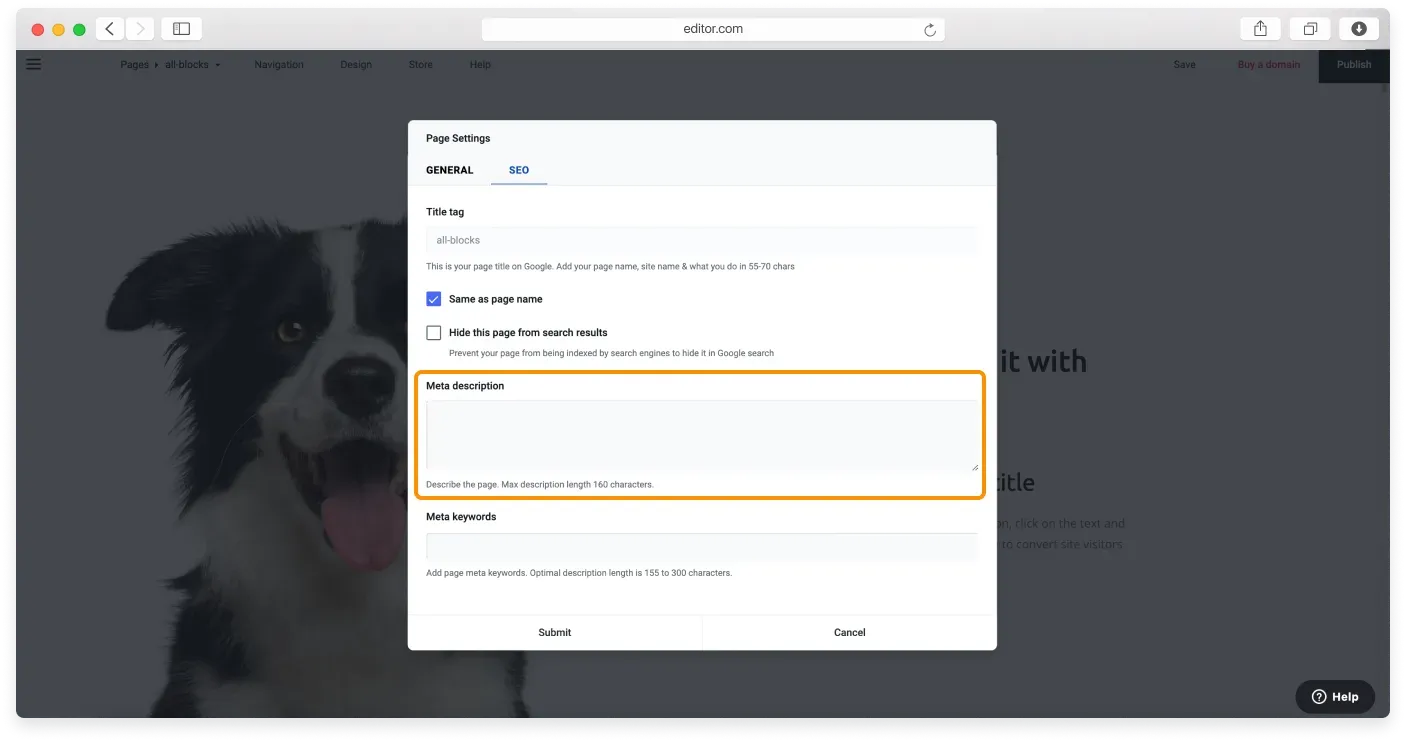
The page description, or meta description, is a brief summary of your page content, and it also appears on the SERP.

Type your unique page description into the Meta description field. The description should be between 50 and 160 characters.
Keep it clean
Remove all non alphanumeric characters, including quotation marks, from your meta descriptions.
Adding meta keywords for SEO
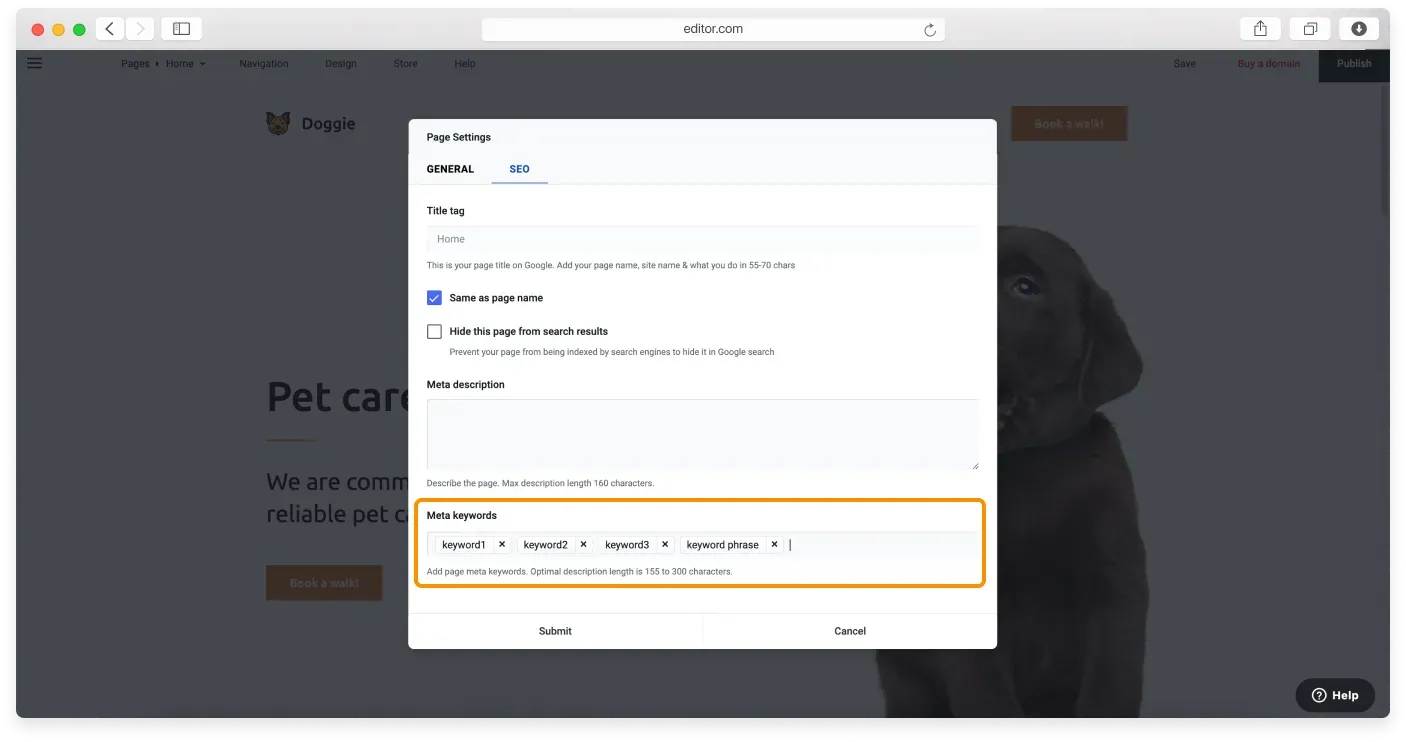
Meta keywords, also known as meta tags, give search engines extra information about your site. While they do not influence your page’s position in the SERP, they support the title and description with relevant keywords.
Type relevant keywords into the Meta keywords field. These can be single words or phrases. To enter a keyword, press comma, then move on to the next one. To delete a keyword, click the x icon next to it.
Do not overdo it
Avoid spamming or abusing the meta tags field, because hundreds of meta keywords will not help you rank higher on the SERP.
Remember to click Submit to confirm your changes once you have finished adding the title, description, and keywords.
Hiding your page from search results
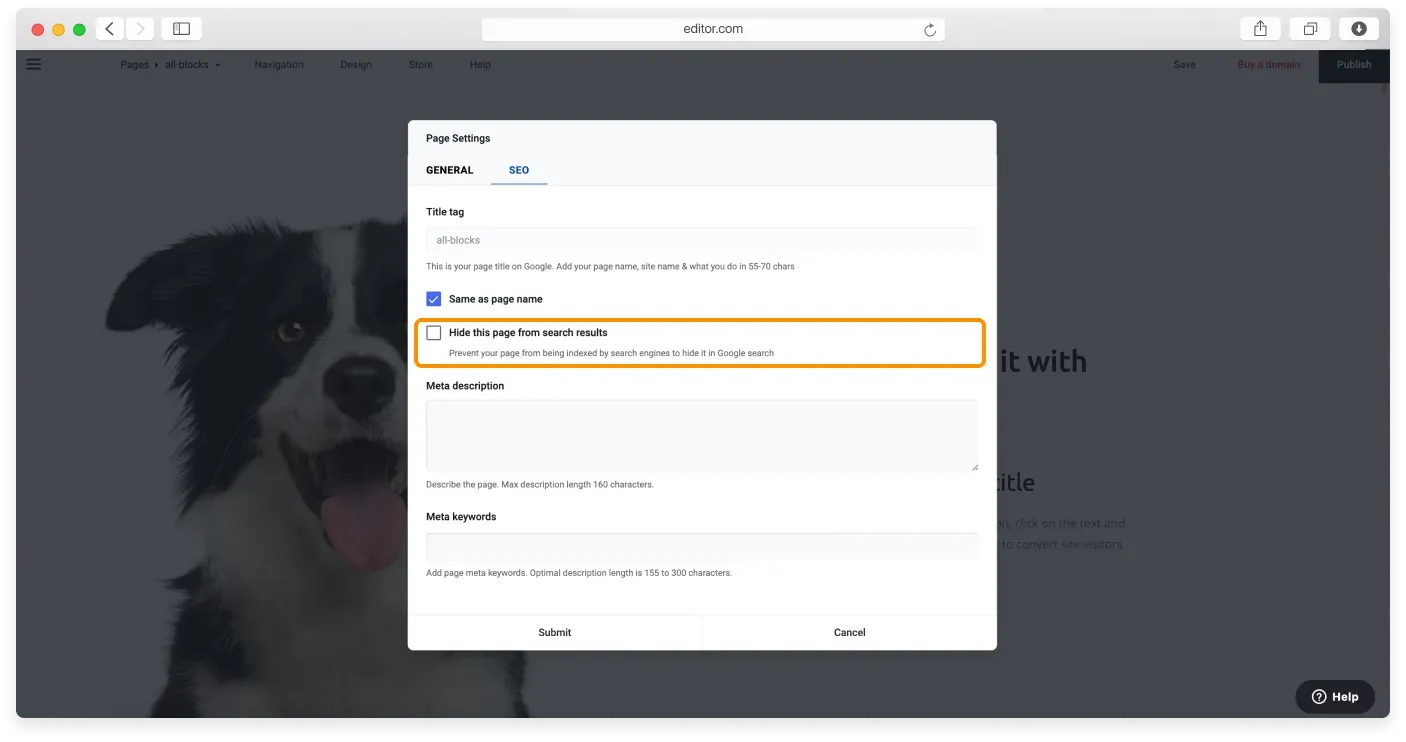
If you need to hide a page from search engine indexing, tick the Hide page from search results checkbox in the SEO tab, then click Submit to confirm the changes.
You can read the full guide on hiding your page from search engine crawlers in our dedicated tutorial.
Related articles
- Using metadata to improve your SEOUnderstand how title tags, meta descriptions, and keywords help search engines rank your pages.
- Viewing your site analyticsTrack visitors, visits, and pageviews with the built in analytics in the Website Builder.
- Adding Google Analytics 4 to your websiteConnect Google Analytics 4 to your Website Builder site to track traffic for free.
Can’t find what you need?
Contact our team. We’re here 24/7 by email and ticket.