
 English
 Svenska
Categories
Creating 301 redirects
Permanently send visitors from an old page URL to a new one so no one lands on a broken page.
On this page
If you need to route incoming traffic permanently from one page to another, 301 redirects are the best solution. URL redirection (or URL forwarding) is a technique for making a webpage available under more than one address.
You may want to change a page path (URL) for many reasons, including:
- You want to reorganize your website’s structure.
- You want to migrate your existing site to the Website Builder.
- You need to delete a page.
- You want to change an existing page’s publish path.
- You have found a broken URL.
When you replace an old URL with a new one, the old URL may still show up in the search results, and people visiting it will see a 404 page, which hurts your SEO. But when you set up a 301 redirect, visitors clicking the old URL are taken to a specified new page and will not get lost.
Redirecting a page
To permanently redirect your old page to a new URL on your site, follow these steps:
-
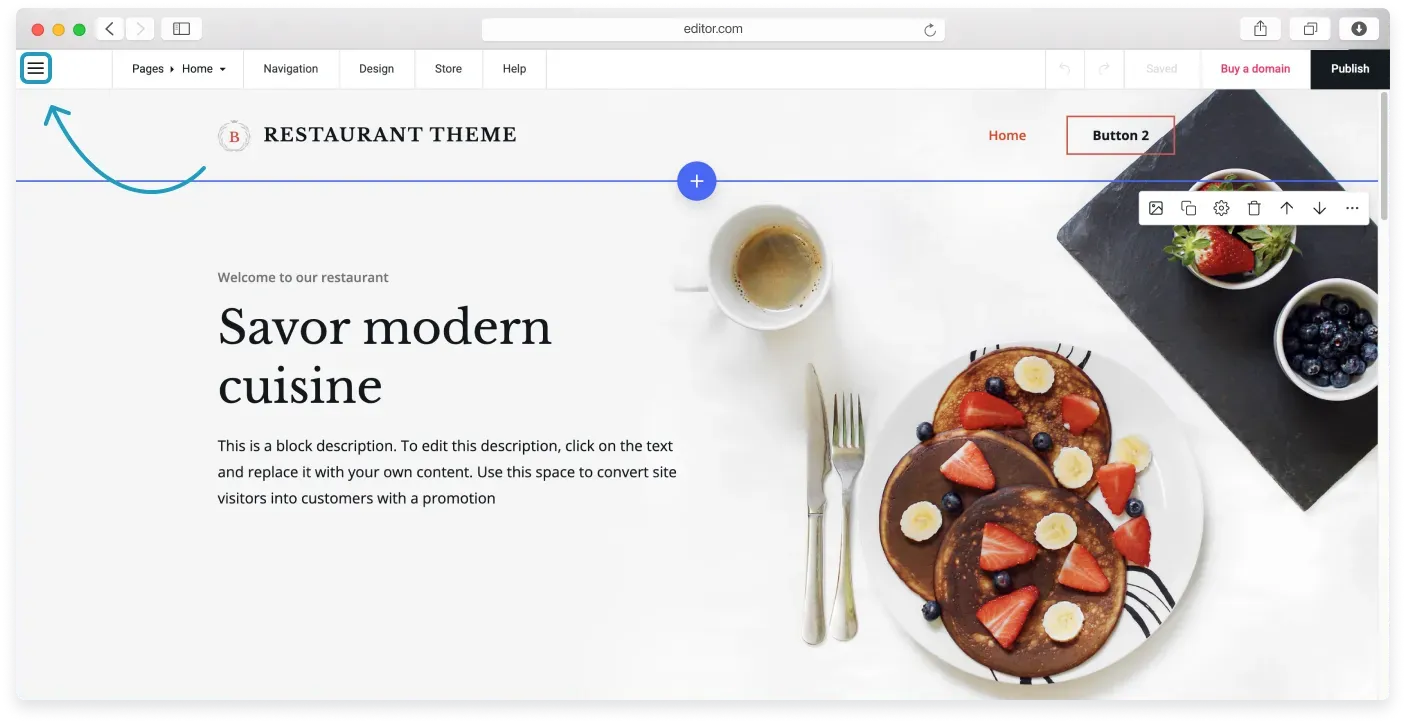
Click the Menu icon in the upper left corner of the editor. Choose the Settings tab to open Website settings.
-
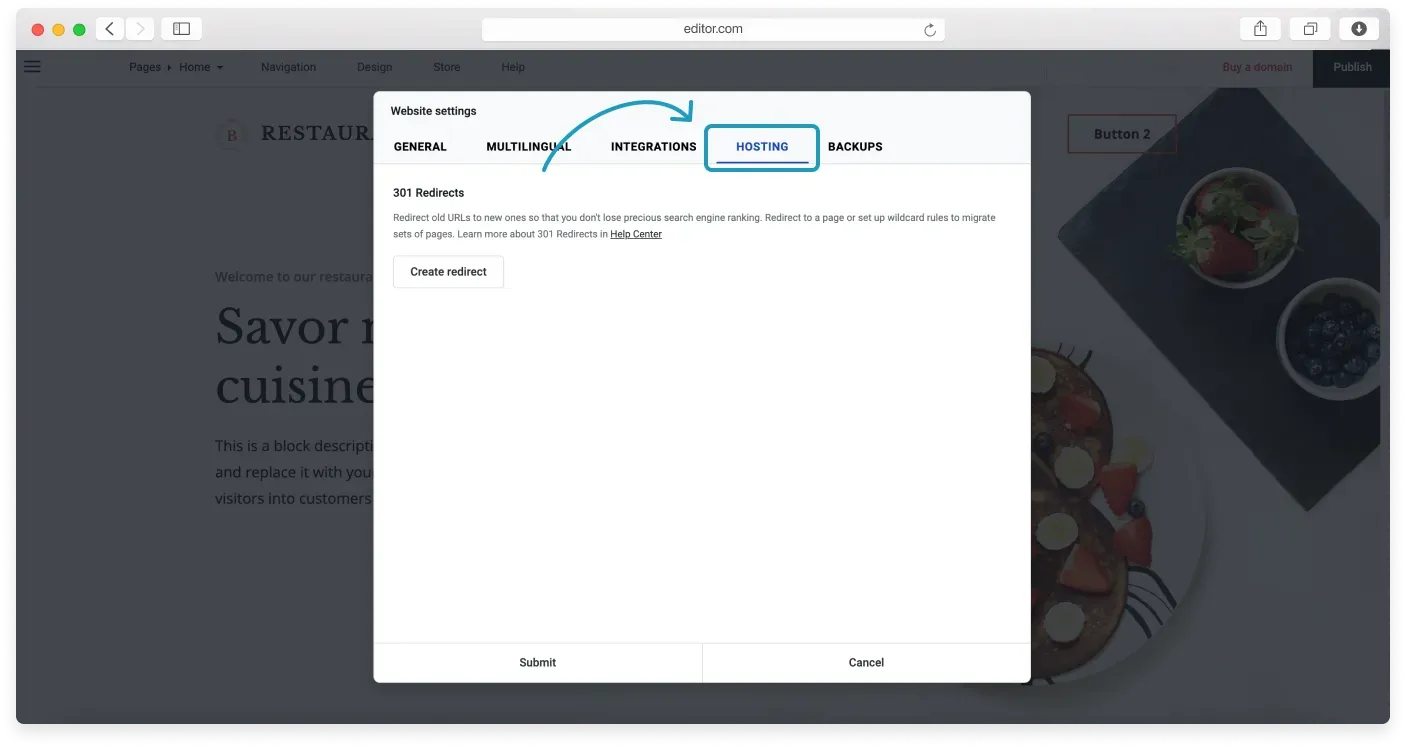
Choose the Hosting tab in Website settings.
-
Click the Create redirect button.
-
In the pop up window, add the Old path (for example
/original-url) and the New path (for example/entirely-new-url), then click Submit.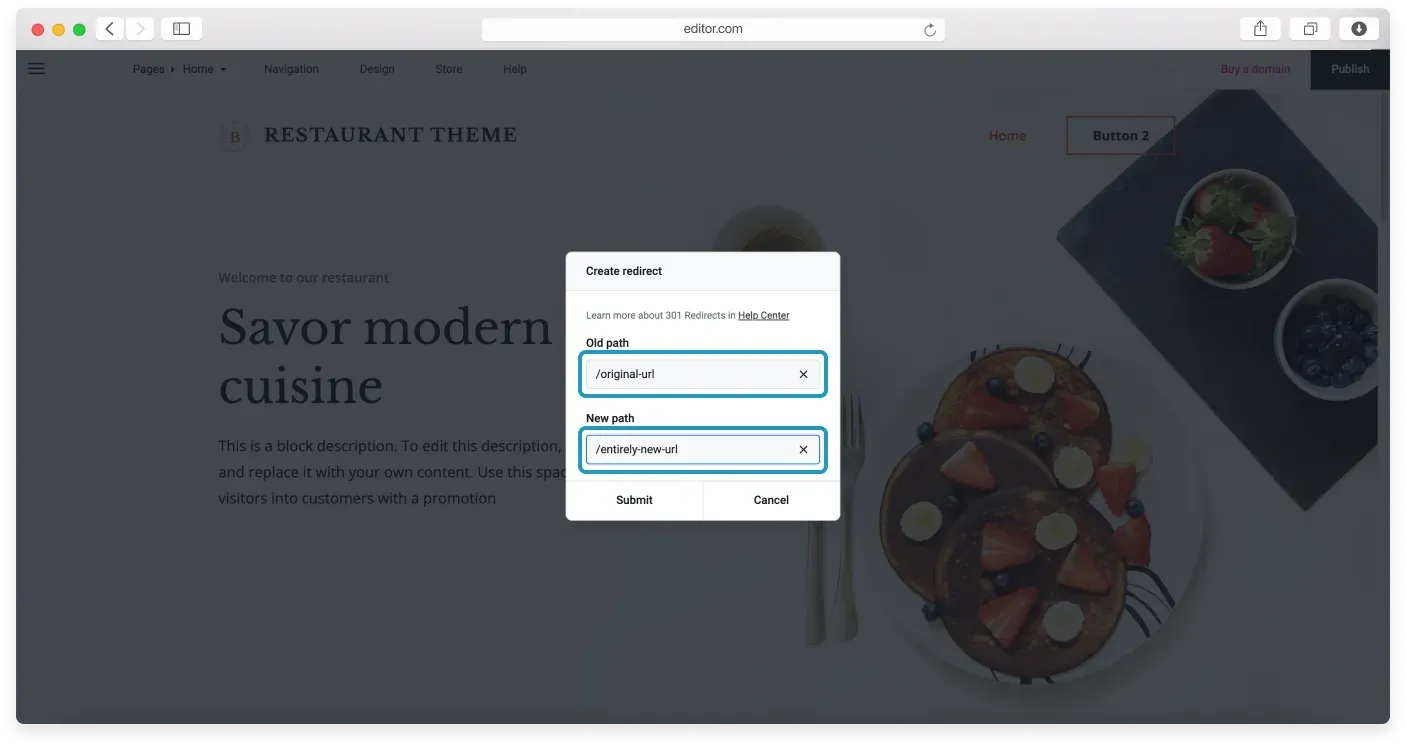
-
Publish your site and test the redirect by entering the old URL in a new browser tab. There can be up to a one minute delay after publishing before the redirect applies.
Clear your cache to see changes
Browsers usually cache 301 redirects. So if you applied a redirect from URL A to URL B, tested it in your browser, and then redirected URL A to URL C, you need to clear your cache to see the change. Alternatively, you can use Incognito mode (opens in a new tab).
Editing and deleting a redirect
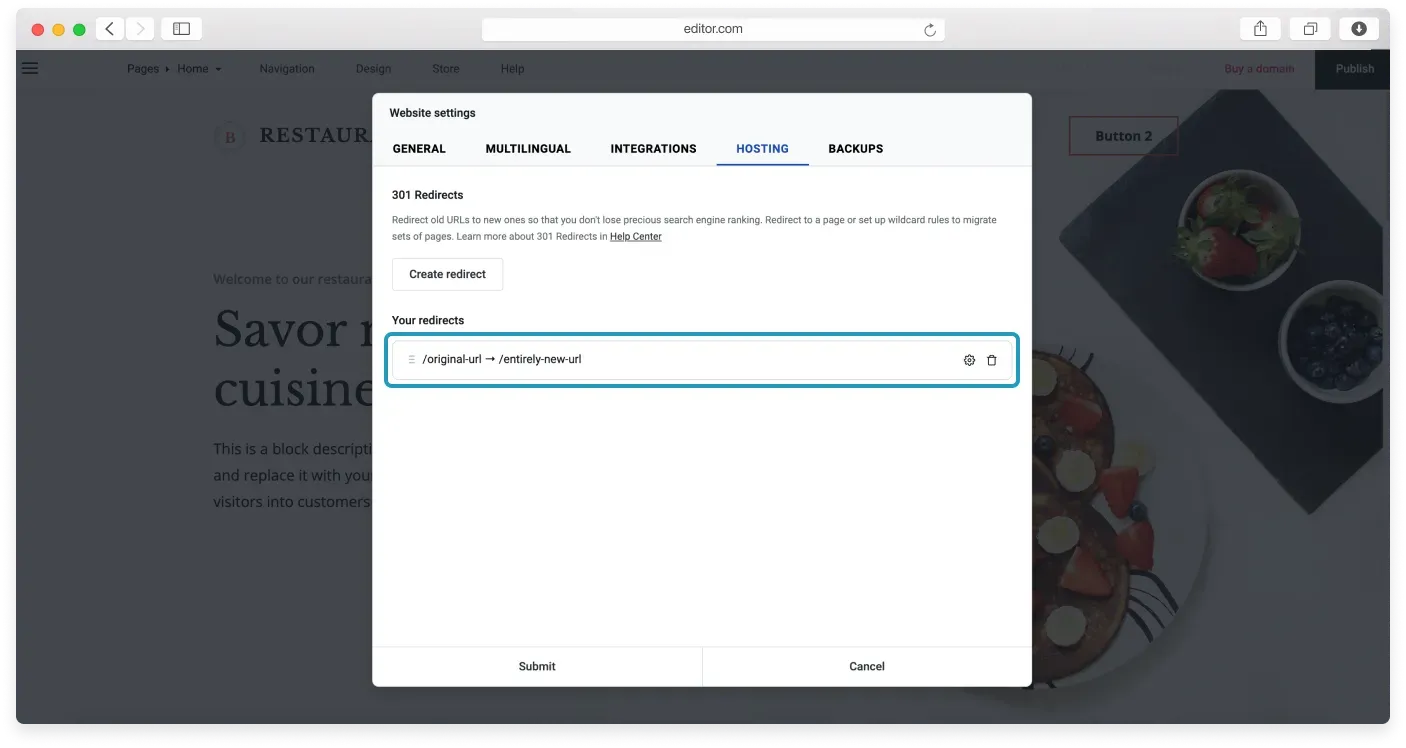
All your redirects form a sortable list that you can reorder by dragging and dropping the items. The redirect at the top of the list is given the highest priority. They apply one by one from top to bottom.
When you hover over a redirect, two icons appear on the right side of the item. Click the Settings icon to change your redirect, and the Trash bin icon to delete it.
Redirecting a folder
You can create a group redirect (a wildcard redirect) that redirects related URLs sharing the same path. To redirect all pages of a directory (a folder) to a new destination, follow these steps:
- Add a capture group
(.*)in the old URL structure in the Old path field (for example/old-folder/(.*)). - Add the target URL
/$1for the new URL structure in the New path field (for example/entirely/new-folder/$1).
Multiple capture groups
You can add multiple capture groups to create more complex redirect rules. For example, /blogs/(.*)/(.*) can be redirected to /articles/$1/$2.
Wildcard redirect examples
Suppose you are reorganizing your website’s structure and want to redirect some pages. For example, you have a restaurant folder with food and drinks subfolders, and you want to redirect all the subfolders and their pages from the restaurant folder to menu. If you redirect it page by page, the sequence looks like this:
domain.com/restaurant/food/breakfast/    to    domain.com/menu/food/breakfast/
domain.com/restaurant/food/lunch/        to    domain.com/menu/food/lunch/
domain.com/restaurant/drinks/coffee/     to    domain.com/menu/drinks/coffee/
If you present your categories as capture groups marked with (.*), you can achieve this with a single redirect:
- Old path:
/restaurant/(.*)/(.*)/ - New path:
/menu/$1/$2/
Escape characters
Some interfaces do not accept question marks (?) or equal signs (=) in URLs during redirects. Users have to put a $ sign before them to escape these special characters.
The Website Builder handles these special characters perfectly, so you do not need to use any escape characters in your redirect URLs.
Redirect loop
A redirect loop happens when you redirect a URL to another URL that redirects back to the originally requested URL. This creates an infinite cycle of redirects that makes your website visitors and search engines get stuck on your site.
For example, you set up a 301 redirect from URL A to URL B. Then you add a 301 redirect from URL B to URL C, and then URL C redirects back to URL A.
This leads to an endless chain of redirects, producing the following error message in your browser: ERR_TOO_MANY_REDIRECTS.
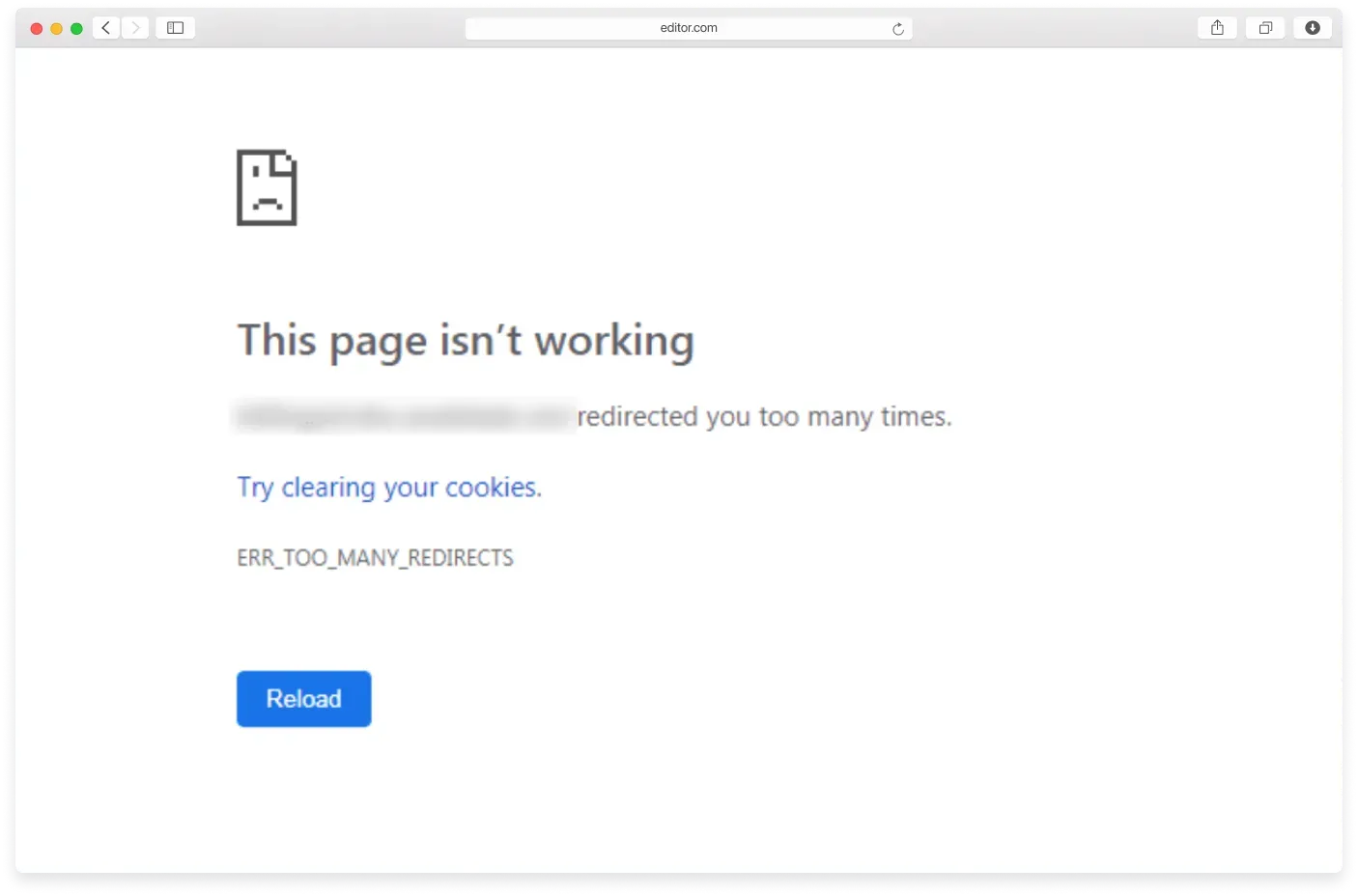
You can also create an infinite loop using a capture group (.*) if you set up a redirect like this:
- Old path:
/(.*)/ - New path:
/$1-test/
Related articles
- Customizing your page SEO settingsAdd a search friendly title, description, and keywords to each page of your Website Builder site.
- Using metadata to improve your SEOUnderstand how title tags, meta descriptions, and keywords help search engines rank your pages.
- Viewing your site analyticsTrack visitors, visits, and pageviews with the built in analytics in the Website Builder.
Can’t find what you need?
Contact our team. We’re here 24/7 by email and ticket.