
 English
 Svenska
Categories
Adding website content on mobile
Add and edit blocks, images, text, and downloadable files from your mobile device.
On this page
You can customize your website using any mobile device, as long as you have an internet connection. You do not even need a mobile app to do it, just log in to your account from your browser and open the Website Builder.
In this article, we review how to add site content using your mobile device.
Adding and editing blocks
Adding new blocks to the page is similar to how you do it on your desktop. To add a new block, navigate to where you want it and tap on the border between two blocks. You will see the Add a block button.
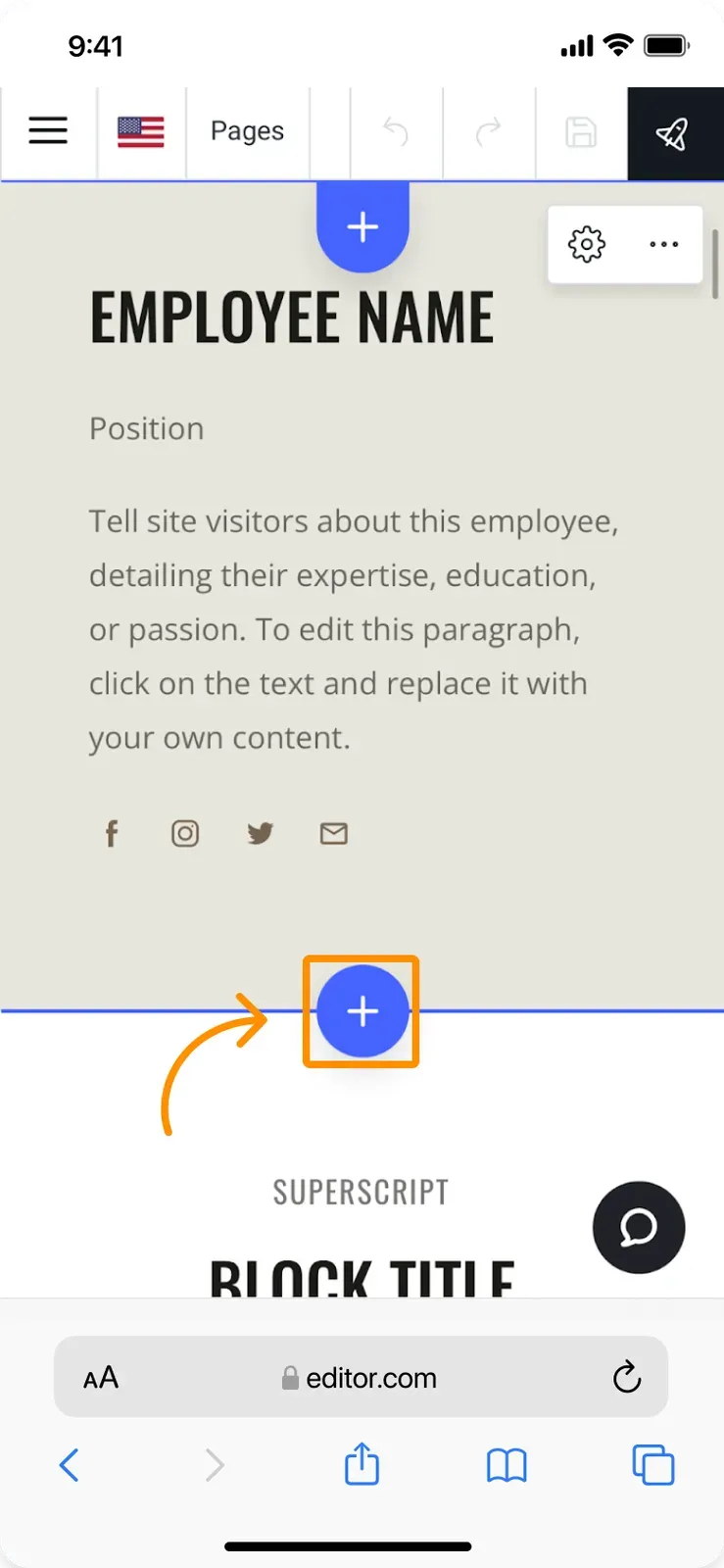
Select the block type you need in the Block Library. For a quick and convenient search, type the kind of block you are looking for in the search field. For example, when you type “Form”, you see all blocks that contain a form.
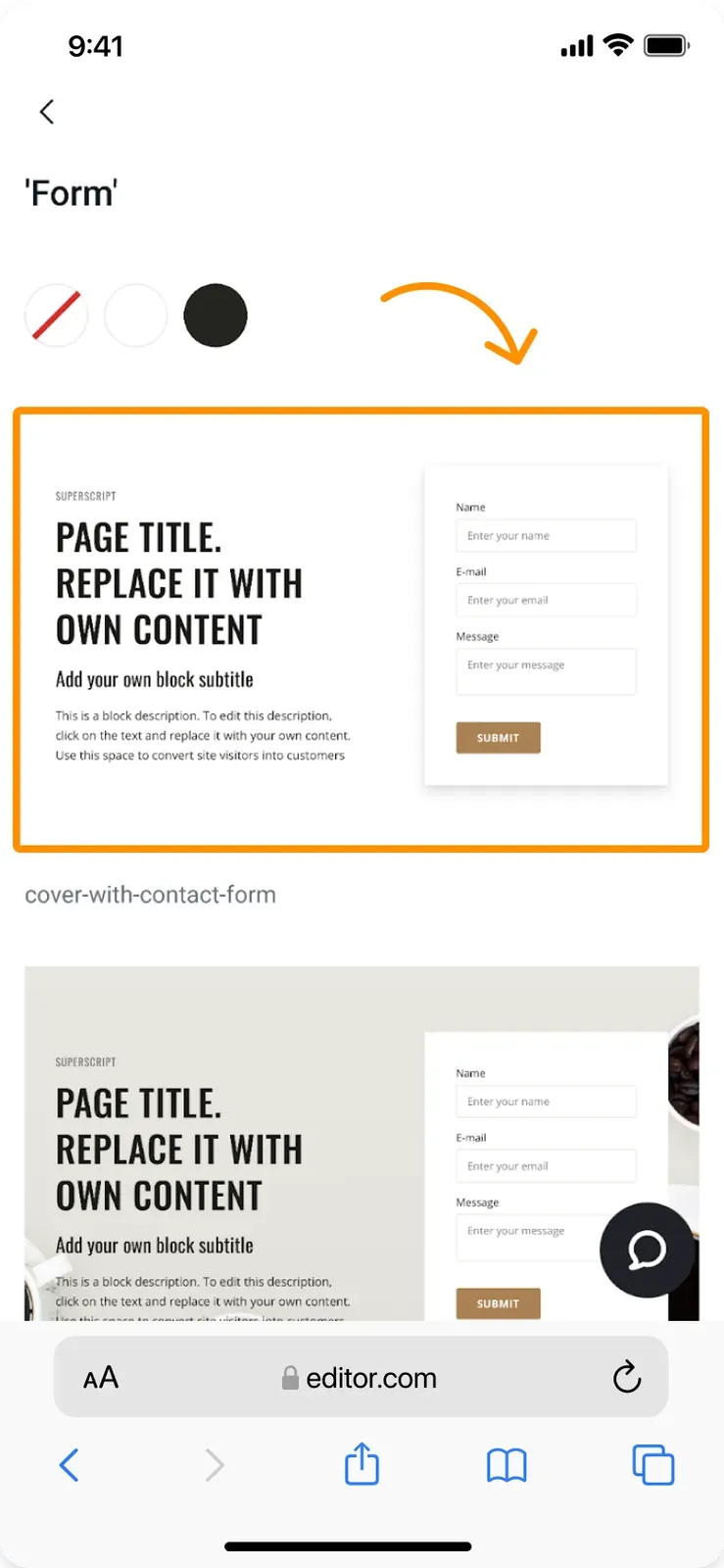
Now that the block is added, you can continue editing it. There are separate tutorials that show you how to change the block background, change block settings, and customize a map.
Adding and editing images
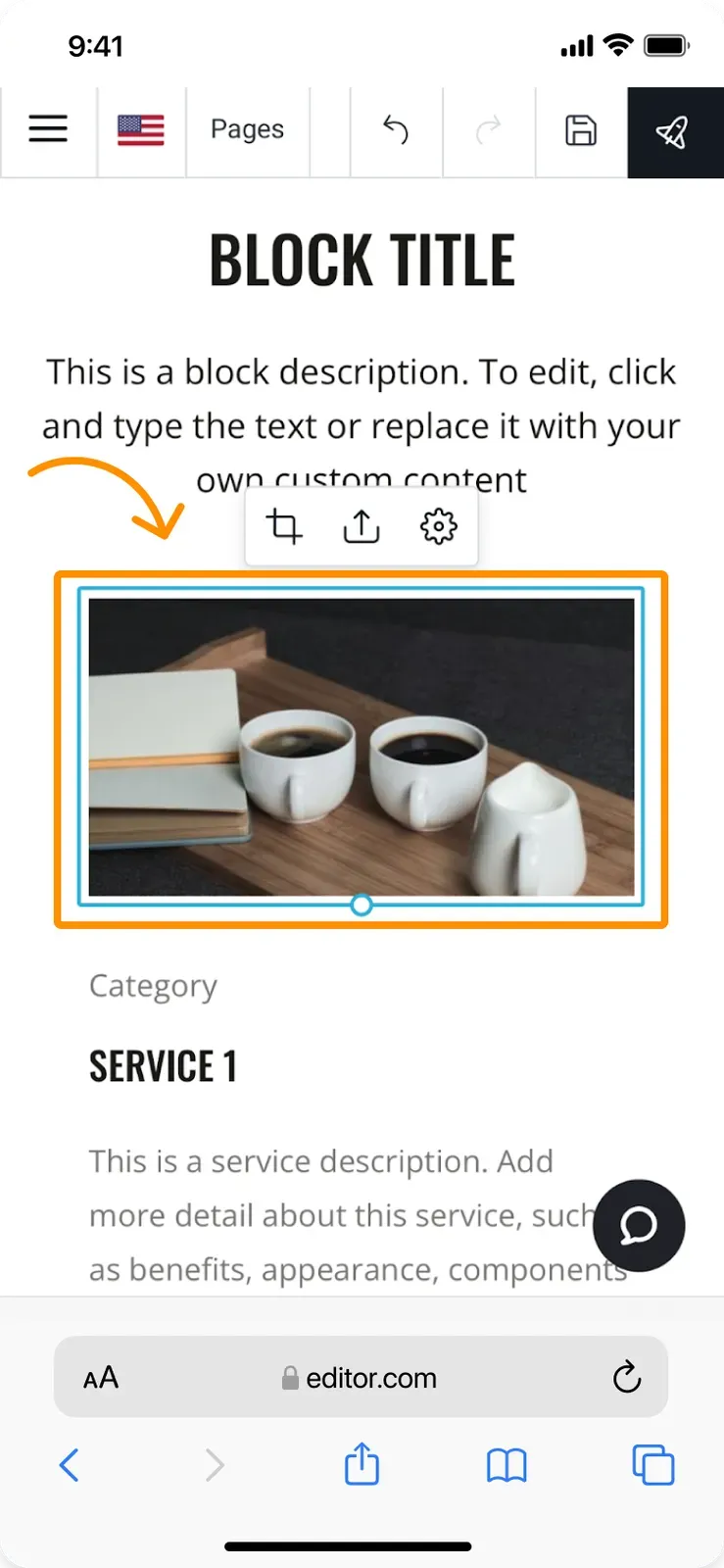
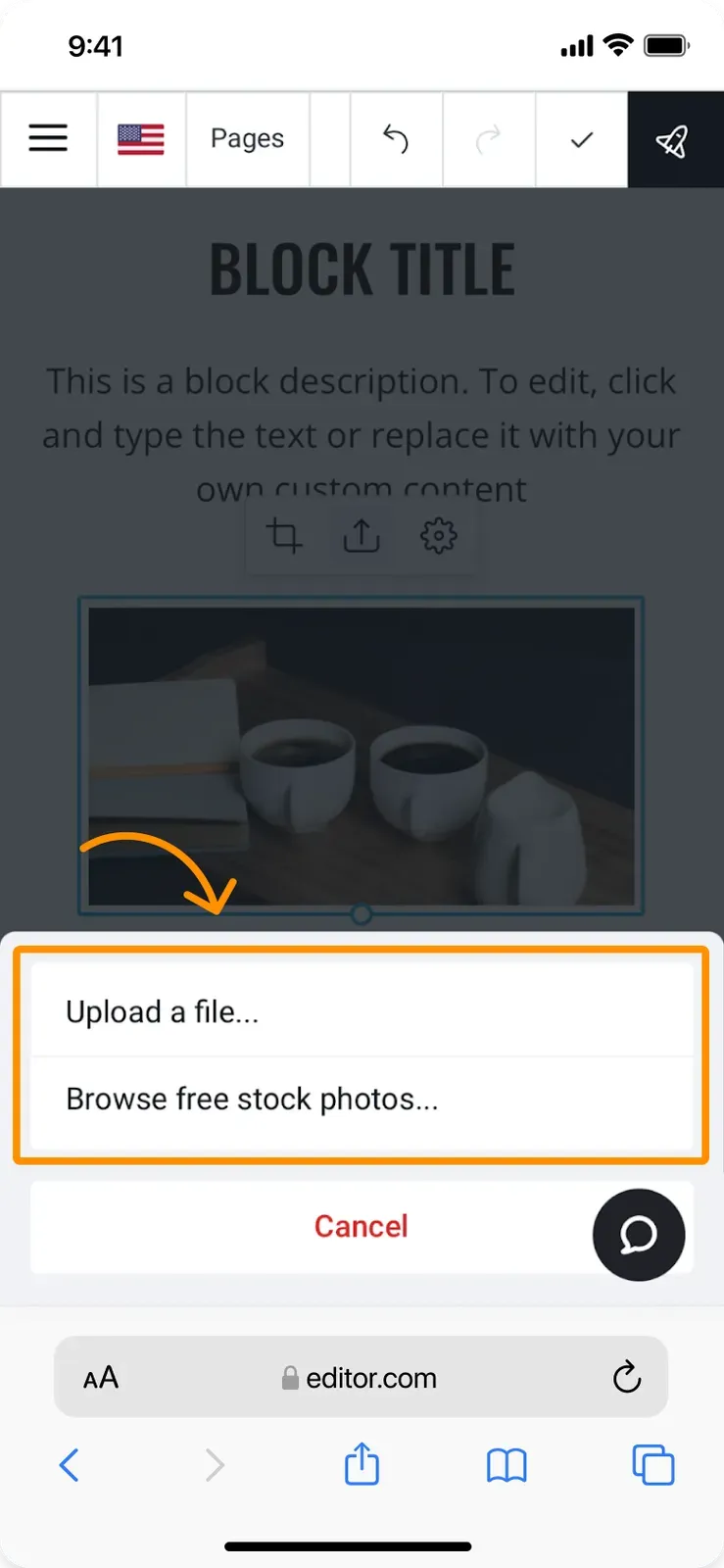
To add an image from your mobile device, tap on the demo picture twice and tap the Upload image icon.
There you can choose to either upload a file from your device or use a free stock photo.
For more on editing images, see our Images block section.
Adding and formatting text
To add text to your website from your mobile device, tap on the demo text twice. You can then type, paste, and edit the text. You can also cut or copy the text you already have on your site.
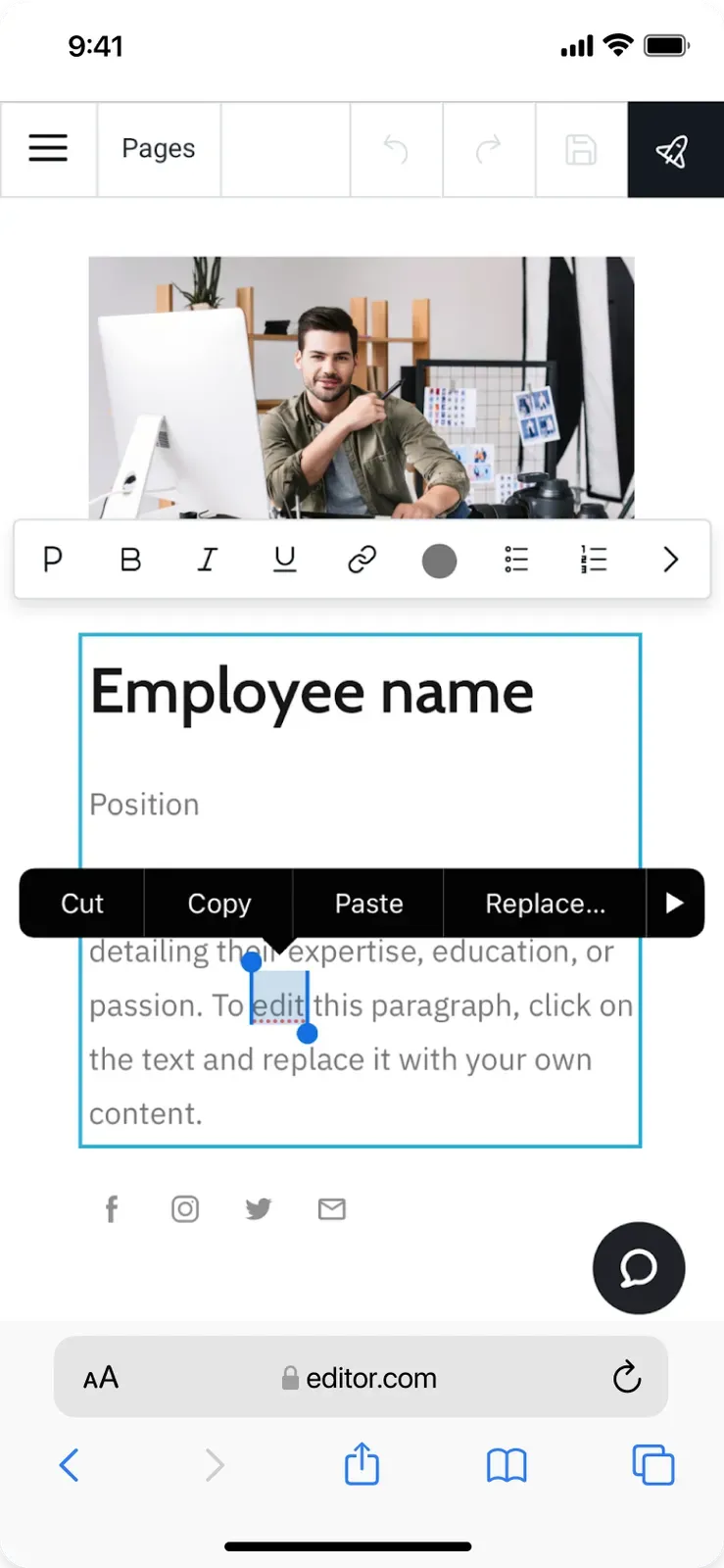
The mobile Website Builder offers the same text formatting options as the desktop version. To learn more, see the tutorials on text editing and formatting, changing website fonts, and creating text links.
Adding downloadable files
When you attach a downloadable file to a link, your site visitor can tap it to download the file to their device. You can attach downloadable files from your mobile device to text links, buttons, and images. There are separate tutorials that show you how to attach a file to a text link, to a button, and to an image.
Related articles
- About mobile editingHow the mobile Website Builder lets you create and edit your website from any phone or tablet.
- First steps to building your website on mobileSign up and use the Setup Wizard to pick a template and set up your site from your phone.
- Creating a mobile-responsive websiteYour Website Builder site automatically adapts to look great on any screen size.
Can’t find what you need?
Contact our team. We’re here 24/7 by email and ticket.