
 English
 Svenska
Categories
Creating a multilingual site
Add extra languages to your site and manage language-specific content and navigation.
On this page
If your company offers products or services to an international audience, a multilingual site can help you reach your target audience and explore new global markets. This tutorial shows you how to make your site multilingual.
Before you begin
We recommend creating all the essential pages of your site, such as Home, About Us, and Contacts, before making your site multilingual. This ensures that all of your existing pages are created in your new language at once, so nothing is missing.
Adding a new language
To add new languages to your site, follow these steps:
- Click the Main menu button in the top left corner of the Website Builder.
- In the sidebar, click Settings to open the Website settings menu.
- In the Multilingual tab, click the Add language button.
- In the Add new language menu, choose the language you want to translate your site into. You can scroll down the dropdown, or type the first few letters and the system searches as you type.
- Click Submit. The secondary language is added to your Multilingual tab.
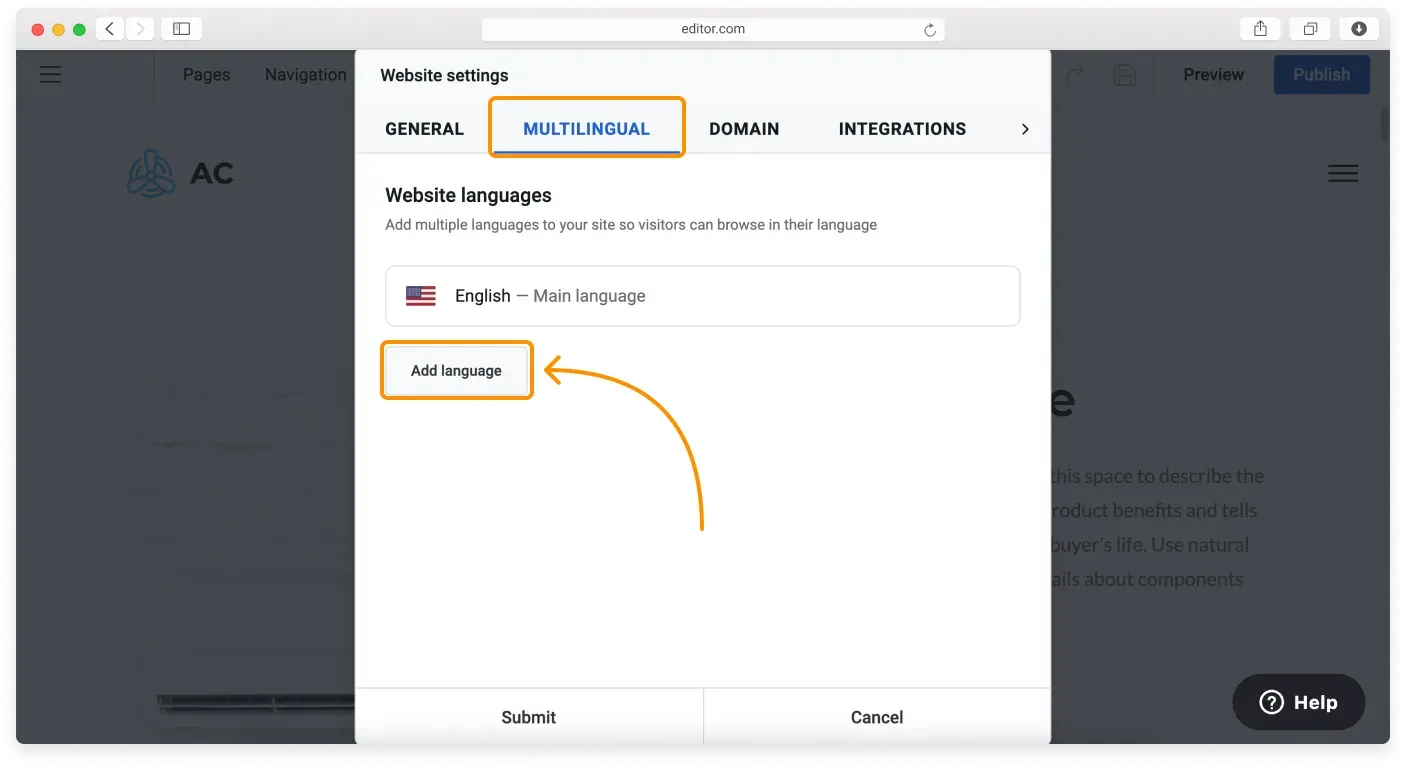
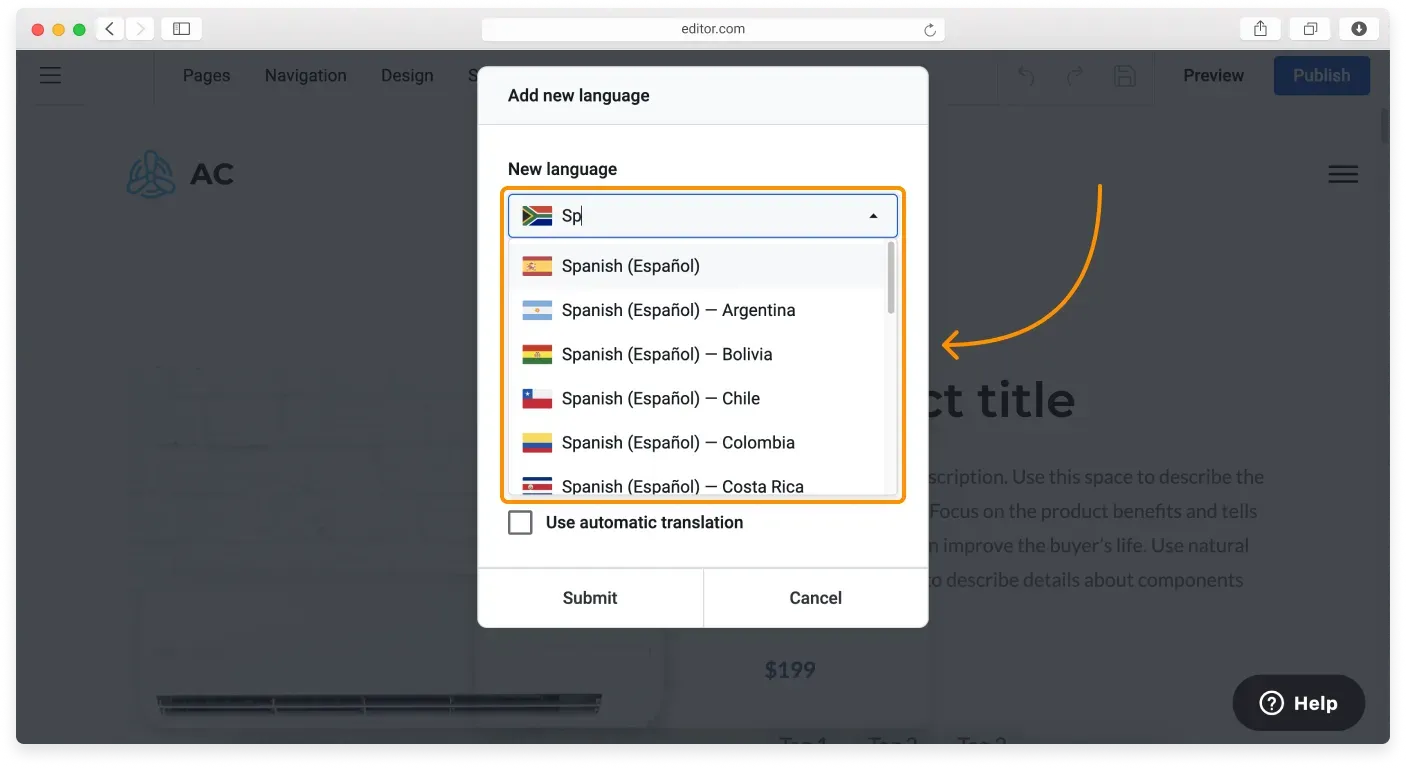
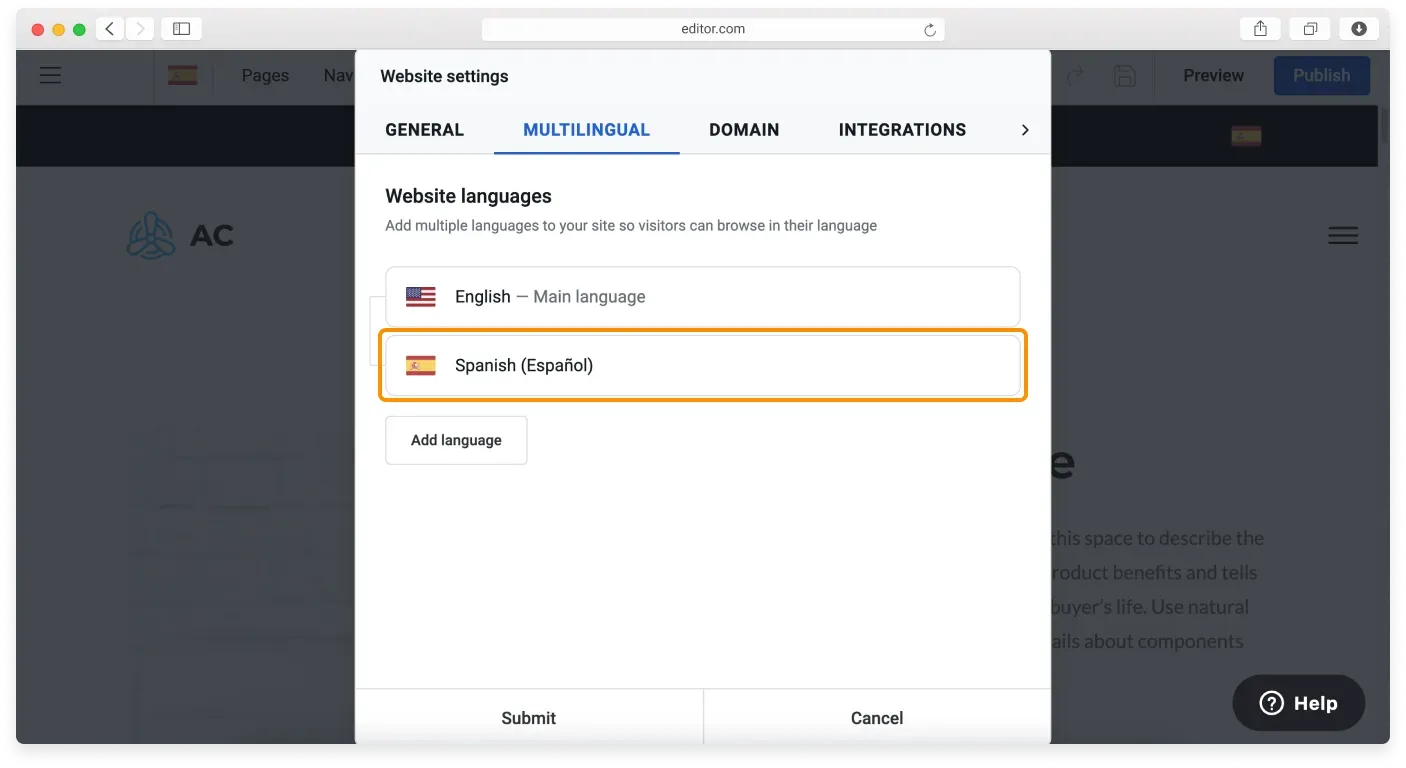
Your site is now multilingual. You can start manually translating your content into the secondary language. You can also replace the images and blocks completely, so different audiences see different content.
Demo content added
After you set your site as multilingual and choose a language in the Language Selector, all the pages are created with demo content in that language.
The Language Selector
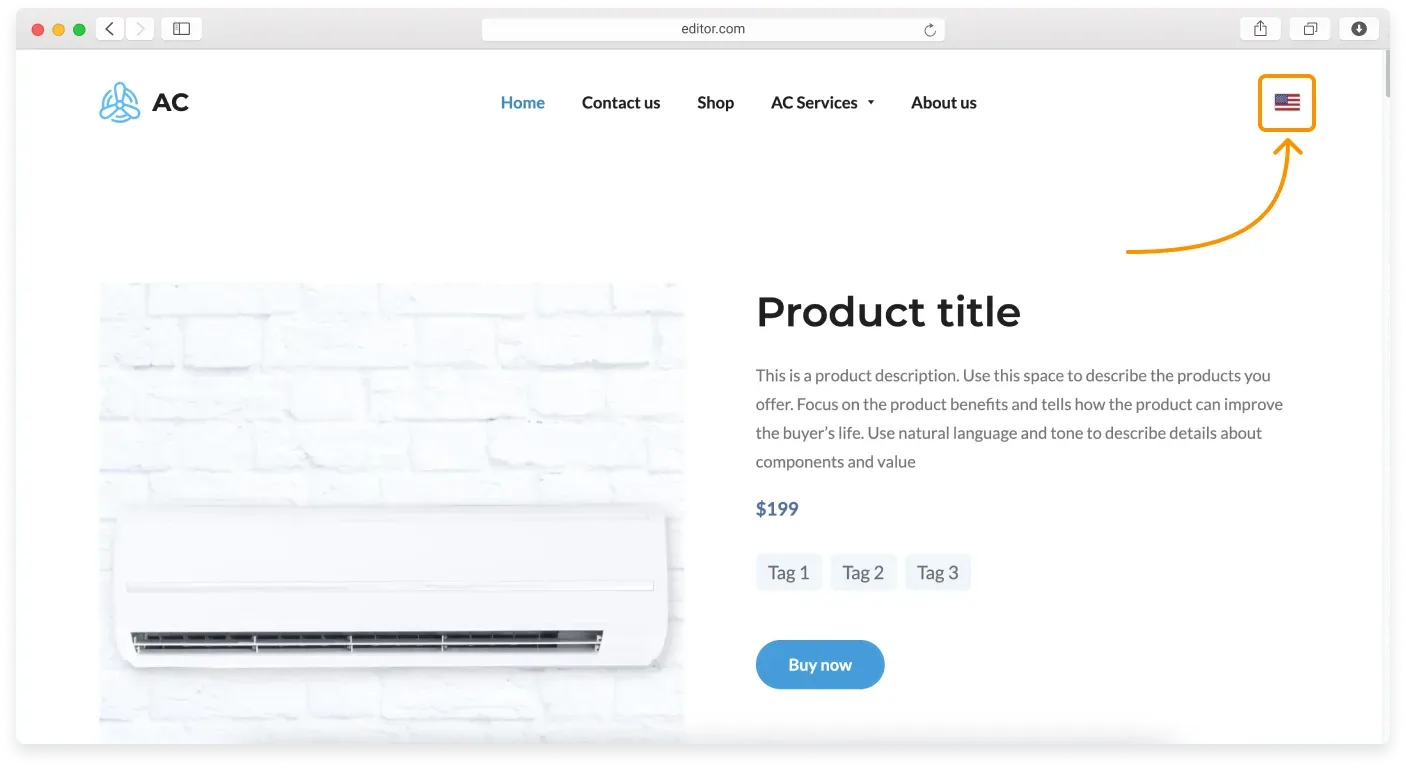
After you add the secondary language, the Language Selector automatically appears both on your site and in the top bar of the Website Builder, making it easy to navigate between your languages while building. The flag icons are set automatically based on the languages you add.
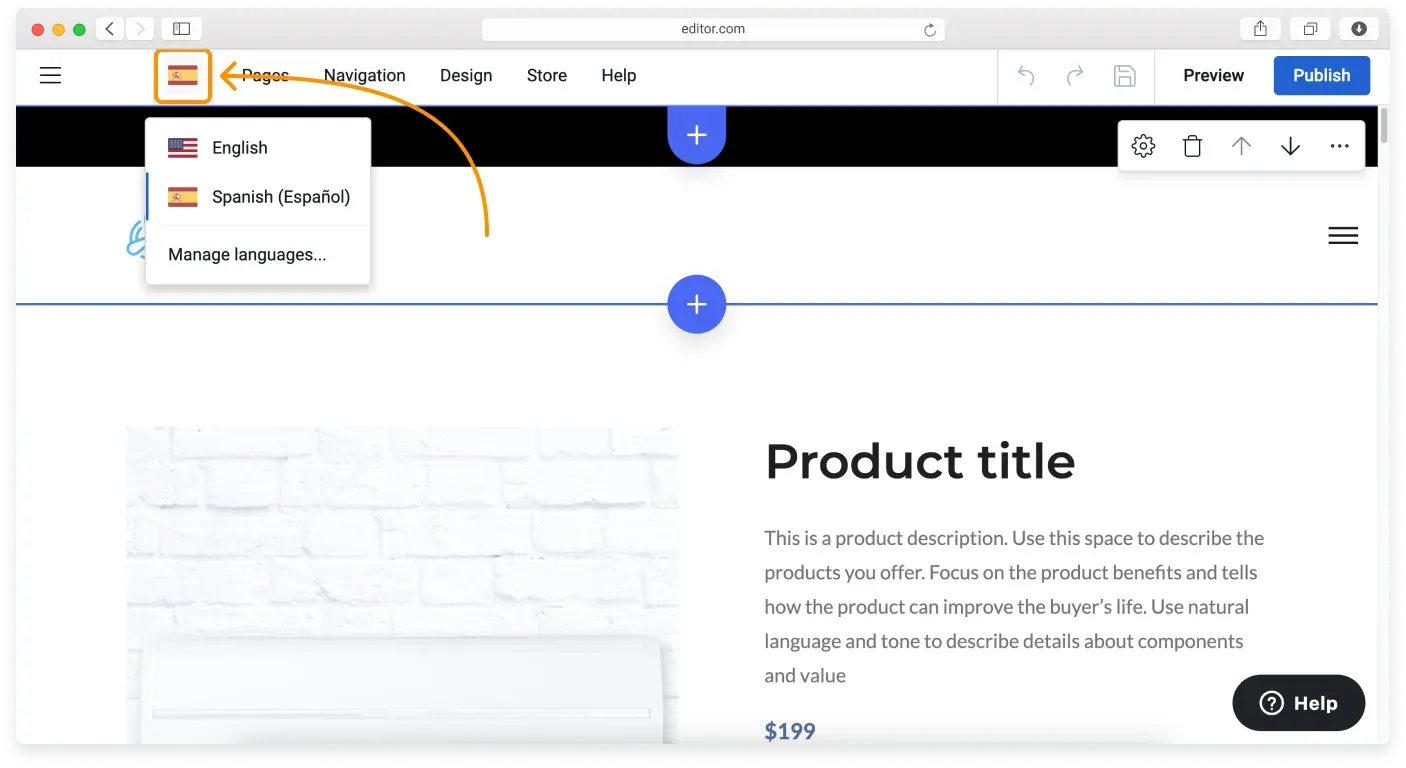
The Manage languages link takes you directly to the Multilingual tab in the Website settings menu.
On your published site, the Language Selector (language switch) appears automatically and lets visitors pick a language version of your site.
Translating and managing language-specific content
You can control which content is displayed for each region. A multilingual site lets you show different product offers for specific countries and provide a more tailored experience for each market. You can offer a language-specific product catalog, and use different images, backgrounds, and page or block layouts on your language-specific pages.
You can translate your language-specific content yourself or by using modern technology, such as:
- The Website Builder AI Translation feature (available for paid plan users).
- Online translation services: Google Translate (opens in a new tab) (free), Gengo (opens in a new tab) (paid), Translate.com (opens in a new tab) (free plan available), ChatGPT (opens in a new tab), and many more.
- A human translator hired at Upwork (opens in a new tab), Fiverr (opens in a new tab), or a similar freelancer platform, who can help polish your copy in the language you need.
Changing the main language
The main language is the language your visitors see when they load your site. English is the main language by default.
If you need to change it, you can do so in the Website settings. Go to Main menu (the top left hamburger button in the Website Builder), then Settings, then the Multilingual tab.
Or use a shortcut: click the Language Selector, then Manage languages. This takes you directly to the Multilingual tab of the Website settings.
From there, click the house icon next to the language you want to set as the main one.
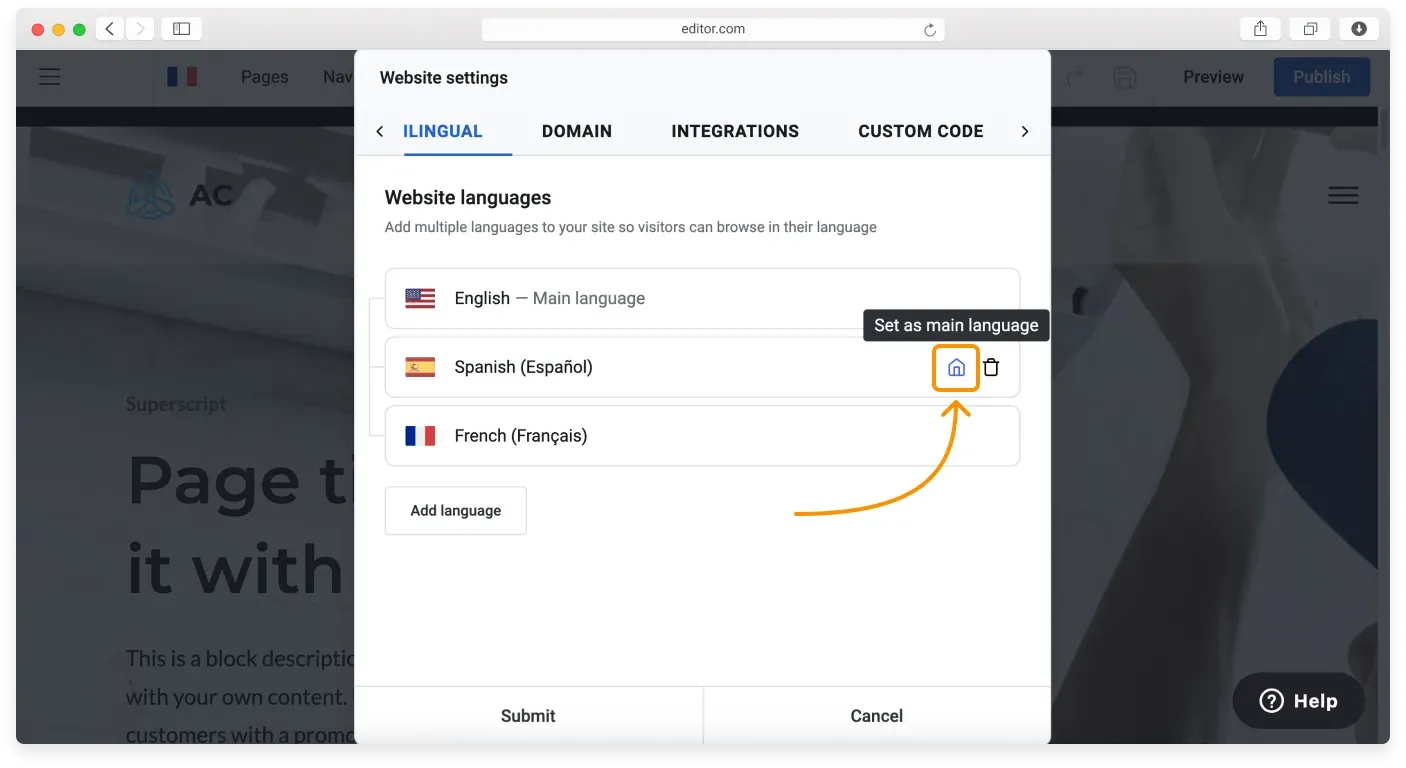
Confirm your choice by clicking Submit in the pop-up window, then clicking Submit again in the Website settings. Remember to publish your website to make those changes live.
Managing your language-specific pages
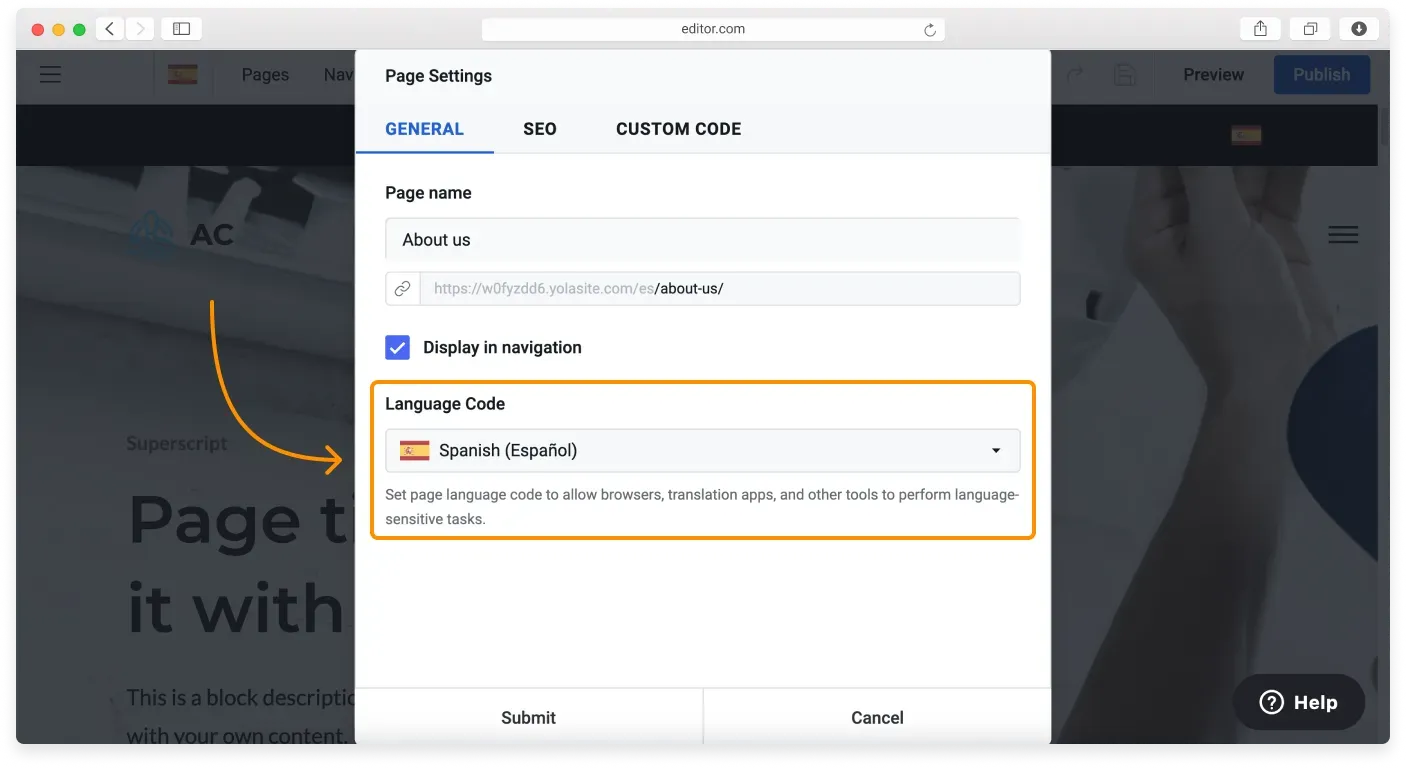
After you add a new language, the Website Builder creates copies of your existing main language pages.
These new pages have the corresponding language settings. You can check them at Pages, then Page Settings, then Language Code.
Translating pages and navigation
You can translate any new pages you create into each of your site’s languages. For the full process, see our dedicated tutorial on translating your pages.
You can also translate your site’s navigation for each language. See our dedicated tutorial on creating multi-language site navigation.
Related articles
- Custom blockBuild a block from scratch by arranging widgets like text, images, buttons, and forms exactly how you want.
- Block settingsAdjust a block's layout and appearance, from background and spacing to alignment, borders, and overlays.
- Premium blocksAccess advanced, trend-focused block layouts available on paid Website Builder plans.
Can’t find what you need?
Contact our team. We’re here 24/7 by email and ticket.