
 English
 Svenska
Categories
Block settings
Adjust a block's layout and appearance, from background and spacing to alignment, borders, and overlays.
On this page
Blocks in the Website Builder are highly customizable. You can change many elements while keeping the layout beautiful and mobile friendly: block background, content alignment, block spacing, and more.
This tutorial walks you through every setting you can change in the Block settings menu.
Accessing the Block settings menu
To open the Block settings menu, hover over the block to activate its control pane and click the Block settings icon.
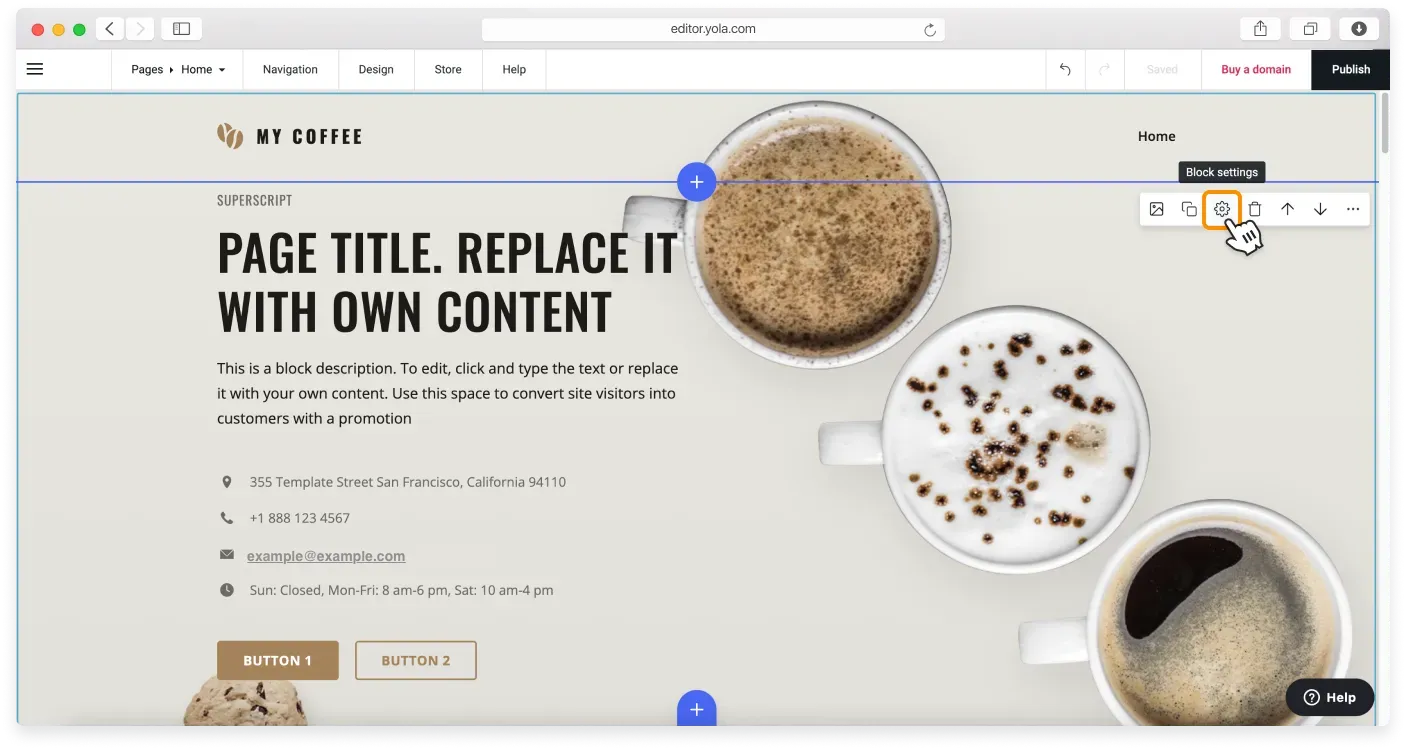
The Block settings menu has two tabs: Layout and Appearance. Let’s explore each of them in detail.
The Layout tab
In the Layout tab, you can switch the block layout or hide some of the block elements.
To switch the block layout, click the respective button and select a new block content layout, then click Submit to save the changes. You can scroll down for more options and preview a layout by clicking on it.
To hide a specific block element, untick the blue checkbox next to its name. You can tick it again if you change your mind.
Remember to click Save to apply the changes.
The Appearance tab
In the Appearance tab, you can choose the background color of your block, change content alignment, turn on a background overlay, and more. Since every block type has its own special features, each of them has its own selection of settings. Let’s review the options one by one.
Replace image
For blocks with a background image, you can replace it in the respective section.
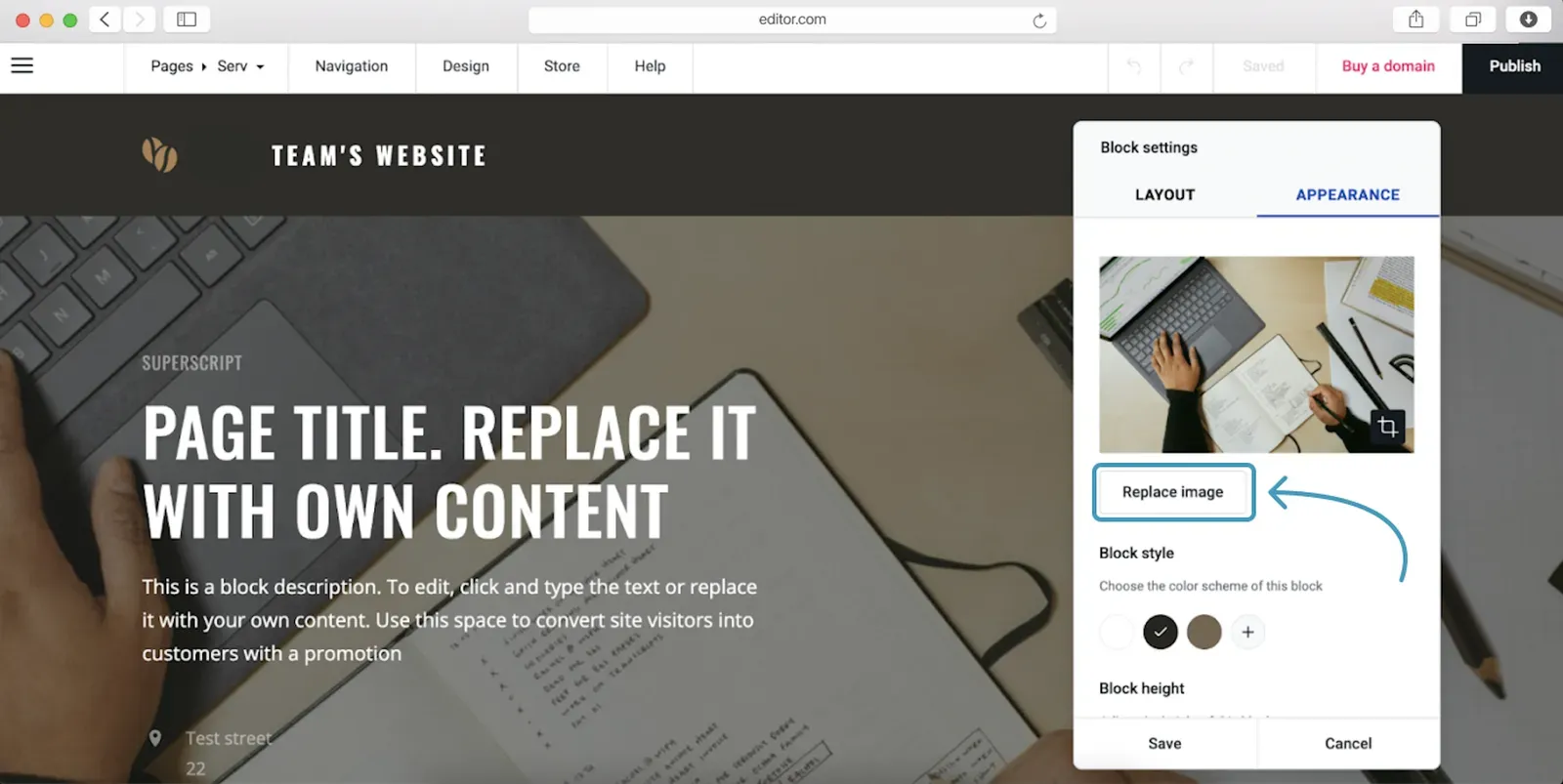
You can also change your background image’s position and focal point by pressing the crop icon and dragging your image to the position you want, or by using the zoom in and zoom out tool.
Block style
If you want to customize the colors of your block, change its color scheme by clicking the plus icon in the Block style section.
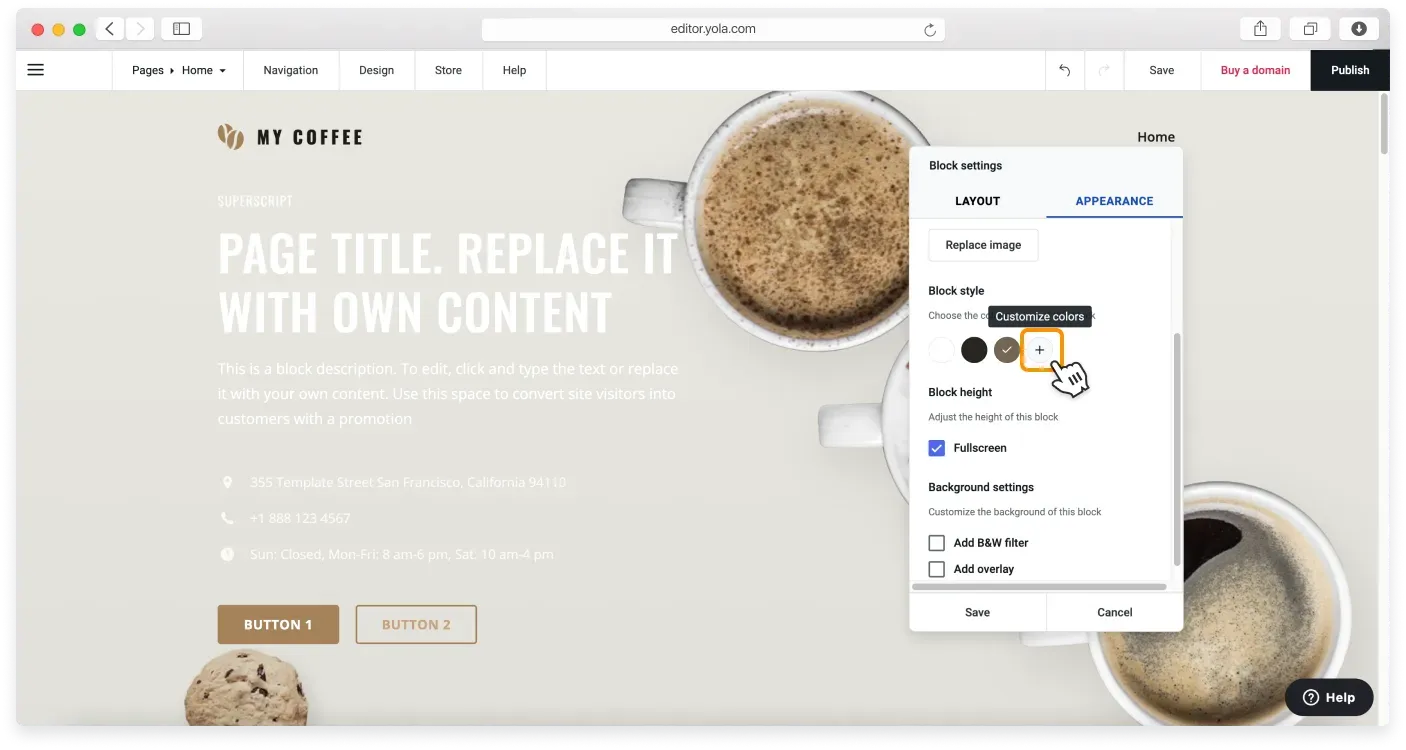
Read more about your site’s color palette in our dedicated tutorial.
Media content width
You can customize the media content width in split screen blocks and blocks with side media (blocks where the image covers half of the block space). The Media content width feature lets you increase or decrease the part of the block taken up by the image. This way, you can create a unique website layout.
Block spacing
By adding space between blocks, you can keep your site from feeling cluttered. Adjust the whitespace of a block by changing the top indent and the bottom indent.
Not every block has spacing
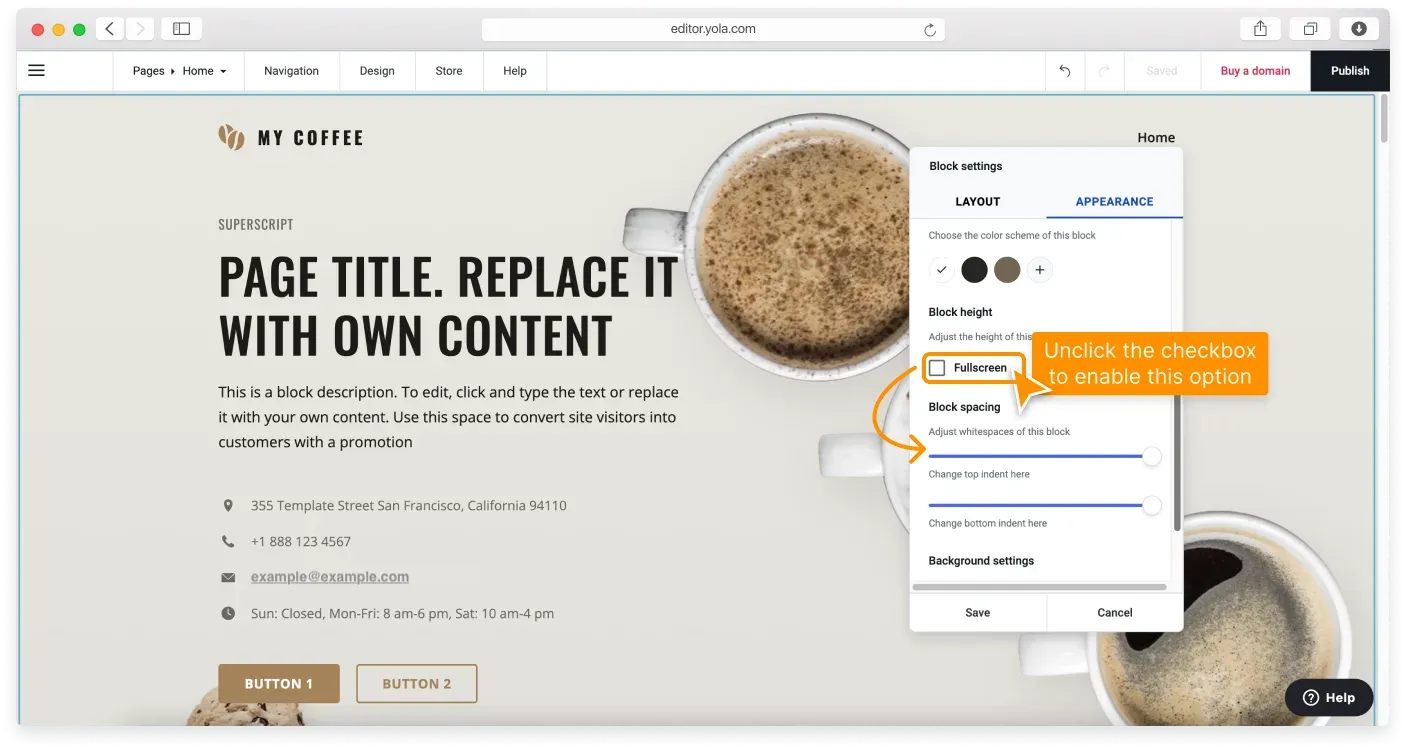
Some blocks do not have the spacing option. For example, you cannot adjust it in the full width Gallery blocks. In some full width blocks, such as the Header block and the Contact us block, the spacing option can be enabled by unticking the Fullscreen checkbox.
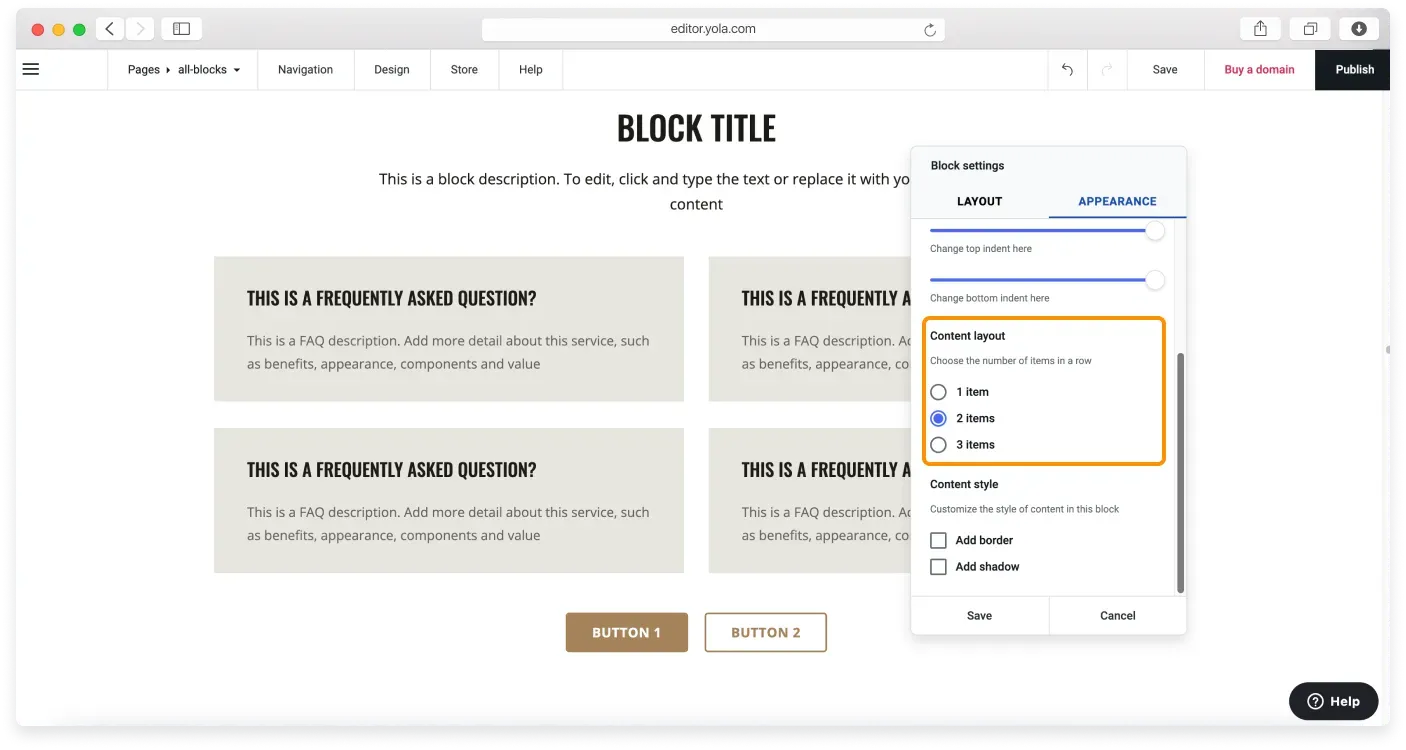
Content layout
Some blocks let you choose the number of items in a row (for example, the Gallery block and the FAQ block). Select one option from the set by clicking the respective radio button.
Media content location
You can flip the layout horizontally in blocks where media content takes one half of the screen and textual content takes the other half.
Vertical alignment
In this section, you can move the textual content of the block up, down, or align it to the center.
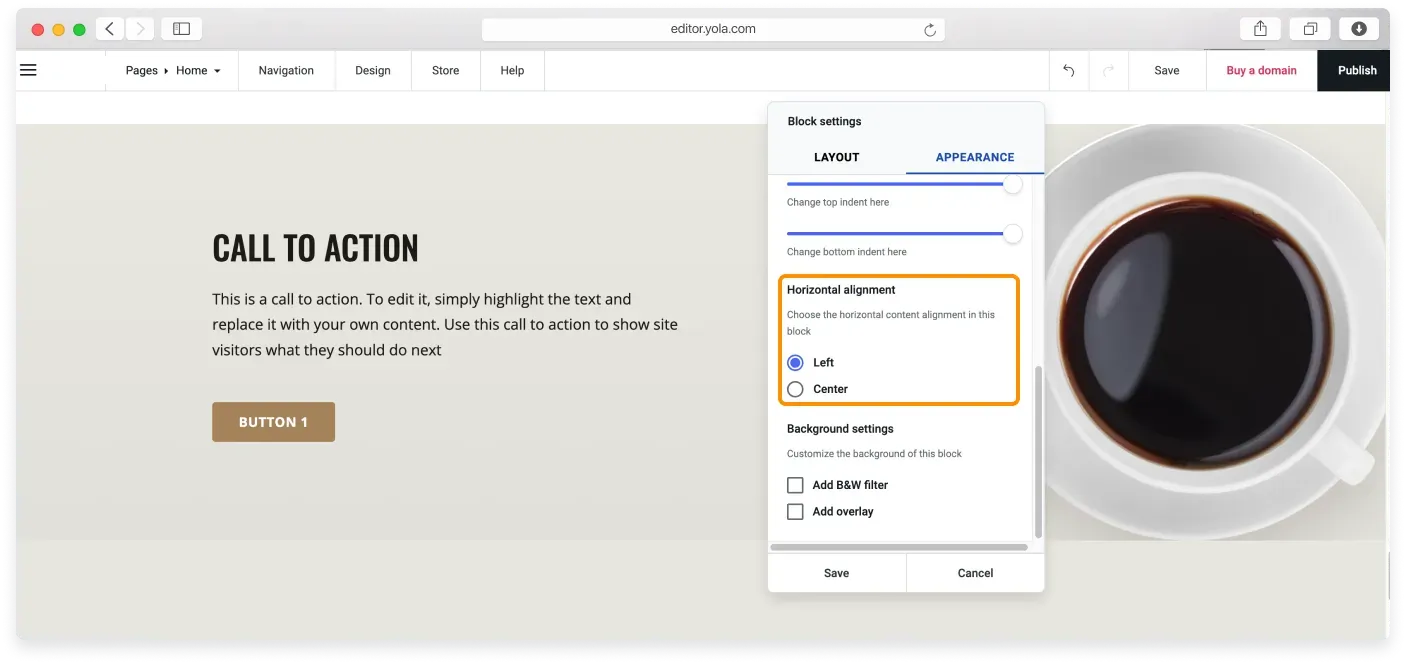
Horizontal alignment
You can customize the horizontal and vertical content alignment of various blocks, for example, the Call to action block and the Text block. Click the respective radio button to align your block content to the left or to the center.
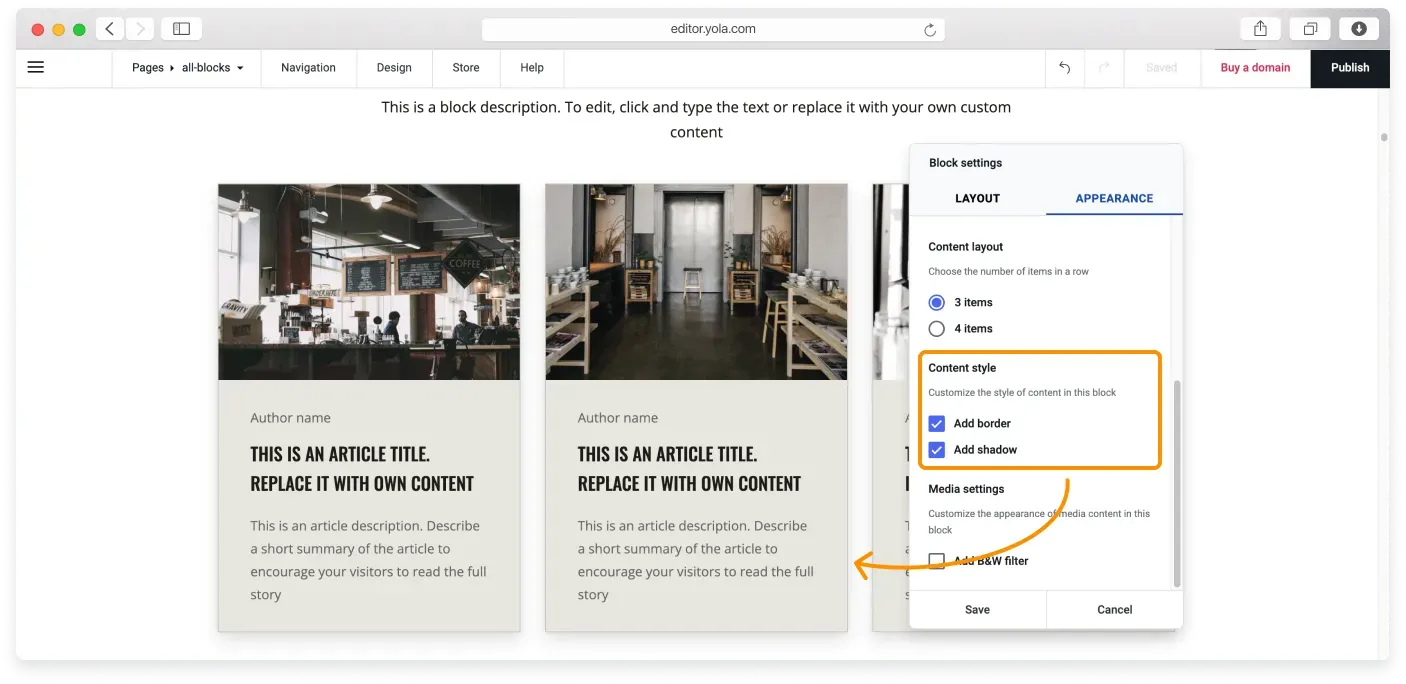
Content style
Add a border and a shadow to make the elements stand out on the page by ticking the respective checkboxes.
Background settings
There are two options for customizing your background image: adding a black and white filter, and creating an overlay effect. The Add B&W filter checkbox, when ticked, turns your background content black and white. The Add overlay checkbox adds a semi-transparent overlay to the block background image, and you can adjust the overlay opacity.
Related articles
- Custom blockBuild a block from scratch by arranging widgets like text, images, buttons, and forms exactly how you want.
- Premium blocksAccess advanced, trend-focused block layouts available on paid Website Builder plans.
- Managing the navigation menuAdd, rename, reorder, and set click actions for the items in your site's navigation menu.
Can’t find what you need?
Contact our team. We’re here 24/7 by email and ticket.