
 English
 Svenska
Categories
Adding an animated background
Add an eye-catching animated GIF background to blocks that support a background image.
On this page
Adding a website animation can help you set the right mood and enhance the look of your site. Used well, animation can help your site stand out and highlight your business’s core messages.
With the Website Builder, you can add eye-catching .gif background animations in a matter of minutes.
Before you start
Many relevant animated .gif files are available for download on the web. Try these websites to download animated images for your background:
- Giphy (opens in a new tab)
- Gifer (opens in a new tab)
- AnimatedImages (opens in a new tab)
- Gfycat (opens in a new tab)
If you want a unique one, you can create it yourself with .gif making tools, such as Ezgif (opens in a new tab), MotionElements (opens in a new tab), or Vista Create (opens in a new tab).
Adding an animated background image
You can add an animated background only to blocks that have a background image, such as the Heading block and the Call to action block.
Here is how to do it:
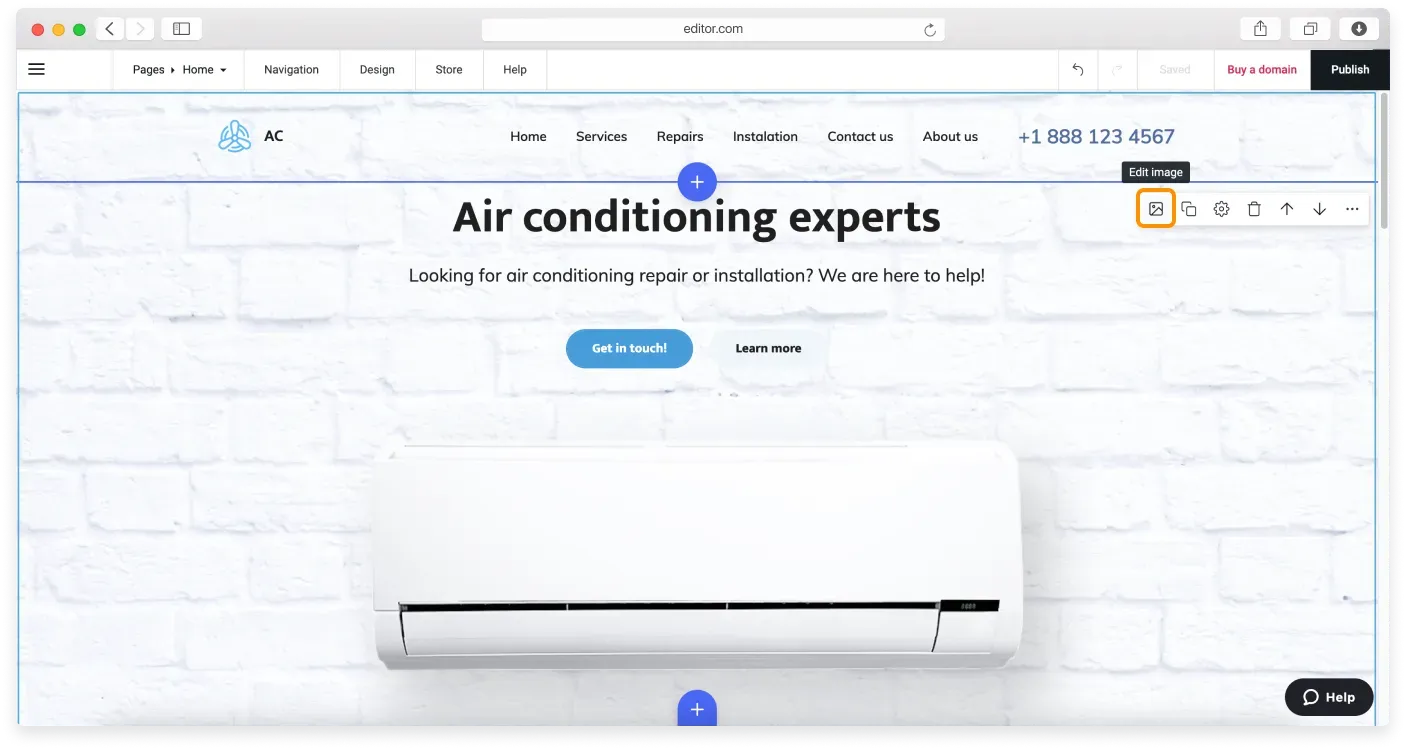
- Hover over the block where you want to add an animated background to enable its Control pane.
- Click the Edit image icon, which is a shortcut to the Appearance tab. Alternatively, click Block settings, then the Appearance tab.
- Click the Replace image button and choose Upload a file from the dropdown.
- Find an animated .gif file on your computer and select it. It is automatically resized and uploaded to your background.
File size limit
Large animation files may exceed your plan’s upload limit. If your file is too large to upload, compress it first or upgrade to a plan that allows larger files.
If your animated gif does not fit the image frame perfectly, you can adjust its position using the Crop tool. You can also resize it, change its focal point, and add an overlay.
FAQ
Can I add a video background to a page?
You cannot add a video background yet, but we are working on it. As a workaround, consider adding an animated .gif file as your background image.
You can convert your video file (MP4, WebM, AVI, MPEG, FLV, MOV, 3GP, or another format) into a .gif format. There are free tools available, which you can find using this Google search (opens in a new tab) or by using one of these tools:
Once you have your .gif file, you can go ahead and create a new background.
Related articles
- Custom blockBuild a block from scratch by arranging widgets like text, images, buttons, and forms exactly how you want.
- Block settingsAdjust a block's layout and appearance, from background and spacing to alignment, borders, and overlays.
- Premium blocksAccess advanced, trend-focused block layouts available on paid Website Builder plans.
Can’t find what you need?
Contact our team. We’re here 24/7 by email and ticket.