
 English
 Svenska
Categories
Generating page content with AI
Create additional pages quickly by letting AI draft the content for each page type.
On this page
With the Website Builder AI feature, after creating your homepage you can quickly generate content for additional pages, saving you time and effort.
Even if you skipped the AI-powered site setup for your homepage and did not share any details about your business, you can still generate various pages using the AI feature (and the homepage, too).
Generating a new page
Step 1: Open the Page manager
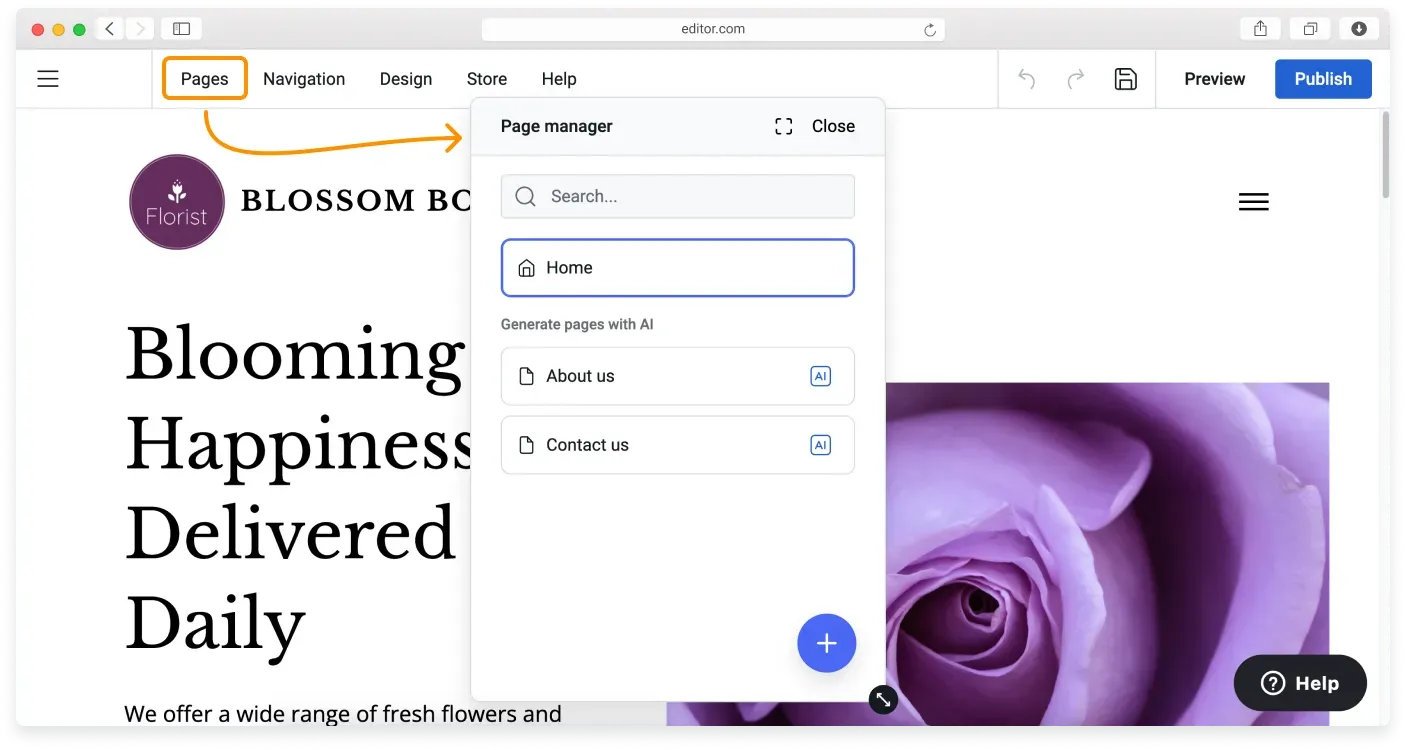
When in the editor, click Pages on the Topbar to open the Page manager. Alternatively, click the Menu button (three horizontal lines) in the top-left corner of the Website Builder, then click Pages on the Sidebar.
Step 2: Start a new page
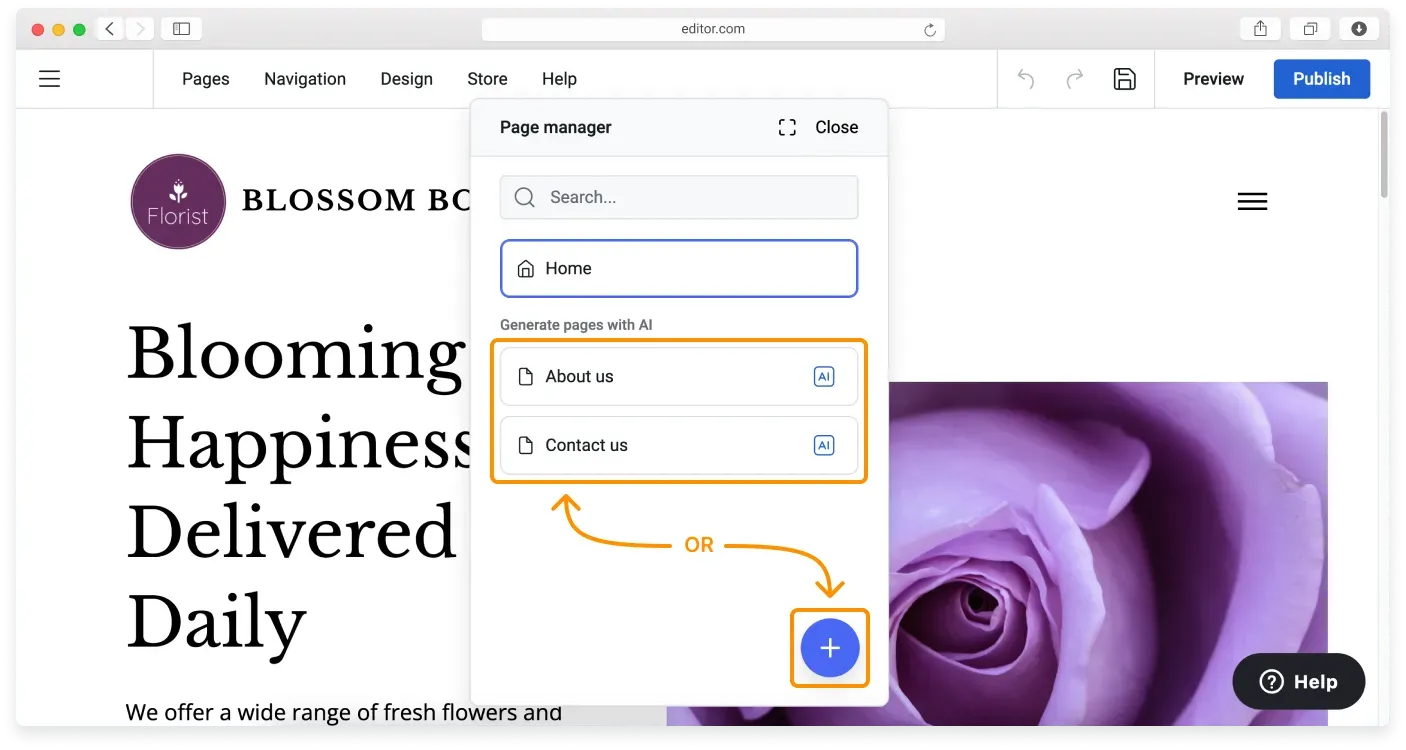
In the Page manager, click one of the pages in the Generate pages with AI section, or click the blue Plus (+) Add page button to start adding a new page.
Step 3: Choose a page template
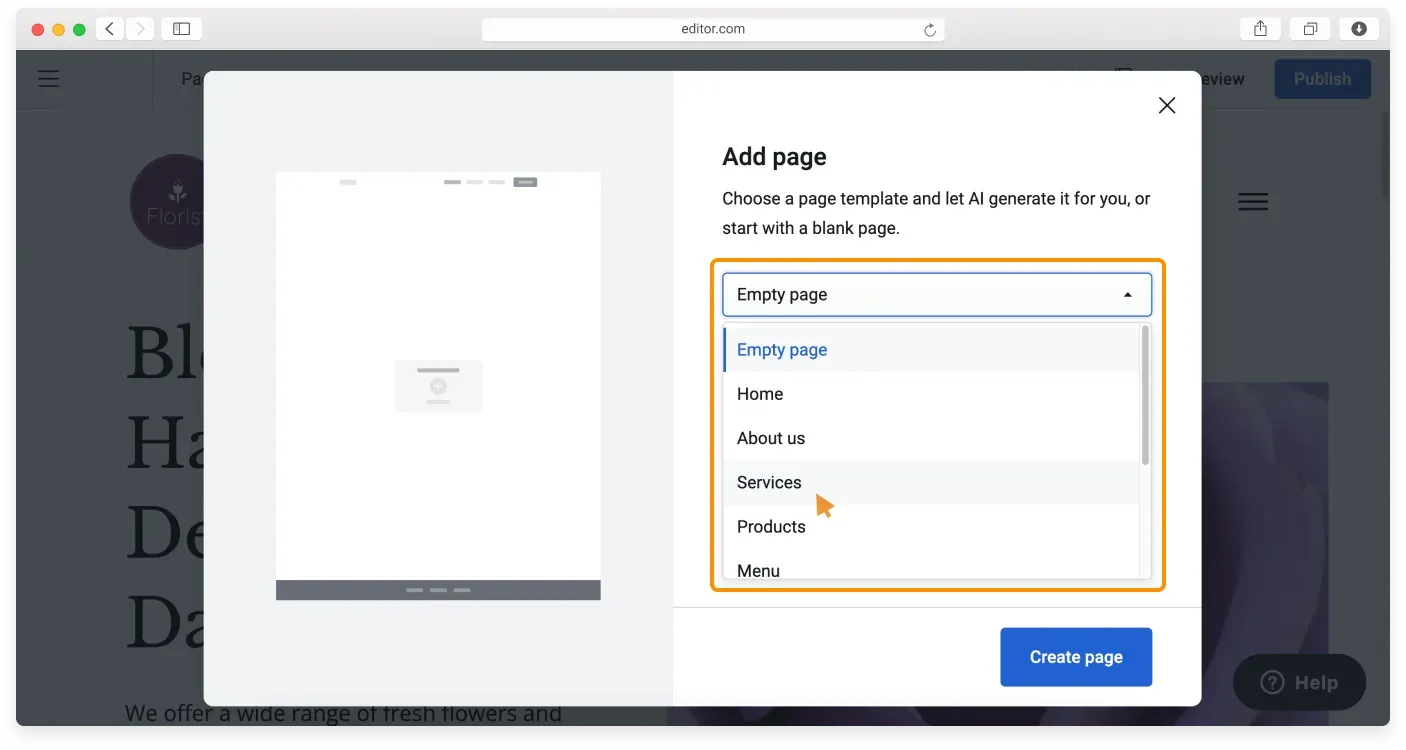
In the Add page window, choose the page template from the dropdown list.
Step 4: Name your page
Type the page name into the field. The page slug is created automatically based on the selected template. If similar pages already exist, a number is added to the slug (for example, Services-1).
Step 5: Describe the page content
Depending on the selected page type, you may see an additional input field. Use it to describe what you want the page to include. For example:
- On a Services page, list or describe your services, and the AI generates content around them.
- On an About us page, your existing business description may be pre-filled. You can edit, replace, or expand it with details specific to this page, and it will not affect your general business description.
Good to know
This input is optional, but more specific information leads to more relevant results. Some page types, such as Our work or Contact us, may not include this field. Keep the Display in navigation checkbox ticked if you want this page to appear in your navigation menu.
Step 6: Generate the page
Click Generate page.
Remember
This generated content is not final. You will need to customize it further to meet your exact needs.
If you want to try other versions of the page, repeat the process from Step 1. If you would like to change some blocks within your page, follow our guide on generating block content with AI.
Adding an empty page
Selecting the Empty page option in the Add page dropdown creates a page without using AI tools. As a result, you get a page where you manually add the blocks from the Blocks library. You can learn more in our guide on what a block is.
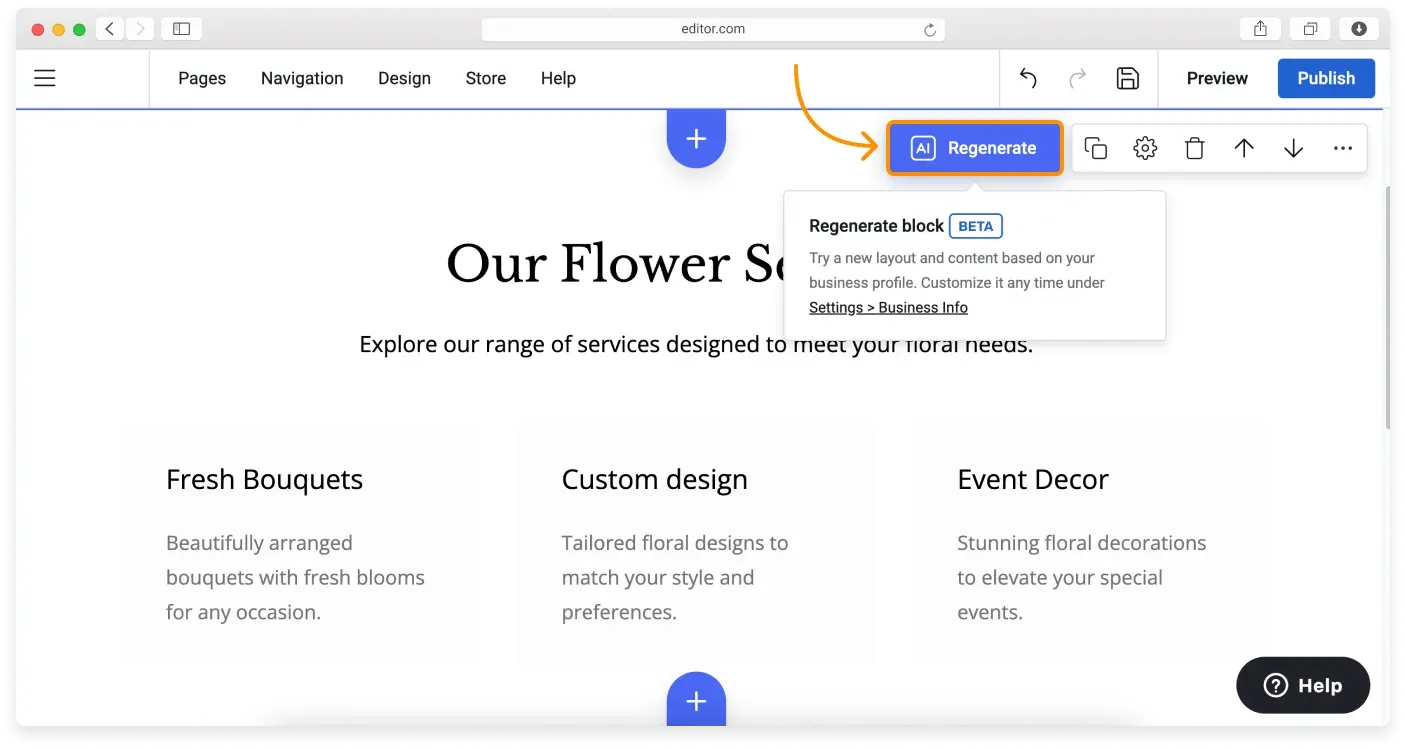
After you add the blocks, click the Regenerate button on any of them to generate new content that matches your business profile, using AI.
Related articles
- About the Website Builder AI toolsAn overview of the AI tools that help you set up a site, generate pages, and create content blocks.
- Generating a homepage with AIUse the six-step AI wizard to share your business details and create a draft homepage.
- Generating block content with AIUse AI to create, change, or refresh the content inside individual blocks on your site.
Can’t find what you need?
Contact our team. We’re here 24/7 by email and ticket.