
 English
 Svenska
Categories
Generating block content with AI
Use AI to create, change, or refresh the content inside individual blocks on your site.
On this page
AI features help you quickly create and update content in individual blocks so your site reflects your business and any recent changes. You can use AI to:
- Generate content for a new block
- Change the type of a block (for example, from Services to Gallery)
- Regenerate content in an existing block
The AI uses your business info as a starting point, and in some cases it also uses custom input you provide for a specific block.
Regenerating your block content
The Generate button is available on all blocks, including the Header and Custom blocks. If you want to change the content in one of the blocks you already generated, use the Generate button.
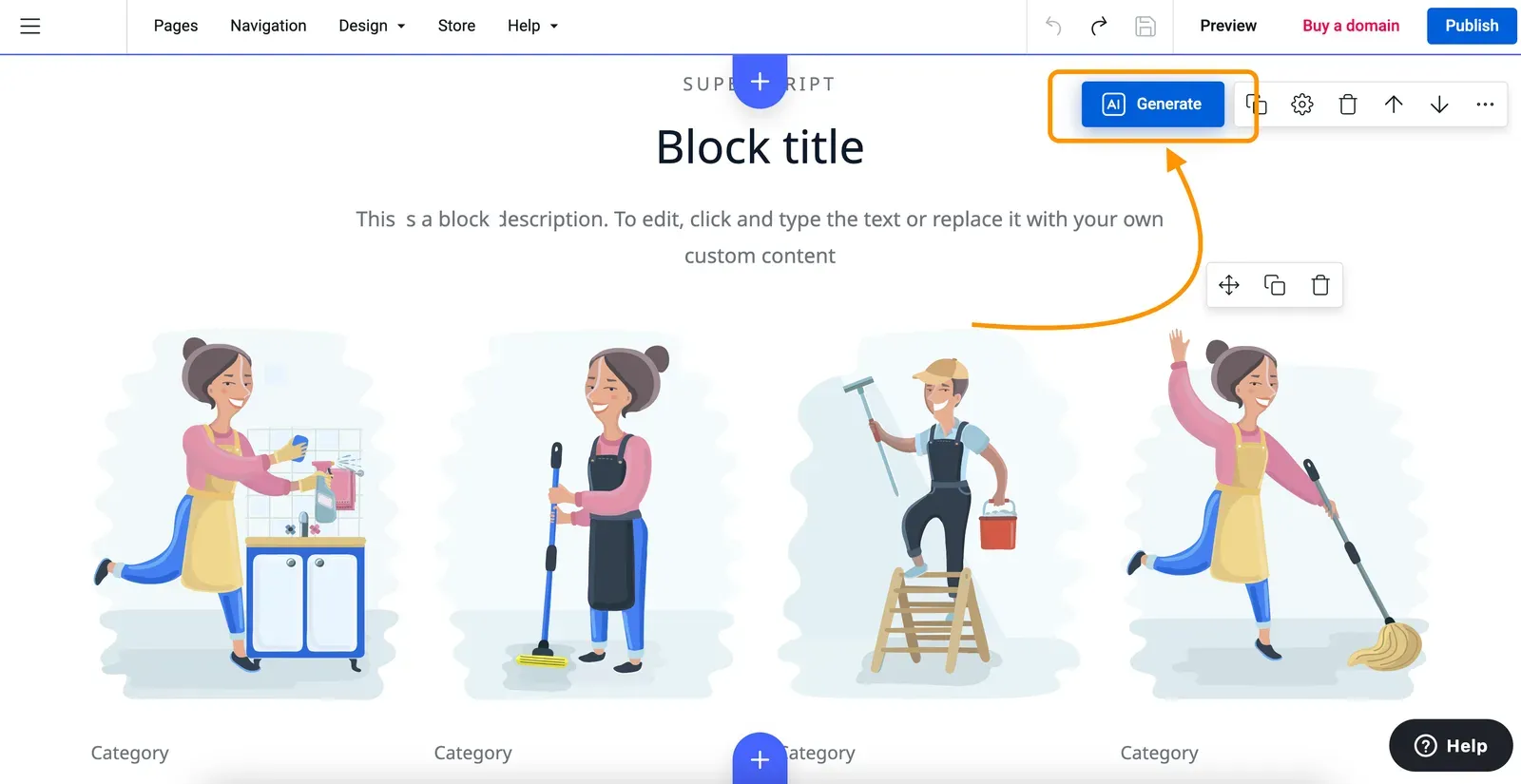
Follow these steps:
- When in the Website Builder, hover over the block you want to change to activate its controls.
- Click the blue Generate button in the top right corner of the block.
- In the Generate block window, choose the block type from the dropdown.
- After choosing the block type, click Generate to create the new block content.
When you choose a block type in the dropdown:
- If you keep the same type, the AI generates a new version of the same kind of block.
- If you select a different type, the AI turns the current block into that new type.
Example
If you are working with a Services block and choose Gallery in the dropdown, the AI generates a Gallery block based on the business info you provided when you created the site.
Using extra input for specific blocks
For some blocks, especially those with multiple items or columns, you will see an additional input field in the Generate block window. Use this field to give the AI more specific guidance, such as:
- For a Services block: list the services you provide.
- For a Products block: list the product names or categories.
The AI block generator takes this custom input into account along with your business info.
For an About us block, the input field shows your current business description from your business info. You can edit this description and generate the block based on the updated text. The updated text is used only for this block, and it does not overwrite your general business info.
Undo your changes
You can reverse this action by clicking Undo, or by pressing Ctrl+Z (Command+Z on Mac) on your keyboard.
Remember that the content is generated based on your business profile information. You might need to update your profile information to get the best result. Go to Main menu, then Settings, then Business info.
If you did not add the business profile information during your site setup and want to regenerate your block content with AI, you will see the Business Info window after clicking the Generate button. Add your business details to the relevant fields here and click Submit and Generate to see the new version of your block.
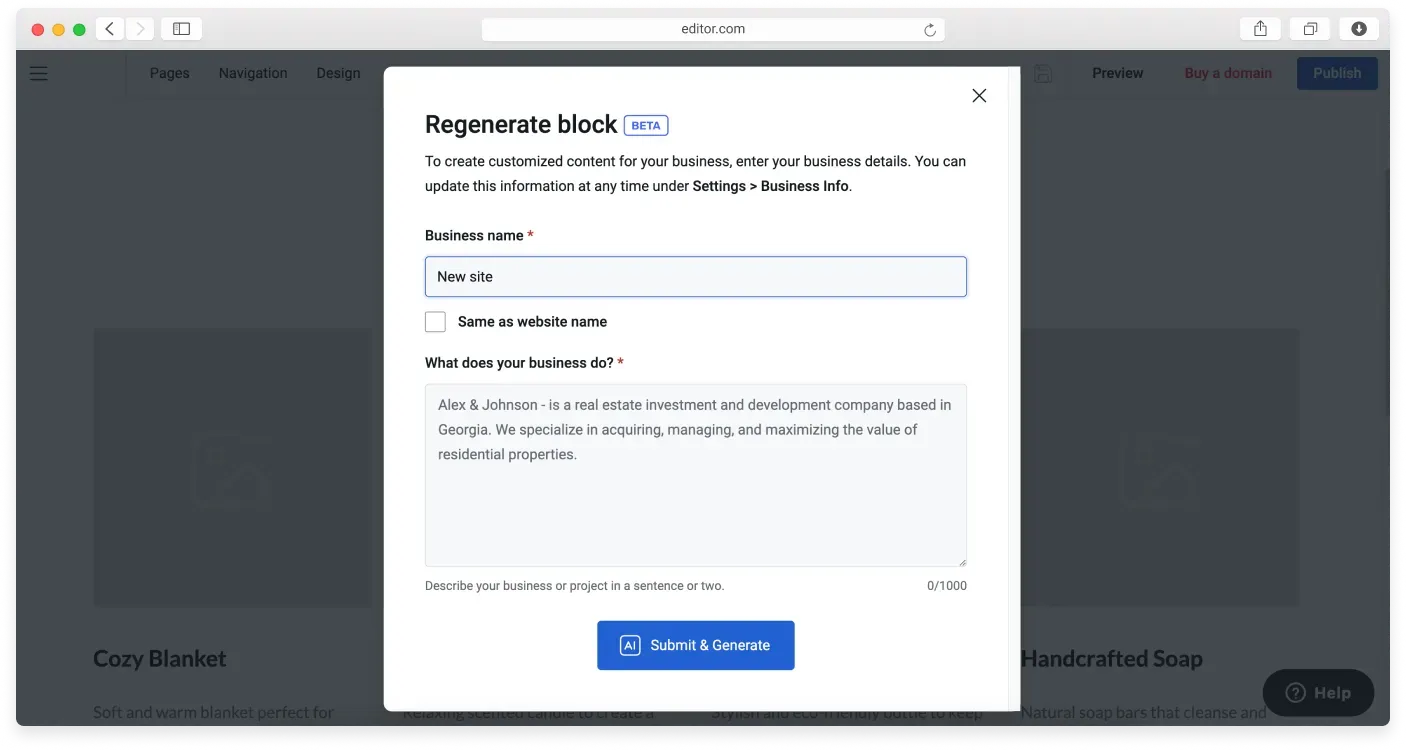
You can also find the latest version of your business profile info and change it anytime in Main menu, then Settings, then Business info.
After you generate your blocks, use our AI text assistant tool to improve the text if needed.
Related articles
- About the Website Builder AI toolsAn overview of the AI tools that help you set up a site, generate pages, and create content blocks.
- Generating a homepage with AIUse the six-step AI wizard to share your business details and create a draft homepage.
- Generating page content with AICreate additional pages quickly by letting AI draft the content for each page type.
Can’t find what you need?
Contact our team. We’re here 24/7 by email and ticket.