
 English
 Svenska
Categories
AI text assistant
Rewrite and improve headings, descriptions, and paragraphs with custom AI instructions.
On this page
With the AI Text Assistant, you can easily rewrite text elements for your website, such as headings, descriptions, and paragraphs within blocks. You can modify your text with custom instructions, which helps you write much faster and more effectively. This feature helps when you do not know what to write or how to improve your writing, so you save time and enhance your content effortlessly.
Available on Silver and Gold
The AI text assistant tool is only available for Silver and Gold users. You might need to upgrade your subscription to use it without limitations.
Let’s explore how to make the most of this versatile tool.
Rewriting a portion of text with the AI Text Assistant
Let’s say you have just generated a homepage and you want to tweak some text elements without regenerating the whole block. Here is what to do:
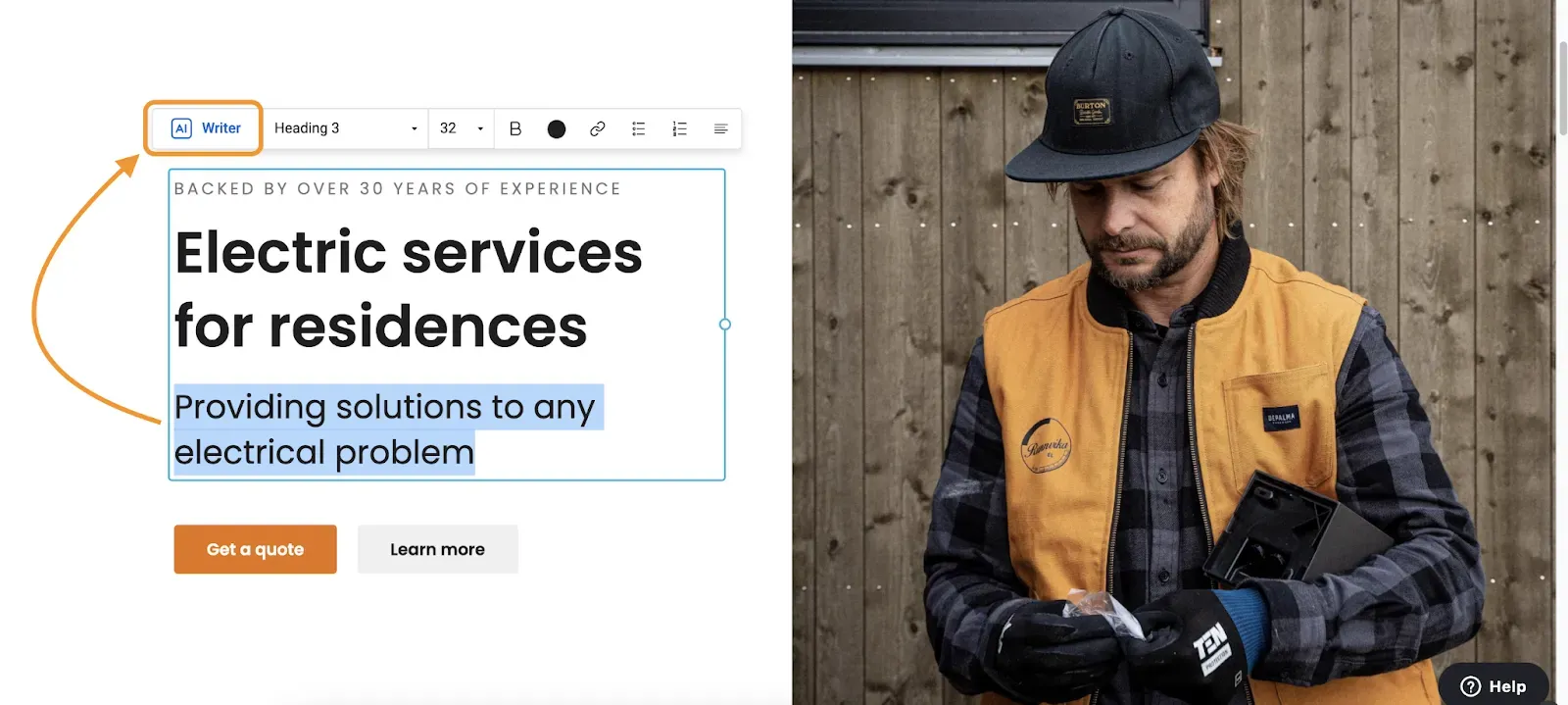
Step 1: Select your text and open the AI Writer
Highlight the portion of text you want to enhance and click the AI Writer button on the control pane.
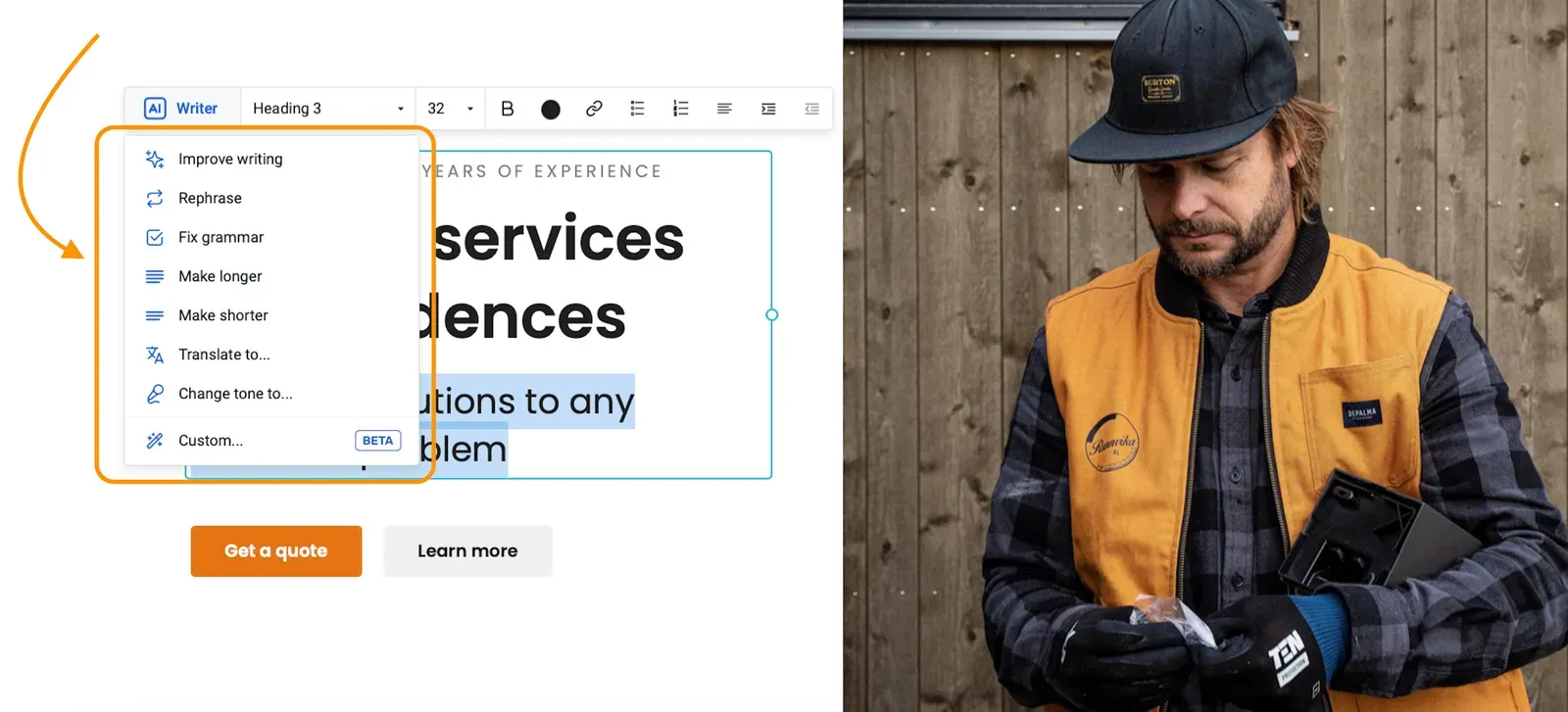
Step 2: Choose or type a prompt
You can either use one of the predefined prompts, like Improve writing, or choose Custom and type your own specific prompt into the text box.
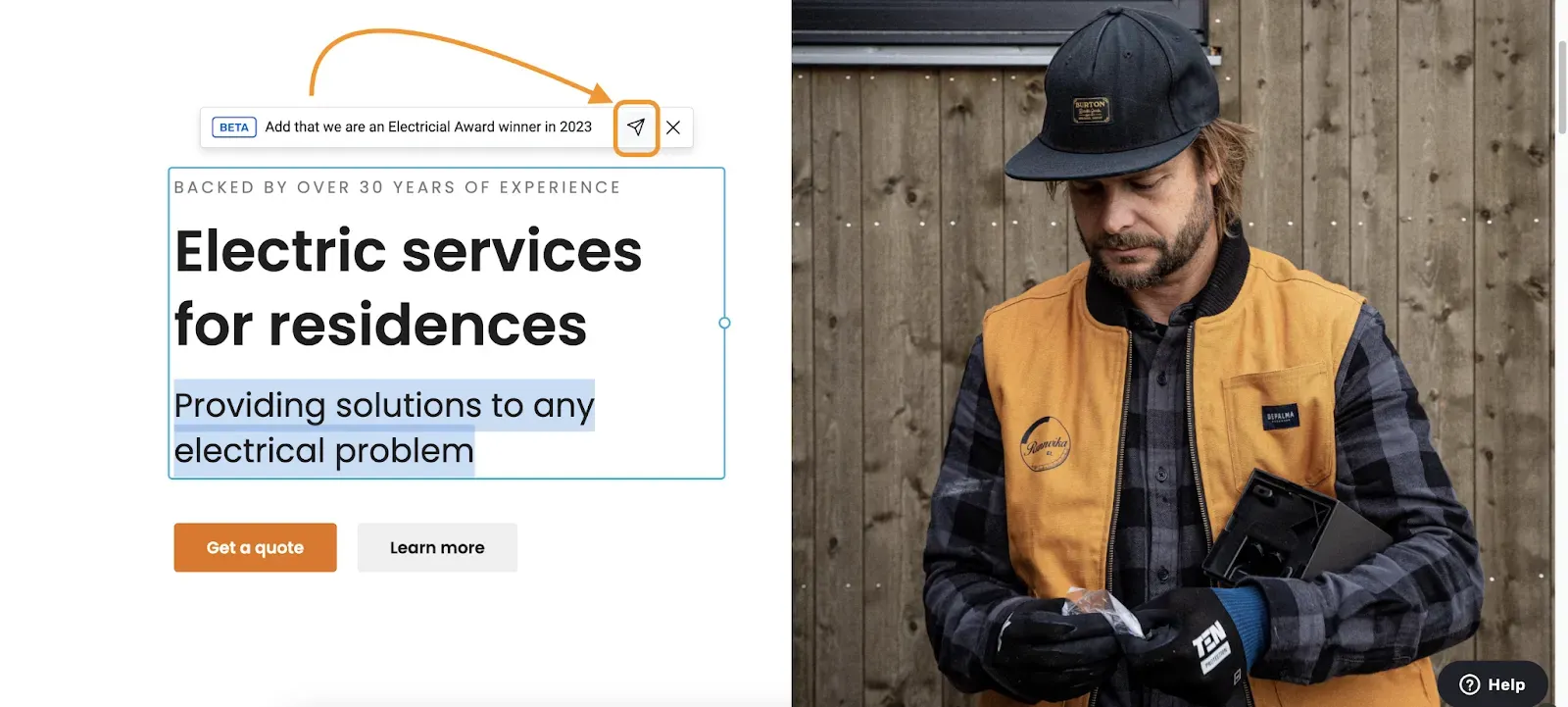
Step 3: Generate the text
After you enter the prompt, click the paper plane icon (or press Enter on the keyboard) to generate the text. In this example, we add information about company awards.
Step 4: Review the result
You will get the updated text with your prompt applied.
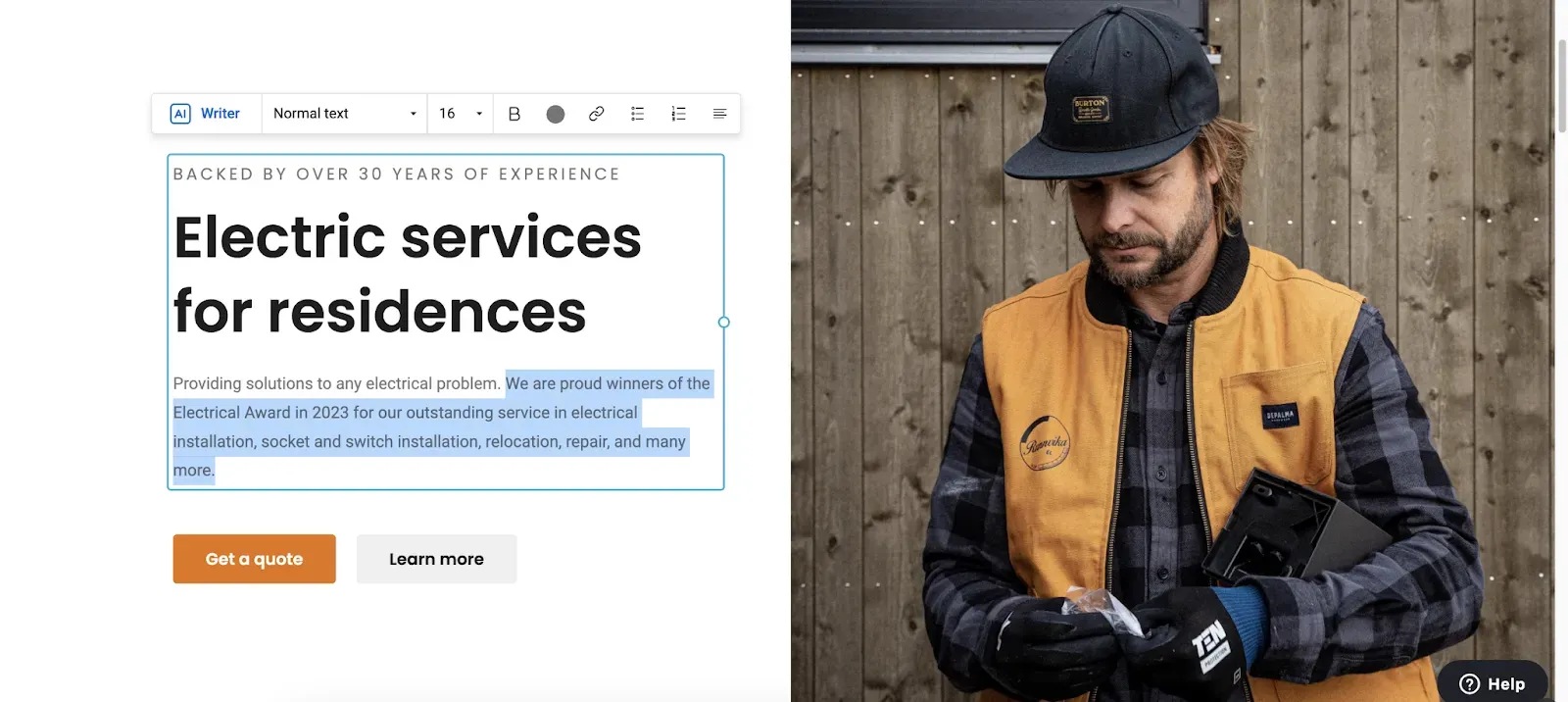
With the AI Text Assistant, you can rewrite text by highlighting specific portions. This makes sure the AI only uses the highlighted text along with your prompt for rewriting. However, clicking the text container without highlighting any text prompts the AI Writer to generate entirely new content based on your business profile information. This gives you precise control over rewriting while also letting you generate fresh content.
Undo your changes
To reverse the action, click Undo on the Topbar or press Ctrl+Z (Command+Z on Mac) on your keyboard.
Using the various prompts
The AI Text Assistant includes several predefined prompts designed to simplify and enhance your writing. Here is a breakdown of each option:
- Improve writing: For when you have written something simply but want to elevate it. This prompt enhances clarity and readability without changing the original meaning.
- Rephrase: Rewrites your text in different words, keeping the original message intact while refreshing the expression.
- Fix grammar: Automatically corrects errors while maintaining your original text and message.
- Make longer: Adds relevant information to expand and enrich a shorter piece of text.
- Make shorter: Condenses your text without losing important details.
- Translate to: Translates your text into a specific language. Select from popular languages, or type in a language name to translate instantly.
- Change tone to: Adjusts the tone of your text to match a specific style or personality, including mimicking famous figures or well-known brands.
- Custom: Enter your own prompt for complete customization, so you can specify needs like tone adjustments or detailed content edits.
Tips for creating AI prompts
Here is a list of tips on how to prompt the Text Assistant effectively.
Be specific
Provide clear instructions on what you want the Text Assistant to generate.
- Good: “Adjust the product description to emphasize its color variety”
- Avoid: “Change it to be better”
Provide context
Give the Text Assistant context to understand the purpose and audience of the content.
- Good: “Write a brief description that highlights my brand values: honesty, quality, and passion”
- Avoid: “Can you write about cars?”
Specify tone and style
Indicate the desired tone (for example, formal or casual) and style (for example, informative or conversational) of the text.
- Good: “Adjust the product description to a friendly and casual tone for the young adult audience”
- Good: “Make the language on our contact block more formal and professional”
- Avoid: “Change the description to something different”
Provide examples or references
Offer examples or references to guide the Text Assistant in generating relevant content.
- Good: “Key features of our product are
[...]. Expand on these in a product description” - Avoid: “Write like this other thing I saw online, but not exactly”
Check for consistency
Make sure the instructions you provide to the Text Assistant do not contradict each other.
- Good: “Ensure that the tone is both professional and approachable”
- Avoid: “Make it shorter but include more details”
Text only, not design
The AI Text Assistant is designed to help you refine your text, so prompts like “change font” or “make this text centered” will not work, since those adjustments affect the design, not the text itself. For the best results, focus on text-based instructions and enjoy the ease of enhancing your content.
Related articles
- About the Website Builder AI toolsAn overview of the AI tools that help you set up a site, generate pages, and create content blocks.
- Generating a homepage with AIUse the six-step AI wizard to share your business details and create a draft homepage.
- Generating page content with AICreate additional pages quickly by letting AI draft the content for each page type.
Can’t find what you need?
Contact our team. We’re here 24/7 by email and ticket.