
 English
 Svenska
Categories
Editing icons
Add icons to your pages and customize their alignment, size, and color.
On this page
Icons are an essential part of delivering information. They improve the visual appearance of the page and help your visitors easily digest information.
Here are some reasons to add icons to your page:
- Better user experience: your visitors focus not only on the text but also on the visual design of a website.
- Visual aid: icons help you draw attention to specific page elements with relevant images.
- Consistent appearance: your icons display just the way you want them across all devices without losing quality.
Blocks with icons
You can choose a block that contains icons from the Block library:
- Headline block
- About us block
- Columns block
- Pricing block
- Schedule block
- Why Choose Us block
- Custom block
Customizing the icon
The customization options for an icon include:
- Changing the alignment
- Changing the icon
- Customizing the size of the icon
- Changing the icon’s color
Let’s explore these options in detail.
Changing icon alignment
-
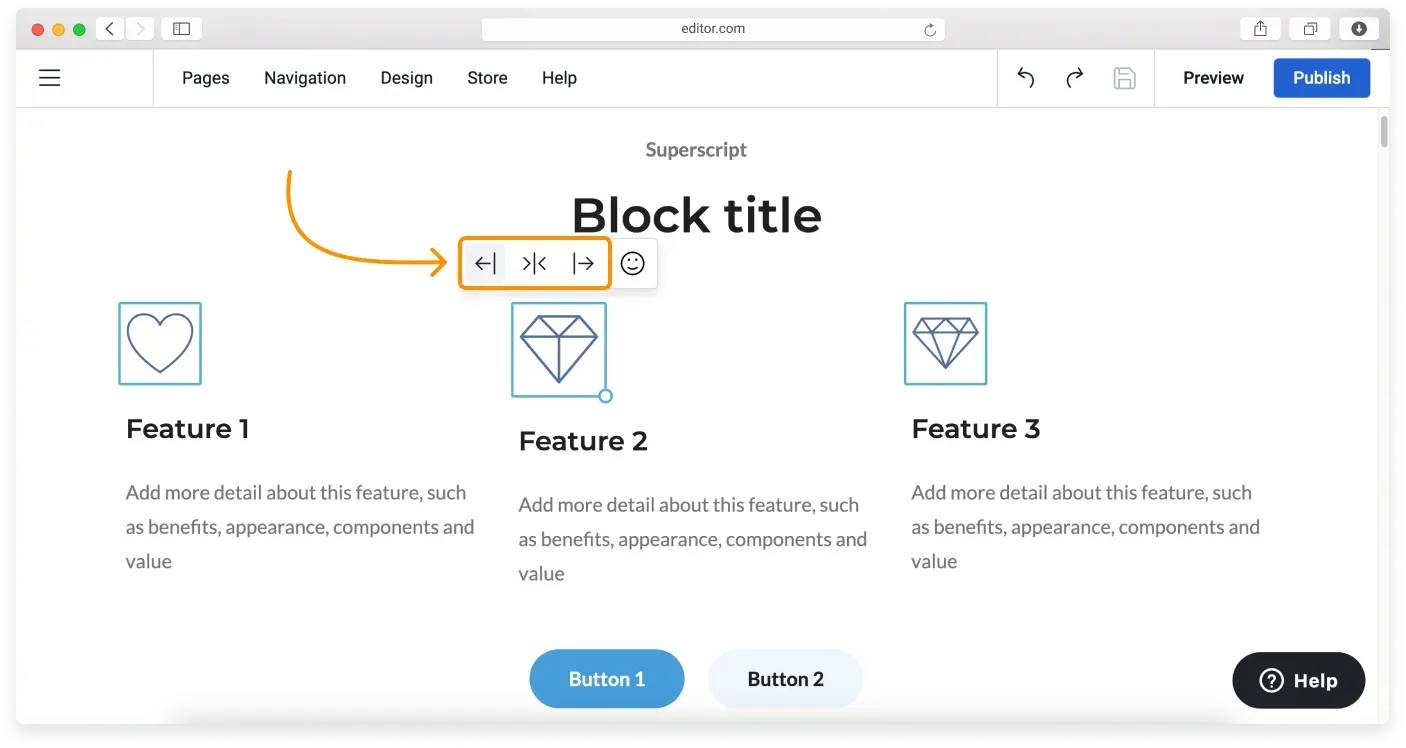
Click the icon to call out its controls. On the panel, you will see the alignment options with the current one highlighted in grey.
-
Click the alignment option you like and click anywhere on the field to apply the changes.
Changing the icon
-
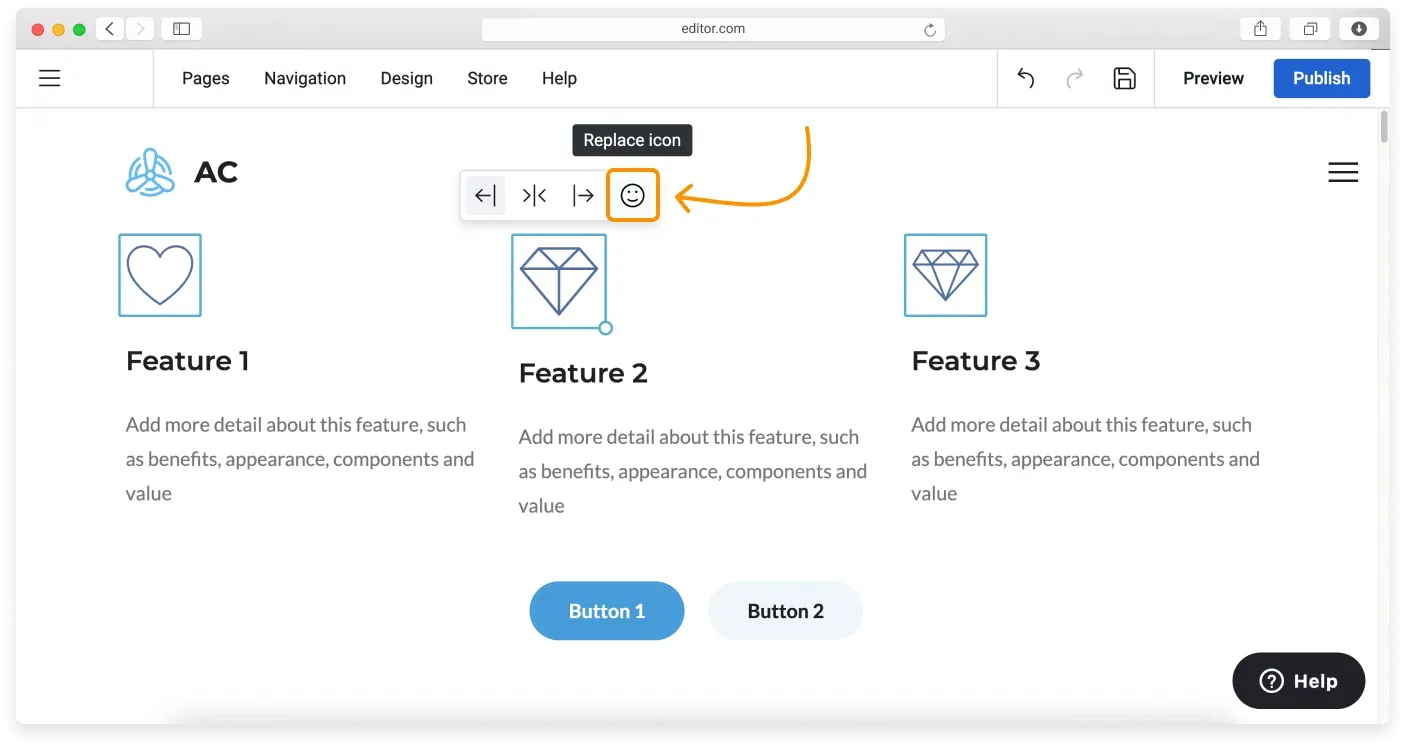
Click the icon to call out its controls. On the panel, click Replace icon to open the Icon settings.
-
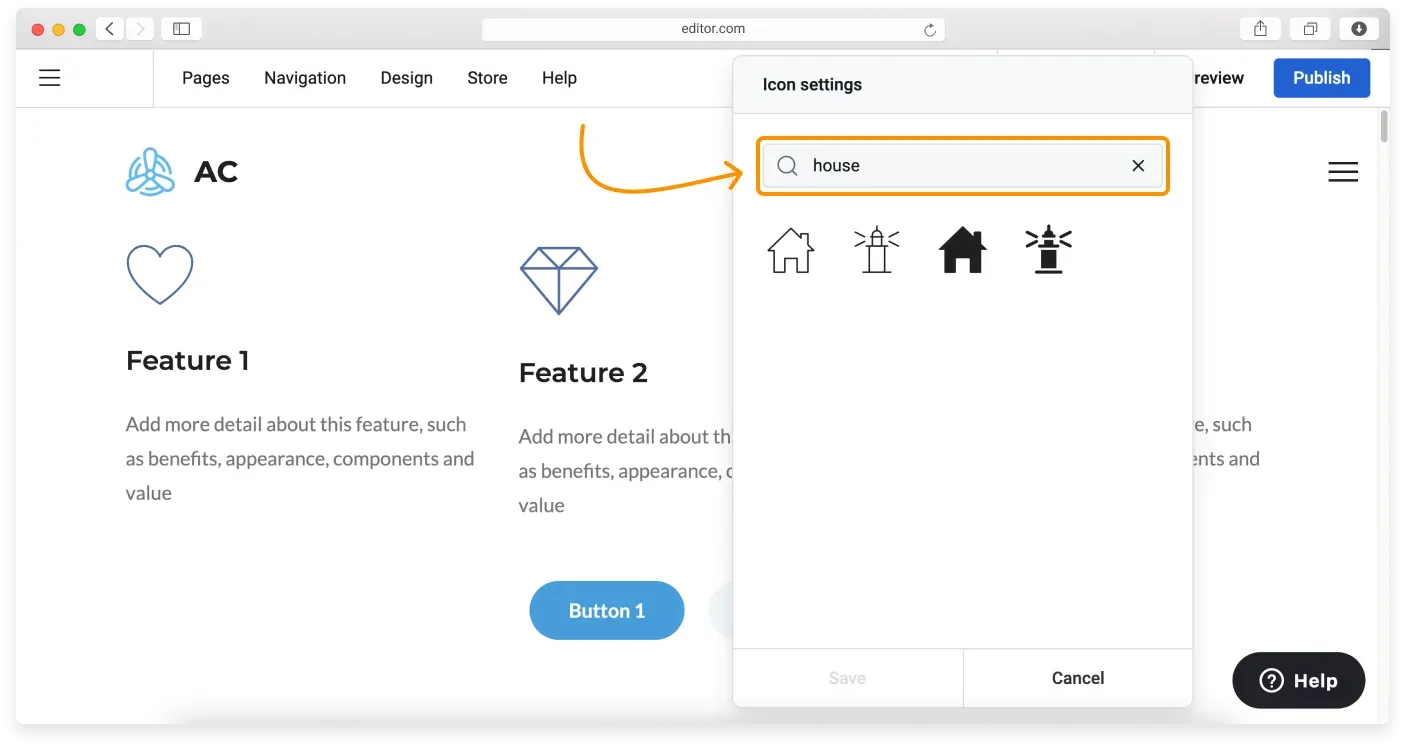
In the Icon settings, scroll down to see all the icons in our extended icon gallery, or use the search if you know what kind of icon you’re looking for.
-
Click Save to submit.
Repeat these steps with all other icons on the page if desired. Click Publish to make changes live.
Automatic saving
Your changes are saved automatically every two minutes, and also when you navigate to edit another page.
Customizing the size of the icon
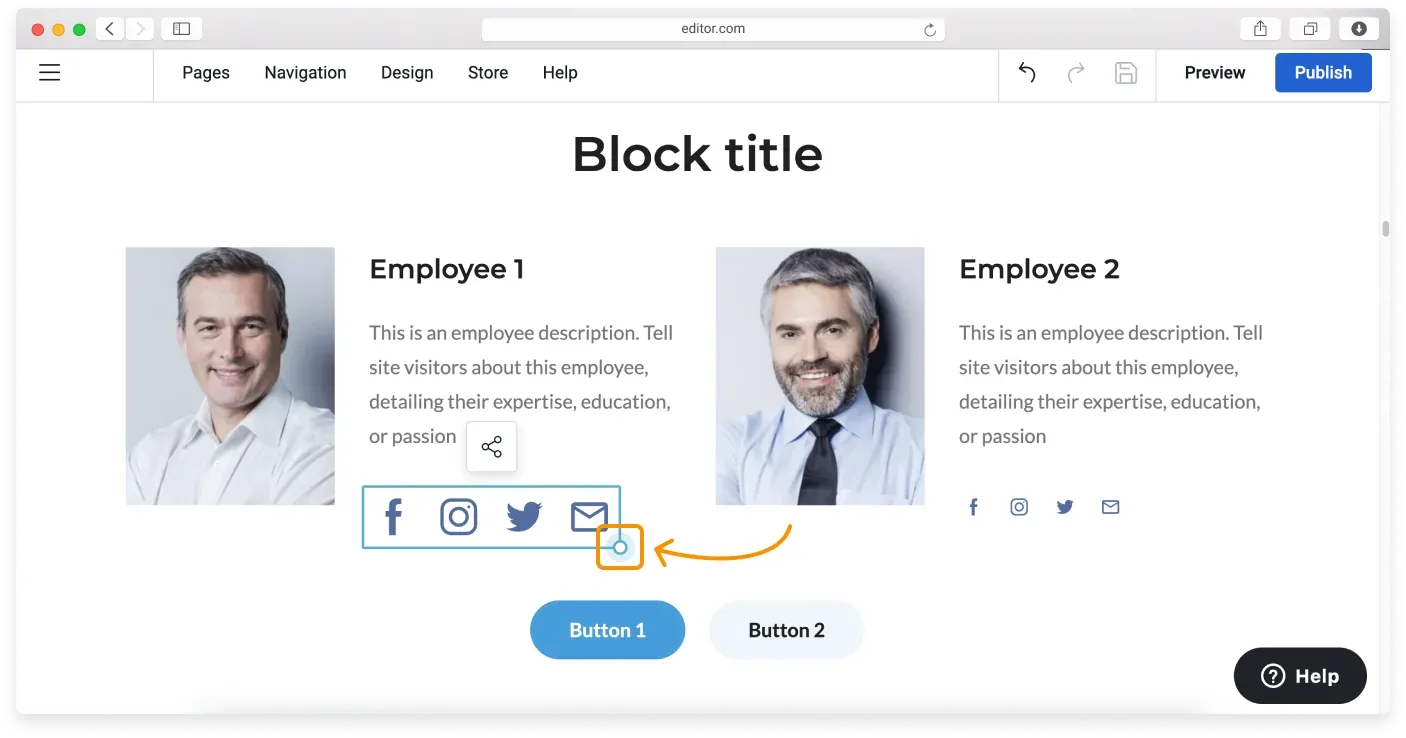
To change the size of your icon, click it and drag the bottom-right control to adjust its size.
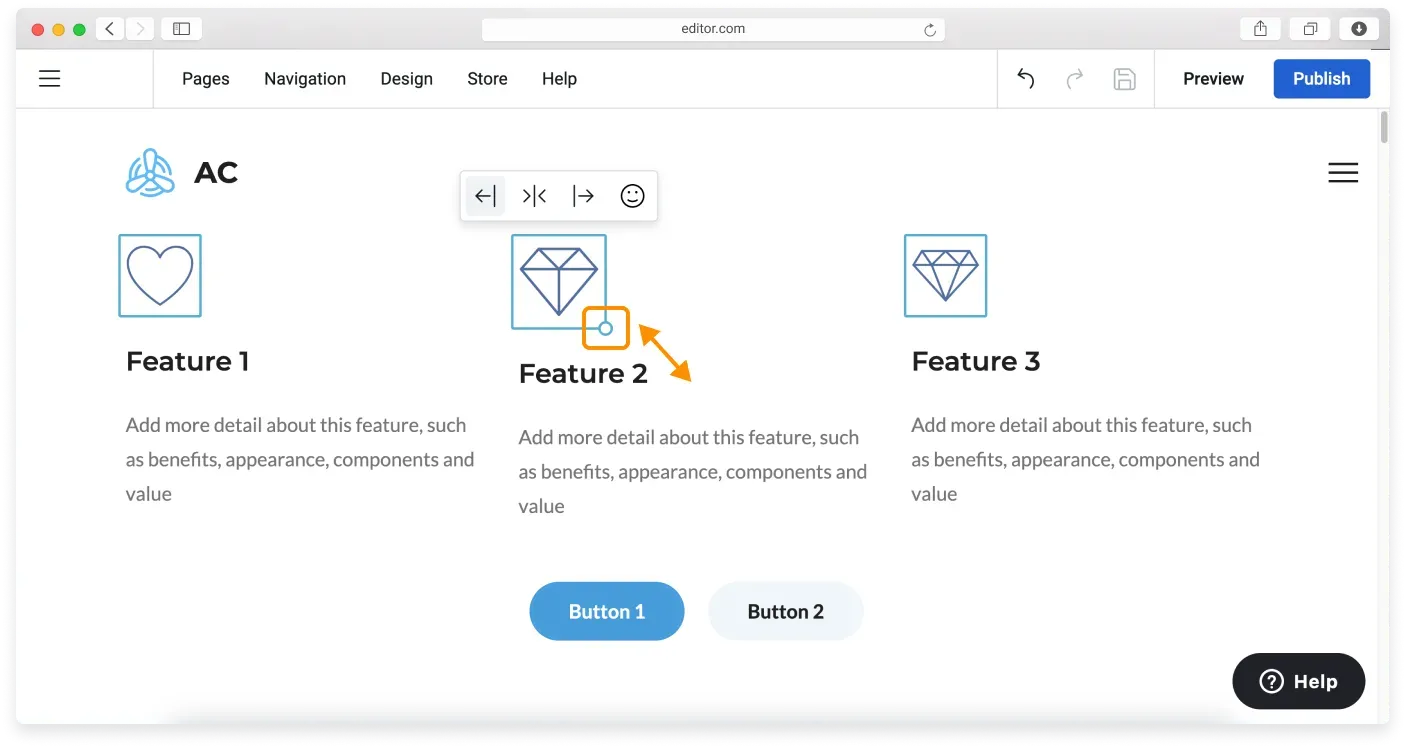
You can save time resizing all the icons in a row by holding the Shift button on your keyboard. This feature also works for the social media icons set.
Changing icon color
The overall website color palette determines the color of the icon. To change it, click Design on the Topbar of the Website Builder.
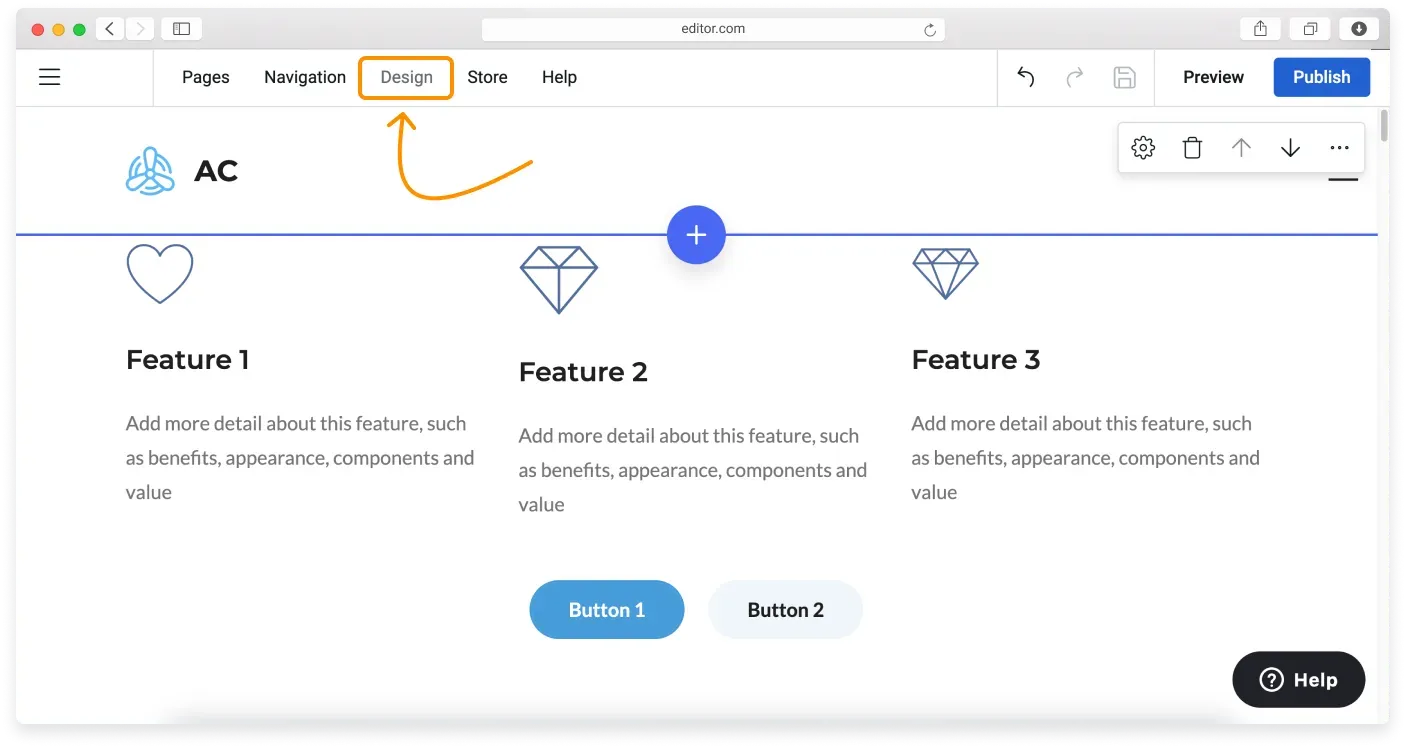
In the Colors tab of the Website design menu, you see your color palette. You can either pick another palette or customize this one to change the icon color on your site.
Read more about creating custom color palettes in our dedicated tutorial.
Related articles
Can’t find what you need?
Contact our team. We’re here 24/7 by email and ticket.