
 English
 Svenska
Categories
Editing buttons
Change button text, color, alignment, and assign click actions like calls and links.
On this page
Buttons prompt your visitors to take a desired action, for example, contact you or request more information. Most of the blocks in the Block library contain one or two buttons.
Let’s learn how to modify buttons.
Changing button color
There are two types of buttons: primary and secondary. The primary button has a colorful background, while the secondary button has a light background.
You can change the color of your buttons by changing your site color palette to another pre-designed one from our vast color palette gallery.
If you prefer to keep your current color palette and only change the button color in it, you can create a custom palette for your site. You might need to upgrade your plan to access this feature.
Editing text on the button
Here’s how you can edit the button text:
-
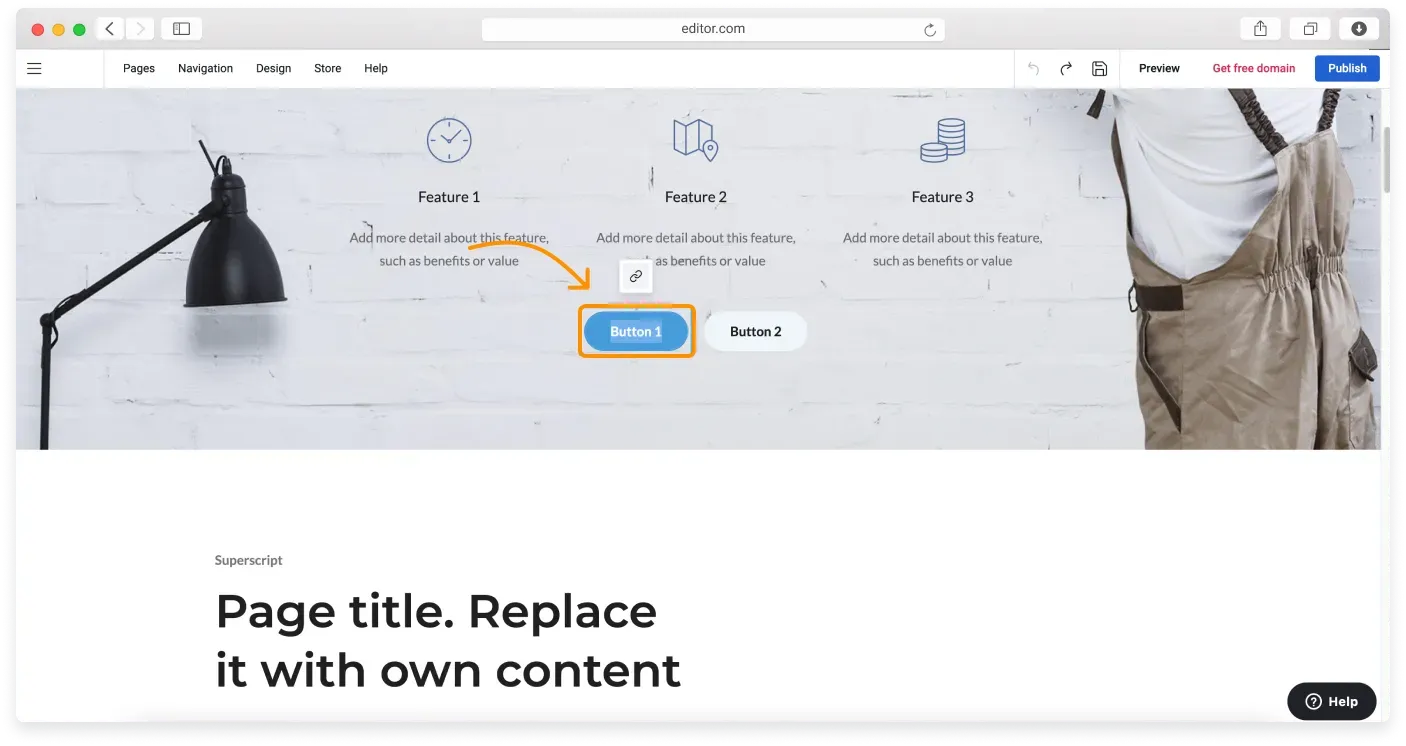
Click the button and highlight the text you want to replace.
-
Type in the new text. Depending on the length of the text, the button will resize.
Assigning a click action to a button
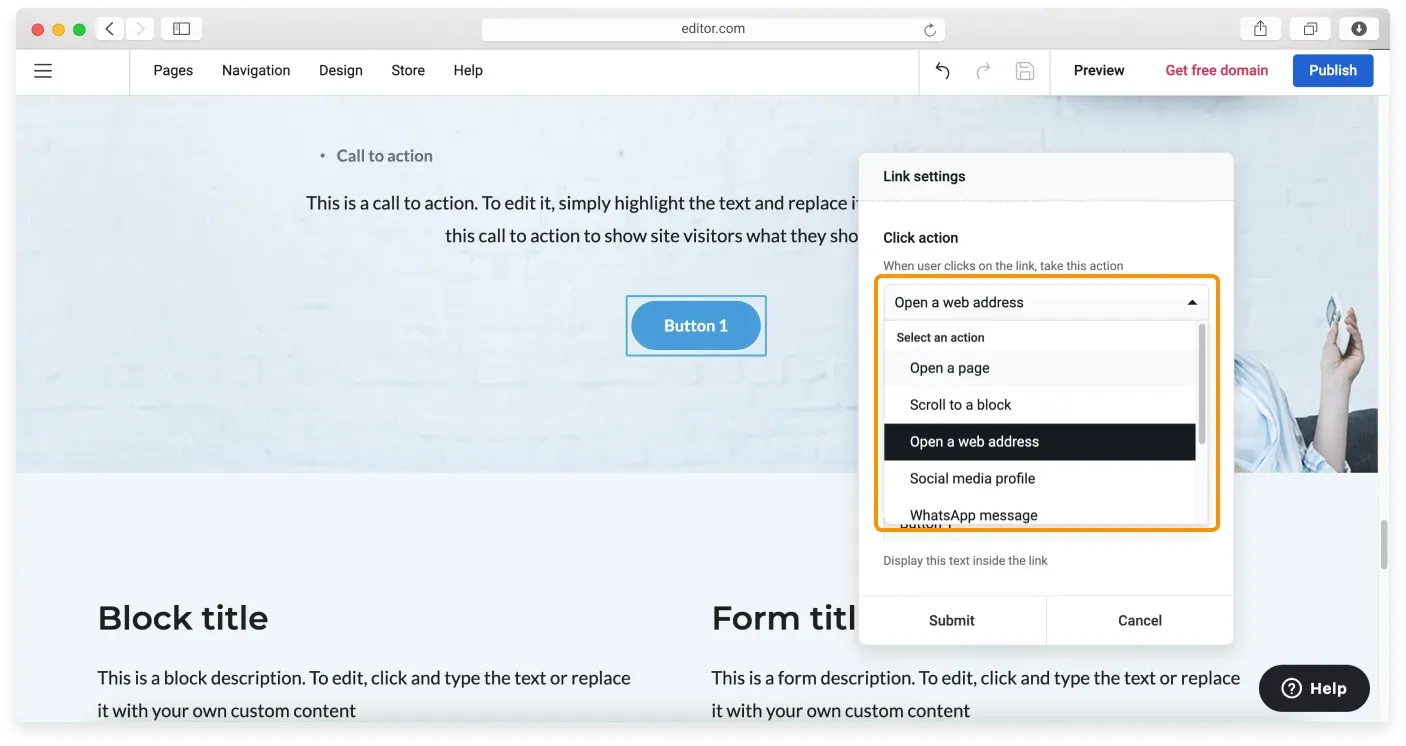
After setting a button title, you can assign its click action. The click action is what your button does. For example, it leads your site visitor to another page or triggers a phone call. Here’s the full list of click actions you can assign:
- Open a page: opens your website’s page.
- Scroll to a block: scrolls to another block on the page.
- Open a web address: opens an external URL.
- Social media profile: opens your social media page.
- WhatsApp message: opens a WhatsApp conversation.
- Make a phone call: lets visitors make a phone call without leaving your website.
- Send an email: lets your visitors instantly send you messages.
- Download a file: lets visitors download a file from your website.
To assign a click action to a button, follow these steps:
-
Hover over the button to activate the Edit link icon.
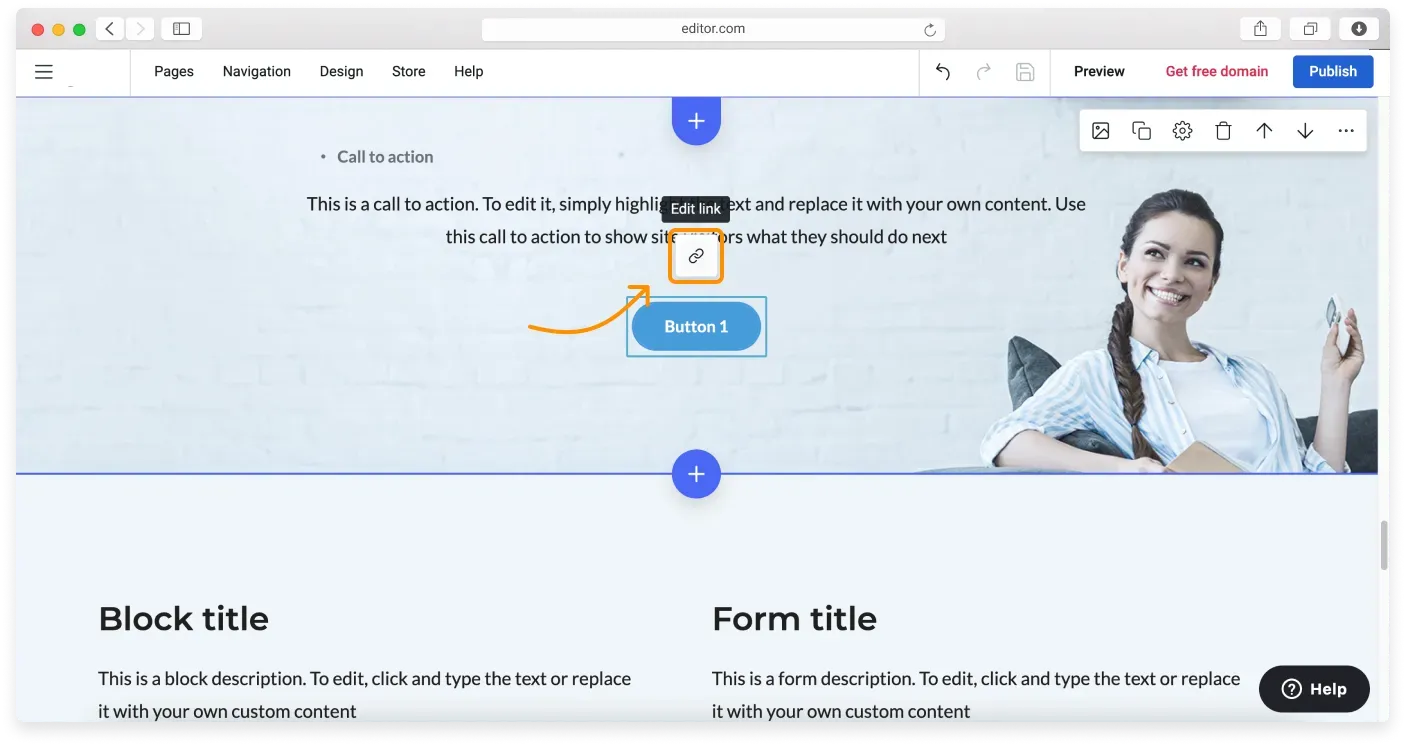
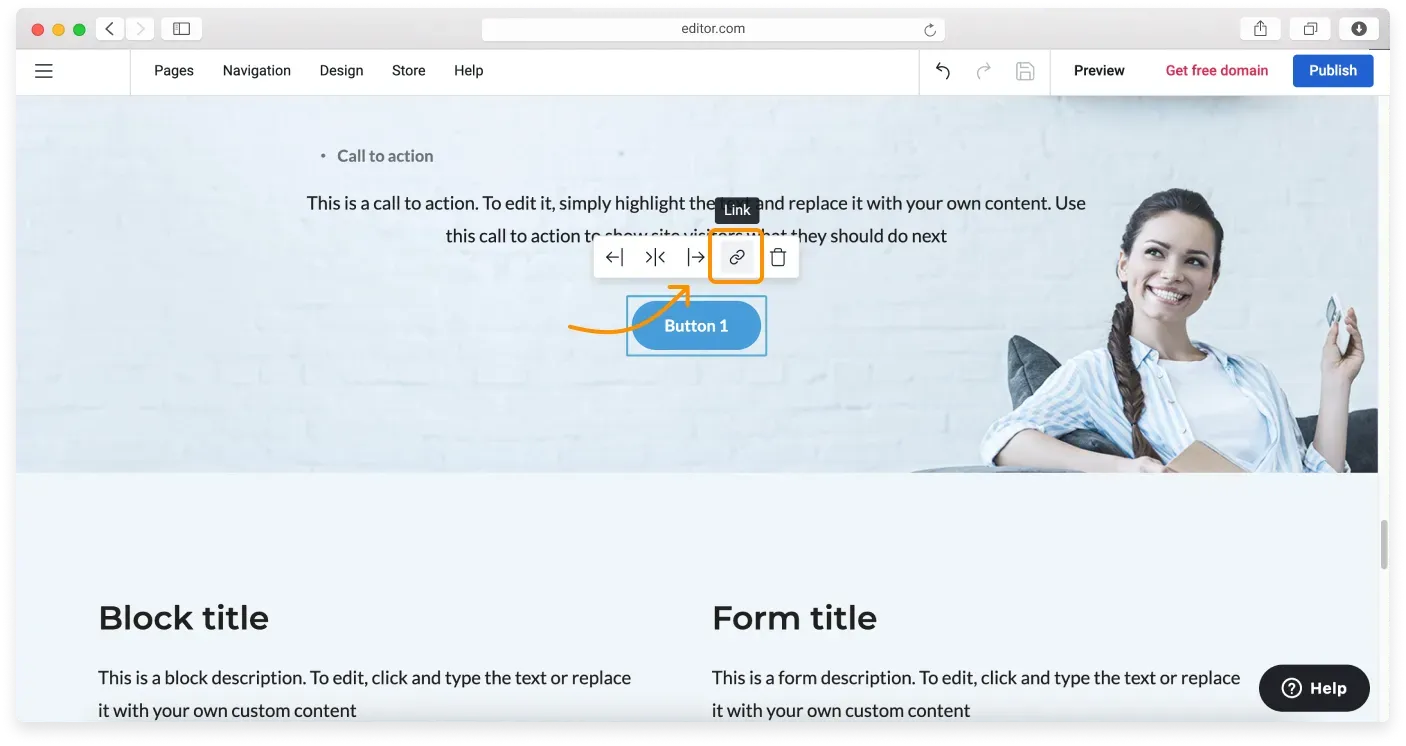
Alternatively, click the button to call out the extended control pane, which also contains the Link icon.
-
Click the Link icon to open the Link settings. Choose the button’s desired Click action from the dropdown menu.
-
Depending on your chosen option, specify the page you want your visitors to go to, the site address, a downloadable file, and so on.
-
Change your button Title (the text inside the button) if needed.
-
Click Submit to apply the changes.
Below we review how various click actions work.
Adding a link to a website page
To add a link to an existing page of your site, follow these instructions:
-
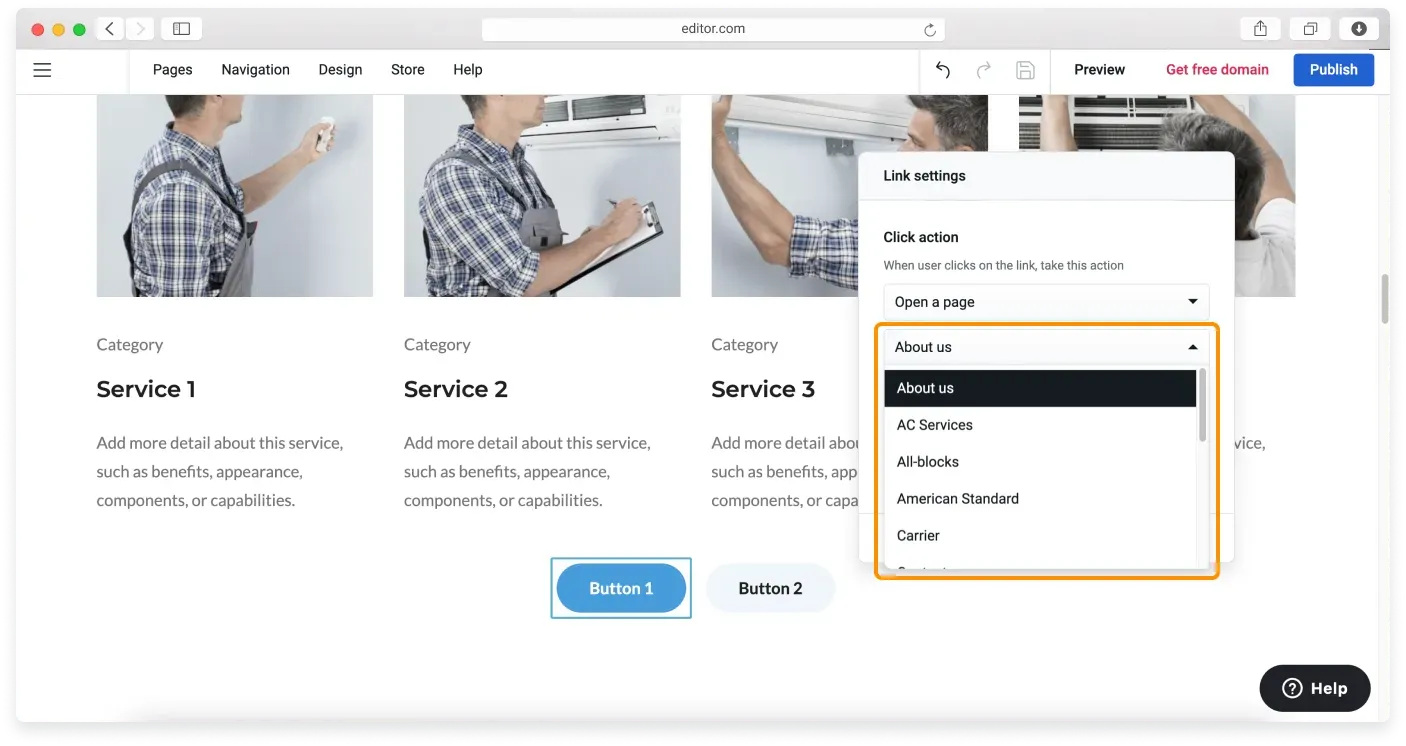
In the Link settings, choose the Open a page option from the click action dropdown menu.
-
In the following dropdown menu, choose the page you want to open with this action.
-
Change the button title if needed.
-
Click Submit to save.
Scrolling to a block
Use the Scroll to a block click action to allow your visitors to jump to another place on your page by clicking the button.
-
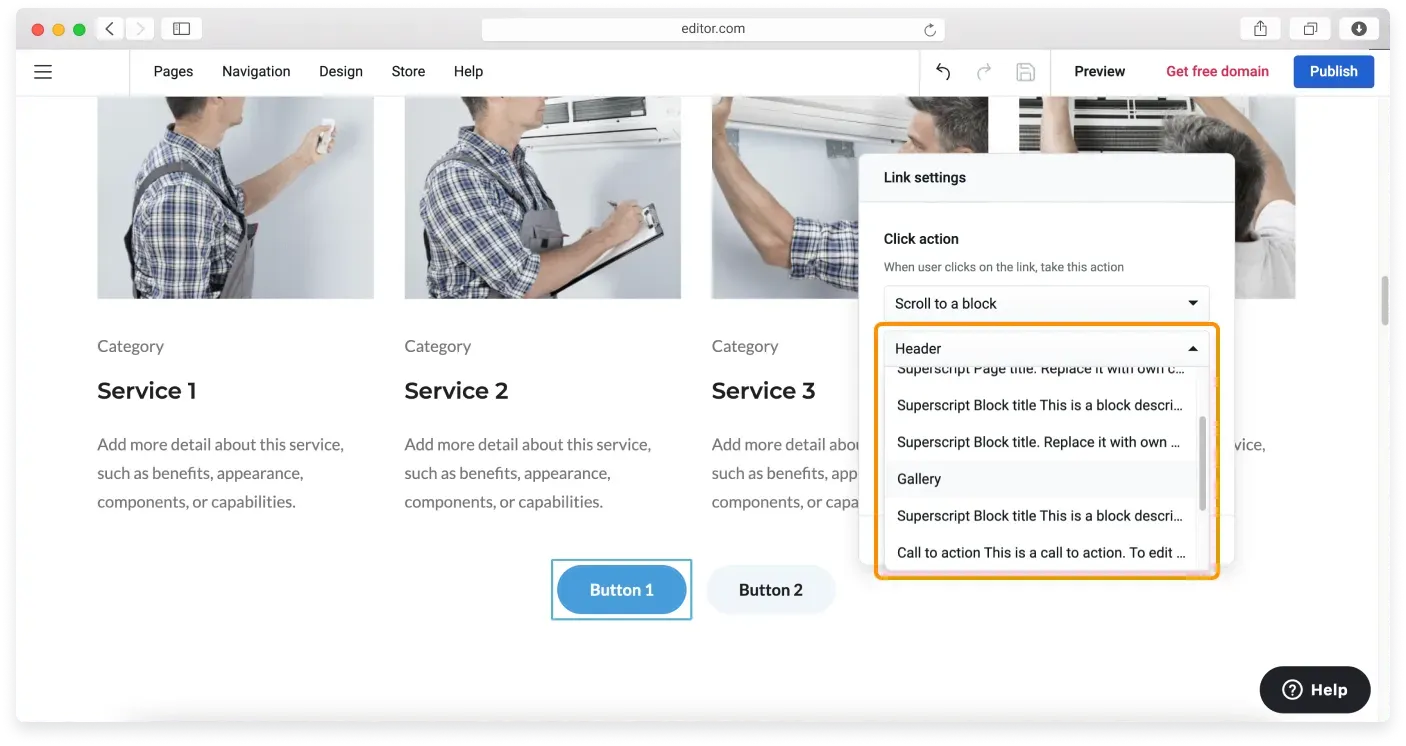
In the Link settings, choose the Scroll to a block click action from the dropdown menu.
-
In the following dropdown menu, choose the block you want to jump to when the button is clicked.
-
Change the button title if needed.
-
Click Submit to save.
Opening a web address
To link your button to an external website, follow these steps:
-
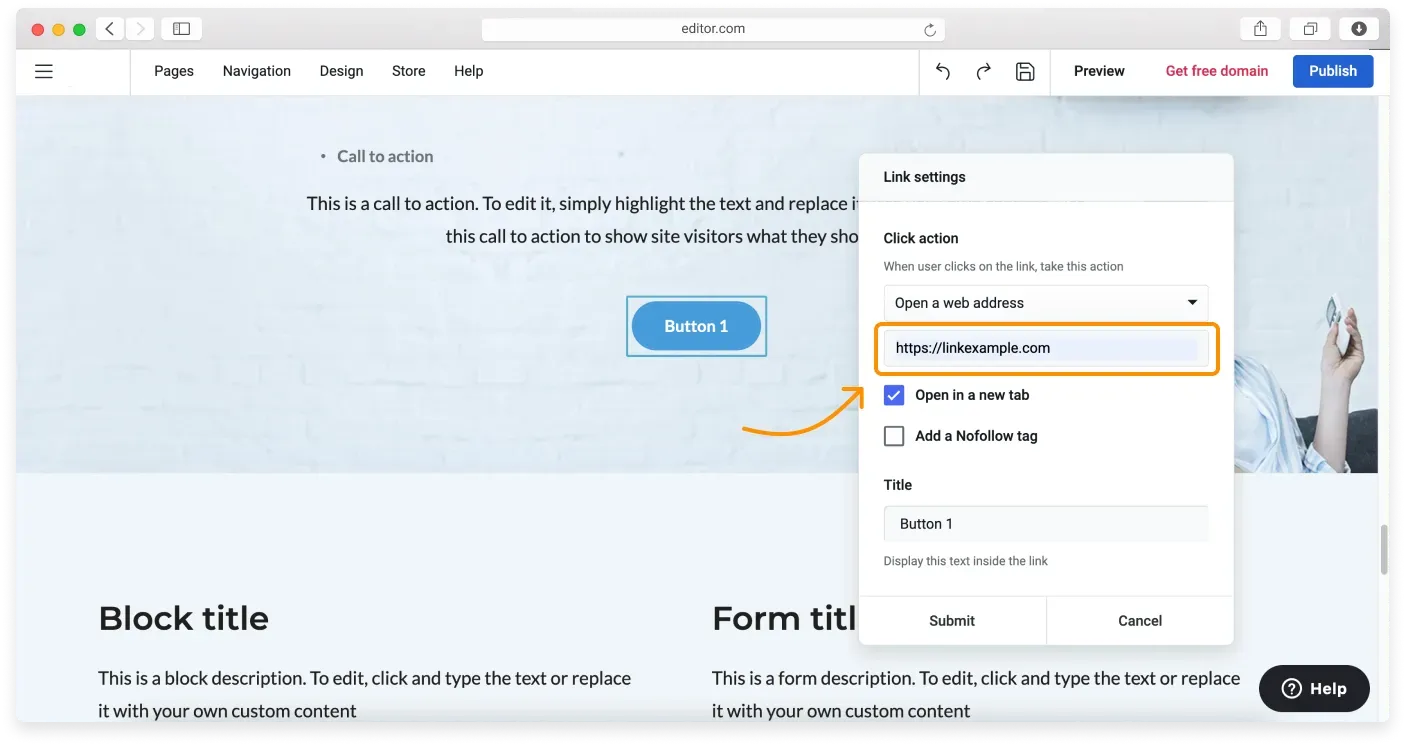
In the Link settings, choose Open a web address in the click action dropdown menu.
-
Copy the URL of the page you want to link and paste it into the Click action field.
-
Check Open in a new tab and Add a Nofollow tag if needed.
-
Specify the Title. It depends on where you link to, for example, you can use the external site name.
-
Click Submit.
Adding a social media profile
Here’s how to add a social media link to the button:
-
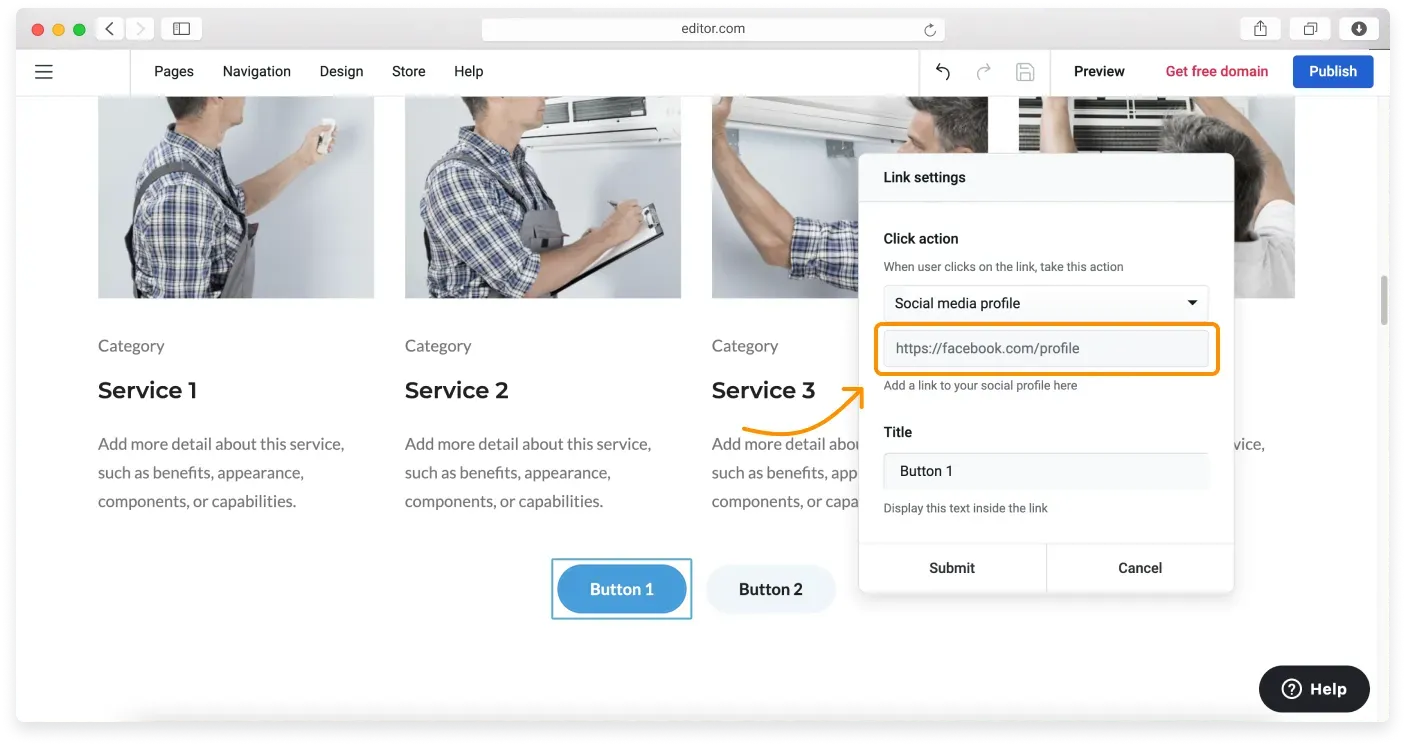
In the Link settings, choose Social media profile in the click action dropdown menu.
-
Copy the URL of the social page you want to link and paste it into the Click action field.
-
Set the button title in the Title field.
-
Click Submit to save.
Sending a WhatsApp message
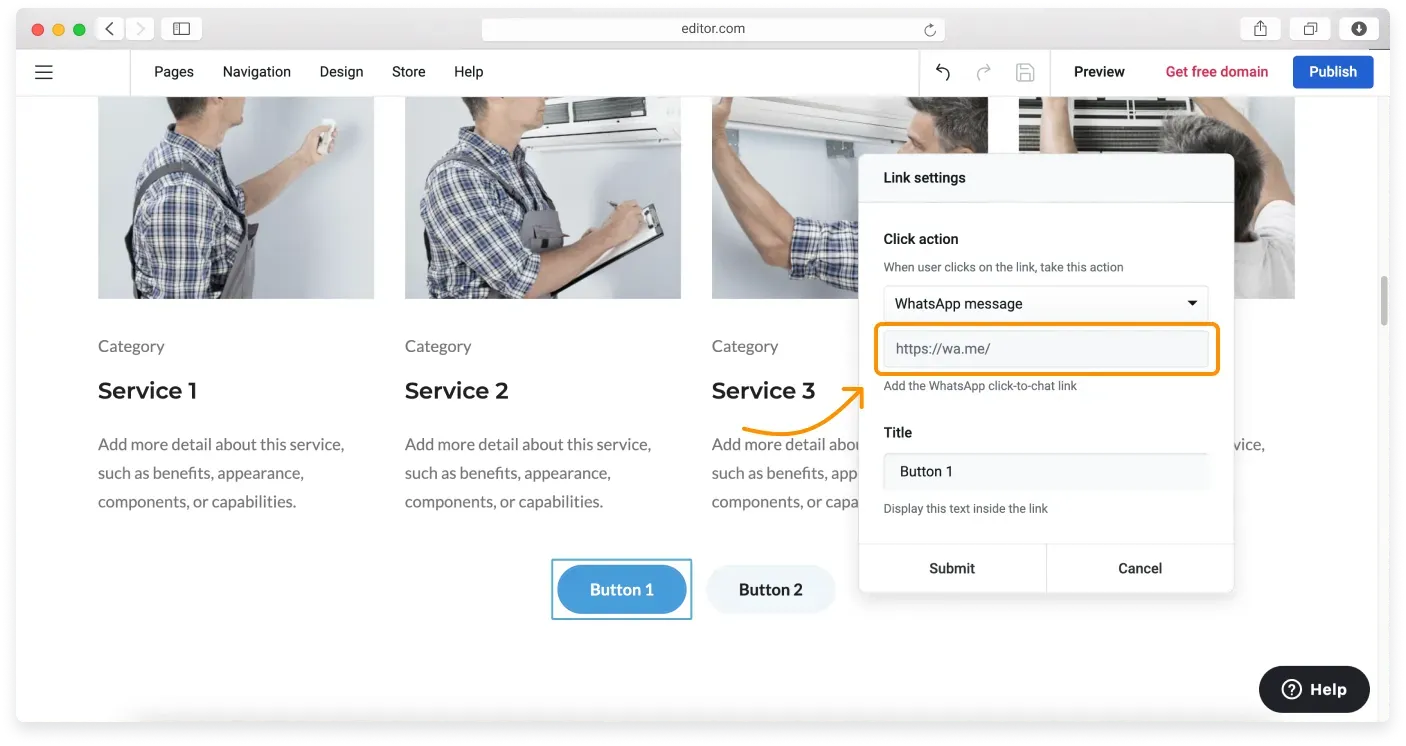
You can encourage your visitors to contact you via WhatsApp by setting up the WhatsApp message click action on the button. To do this, follow these steps:
-
In the Link settings, choose WhatsApp message in the click action dropdown menu.
-
Create your own WhatsApp click-to-chat (opens in a new tab) link, copy it, and paste it into the Click action field.
-
Set the button title in the Title field, for example, Message Us.
-
Click Submit to save.
Making a phone call
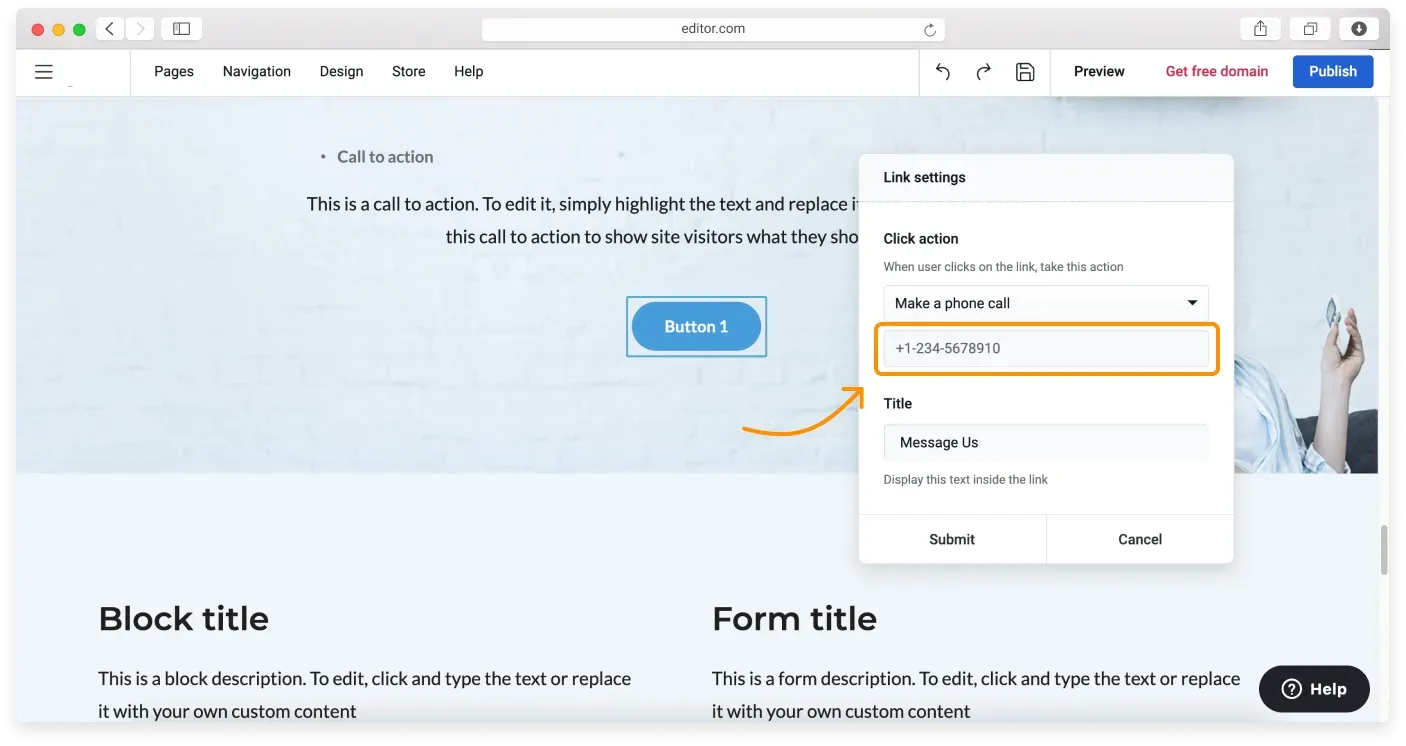
Choose this option to allow users to make a phone call without leaving your website. Here is how to enable it:
-
In the Link settings, choose Make a phone call in the click action dropdown menu.
-
Enter your phone number in an international format.
-
Specify the title, for example, Call Us.
-
Click Submit.
Sending an email
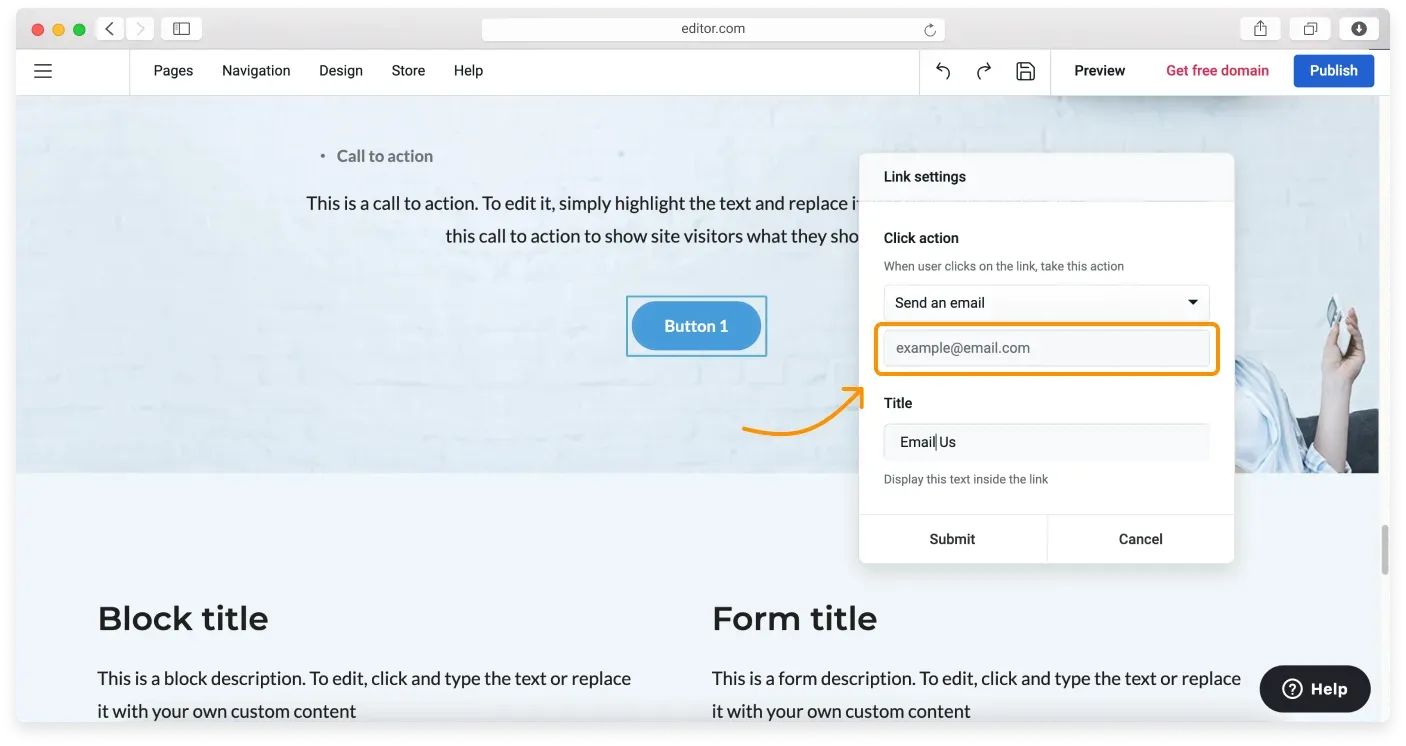
This option enables a mailto link, a link on a web page that points to an email address. When your website visitor clicks it, the default email client on their computer opens, and they can send a message to the email address you specify without having to type it in. Here is how to enable it:
-
Choose Send an email in the Click action menu.
-
Type in your email address in the respective field.
-
Name the button in the Title field, for example, Email Us.
-
Click Submit.
Linking to downloadable files
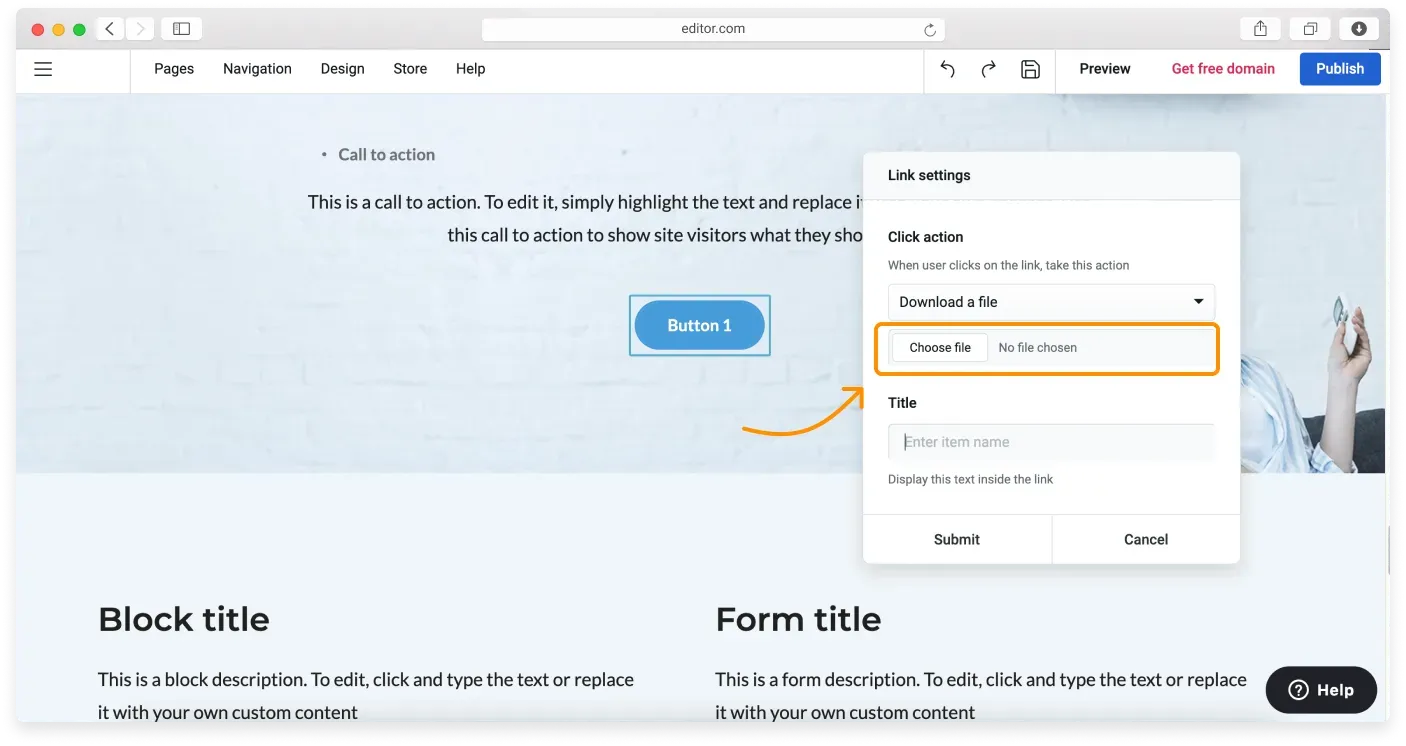
To attach a downloadable file to your button, follow these steps:
-
Choose Download a file in the Click action menu.
-
Click Choose a file, select a file on your computer, and click Open. The file will be added.
-
Specify the Title, for example, Download our form here.
-
Click Submit.
Changing the button alignment
You can change the alignment of buttons on your website. Here’s what to do:
-
Click the button to call out its control pane.
-
Click the respective icons to choose the alignment of the buttons in the block: left, right, or centered.
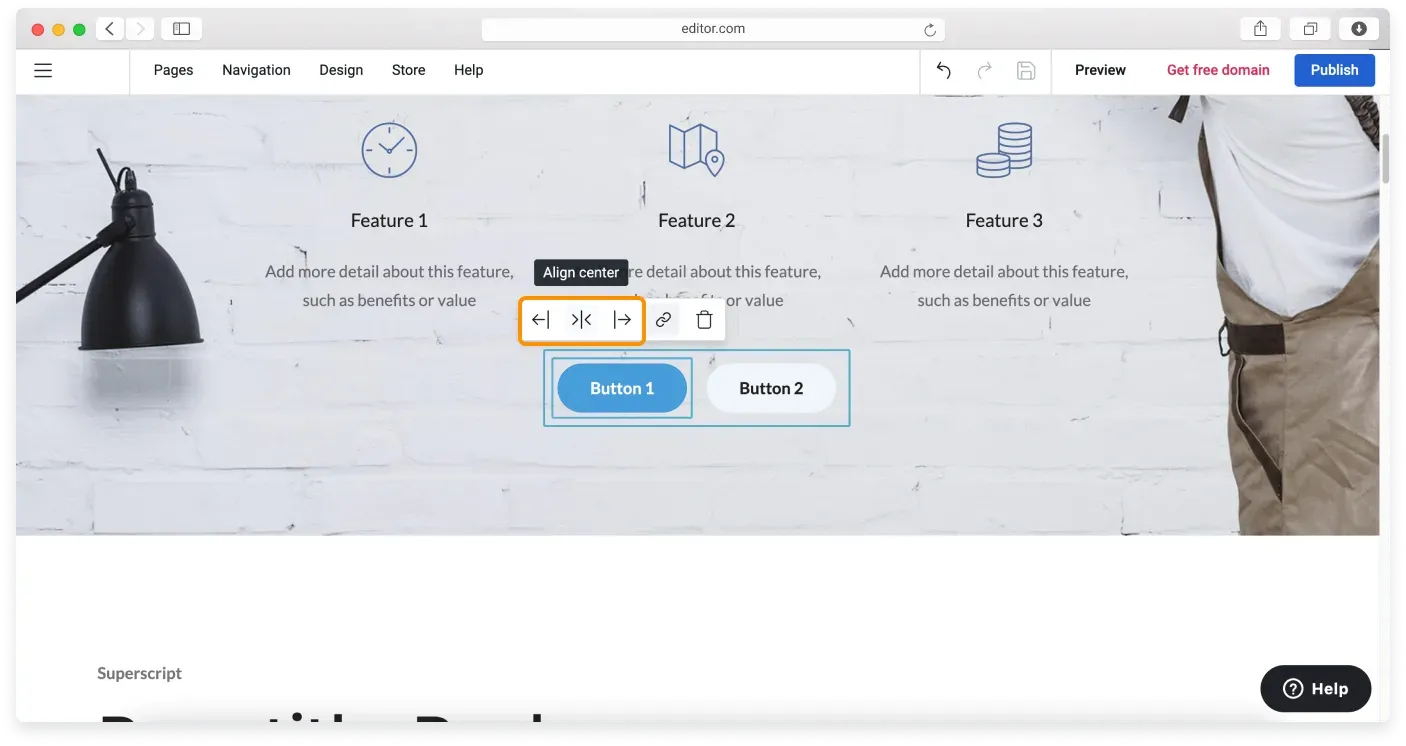
Remember to click Publish to make the changes live.
Removing buttons from a page
There are several ways to remove buttons from a block. Learn how to do this from our dedicated article.
Related articles
Can’t find what you need?
Contact our team. We’re here 24/7 by email and ticket.