
 English
 Svenska
Categories
Adding custom code to your site
Insert tracking tools, widgets, and scripts using the custom code areas.
On this page
The Website Builder handles most of your website’s structure automatically, including generating the required HTML, CSS, and JavaScript. If you need additional functionality, you can use custom code to integrate tracking tools, third-party services, widgets, or advanced customizations.
You can insert custom code into three specific areas of your website:
- Inside
<head> - After
<body> - Before
</body>
Most third-party providers specify where their code should be placed. If no placement is mentioned, start with the <head> section.
With the Website Builder, you have four places where you can add custom code to your site:
- In the Website settings, for the whole website
- In the Page settings, for a single page
- In the Custom block, using the HTML widget
- Via the HTML Embed block
Before you start
Custom code editing may require an eligible pricing plan, so you may need to upgrade your plan to use this feature. While code may work as expected, we cannot guarantee long-term compatibility. Third-party scripts can become outdated or conflict with platform updates.
Adding site-wide custom code
Site-wide custom code applies to every page on your website. To add it:
-
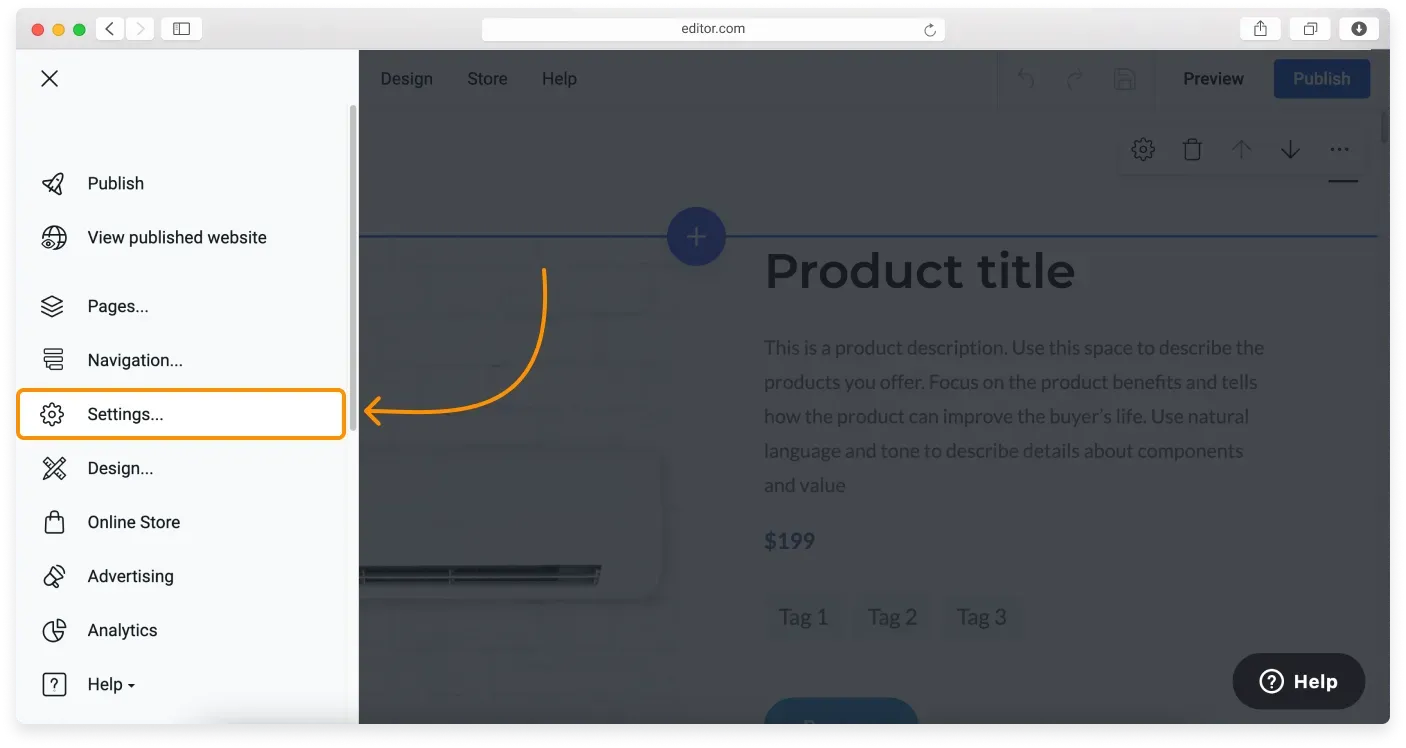
In the Website Builder, click the Main menu button in the top-left corner.
-
Click Settings in the sidebar.
-
Open the Custom Code tab.
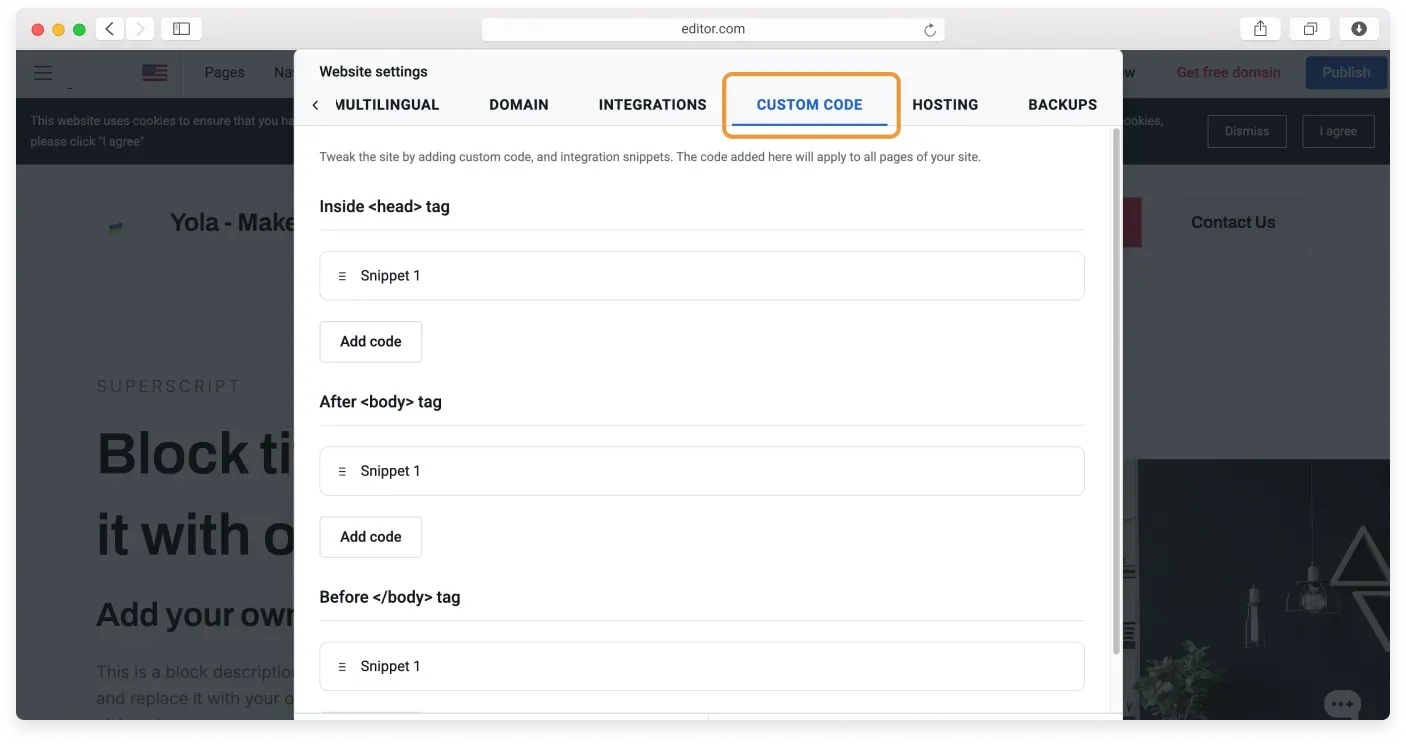
Within each placement area (Head, Body, or Footer), you can create and manage multiple code snippets.
Adding a code snippet
- Click Add code in the desired section: inside
<head>, after<body>, or before</body>. - In the dialog, enter a Name to identify the snippet.
- Paste your HTML, CSS, or JavaScript code.
- Choose the Rendering option. Website and Editor runs on the live site and inside the editor, while Website only runs only on the published site.
- Click Submit to save.
Each snippet appears as a separate item in the list, allowing you to manage scripts individually.
Editing or deleting a code snippet
- Click any existing snippet to open the Edit code snippet dialog.
- Update the name, code, or rendering option.
- To remove it, click Delete code snippet.
Rendering behavior
If you select Website and Editor, the editor displays a confirmation message indicating that the custom code has been rendered, and the code will render even before publishing.
Adding per-page custom code
Per-page custom code applies only to a selected page.
- On the Topbar, click Pages to open the Page Manager.
- Select the page and click its Settings icon.
- Open the Custom Code tab.
- Add, edit, or manage snippets using the same steps described above.
If the snippet is set to Website only, click Publish for it to run on the live page. If it is set to Website and Editor, it will also render inside the editor.
Adding code to a specific spot
If you want to add content using custom code to a specific location on your website page, you can use an HTML Embed block or an HTML widget in the Custom block.
Related articles
Can’t find what you need?
Contact our team. We’re here 24/7 by email and ticket.