
 English
 Svenska
Categories
Backing up your site
Create manual backups and restore a previous version of your website.
On this page
Your website is a significant digital investment, the result of your effort and resources. In the digital world, unforeseen events can disrupt your online presence. Technical glitches, cyber threats, and human errors are all risks that could wipe out your hard work, which is why having backups is essential.
This guide gives you the technical know-how and explains the critical reasons for making backups.
What is a site backup?
Backing up your website means protecting, saving, and archiving your content in several ways at regular intervals. This ensures your content is safe at all times.
A catastrophic event where your site suddenly vanishes, never to be recovered, is extremely unlikely. It is much more likely that you might accidentally delete something essential, like an important snippet of custom code. If that happens, you want to be prepared.
Types of site backup
There are two types of backups in the Website Builder: manual and automatic. By default, the Website Builder automatically backs up your site, with no extra effort on your part, during the following events:
- When you save the website for the fifth time.
- When you publish your website.
- Whenever you restore a previous version of your site.
Creating a manual backup
After making important changes to your website, you can back it up manually. Follow these steps:
-
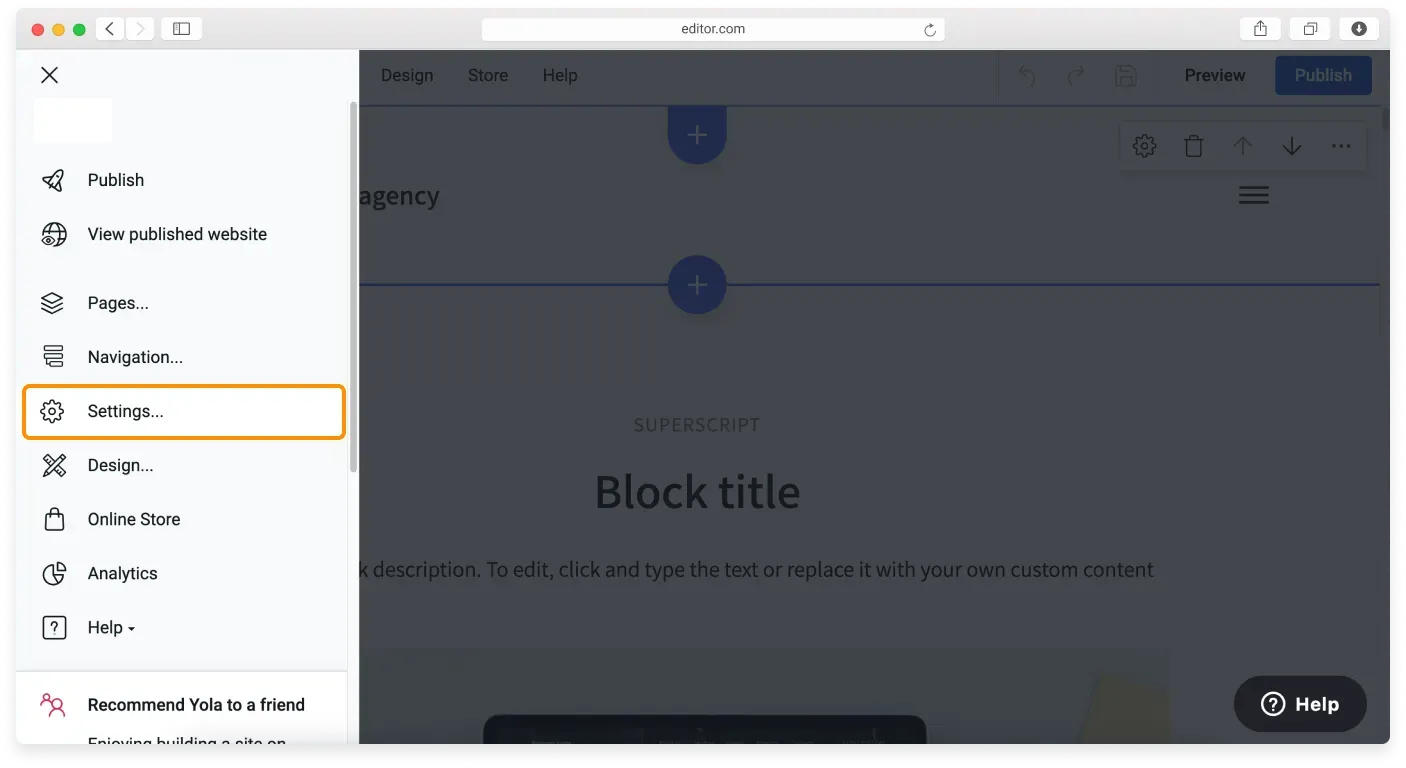
Click the Main menu icon (hamburger icon) in the top-left corner of the Website Builder.
-
Choose Settings in the Sidebar.
-
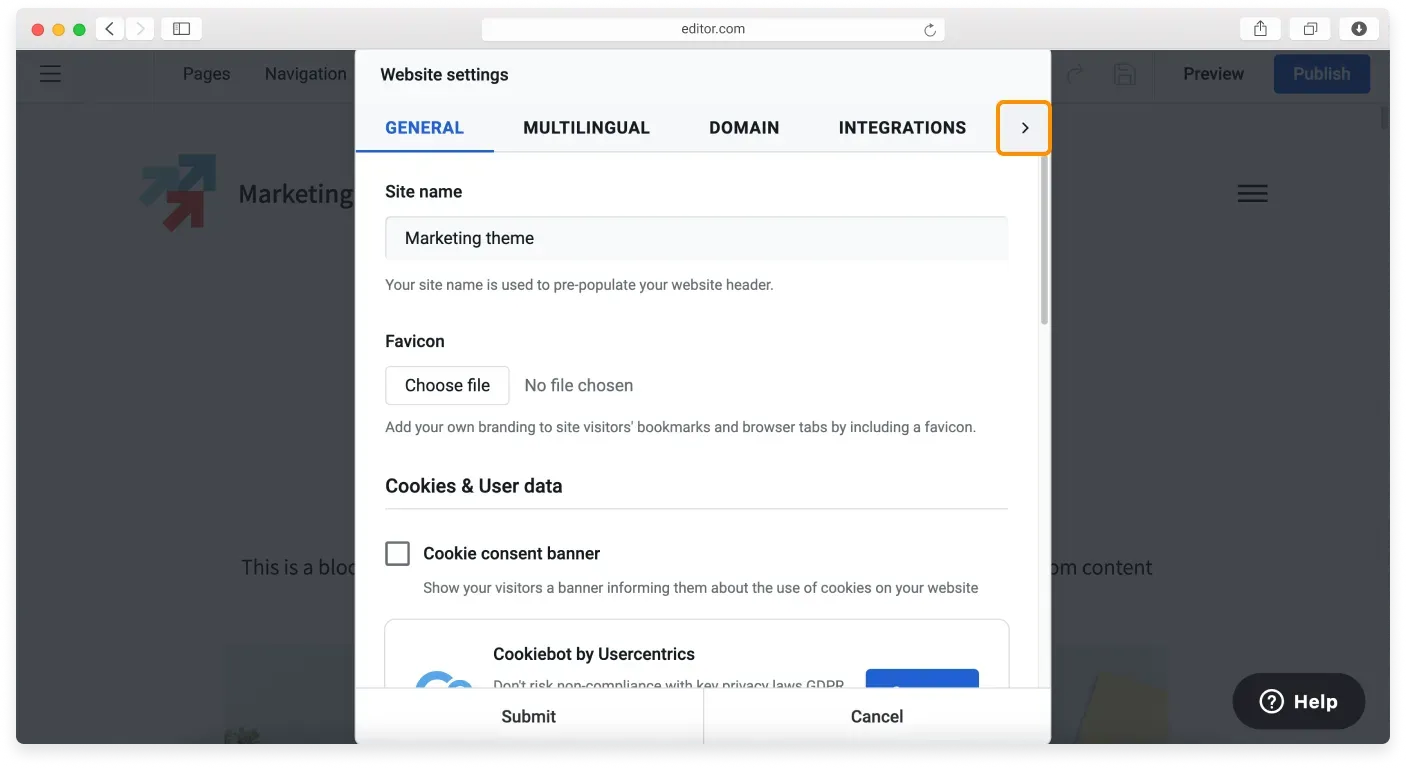
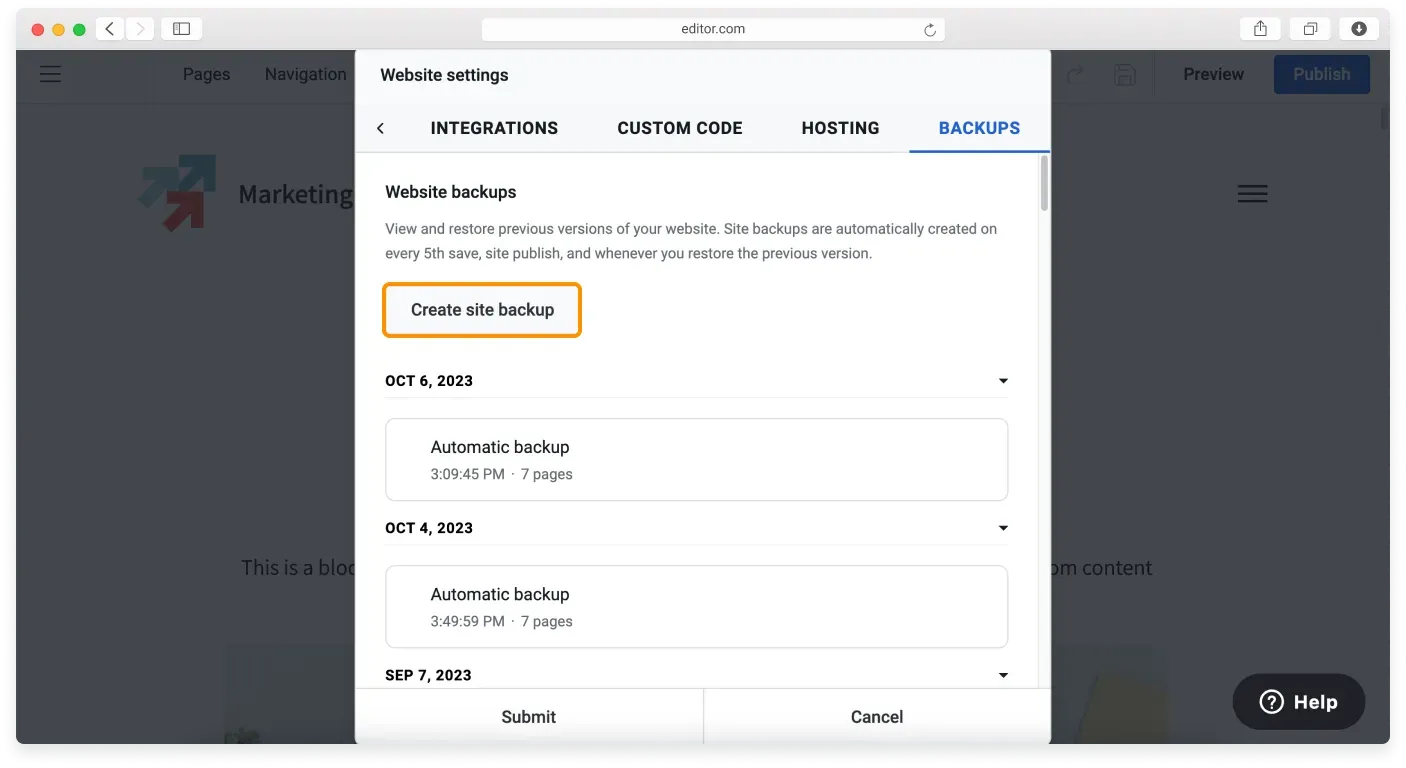
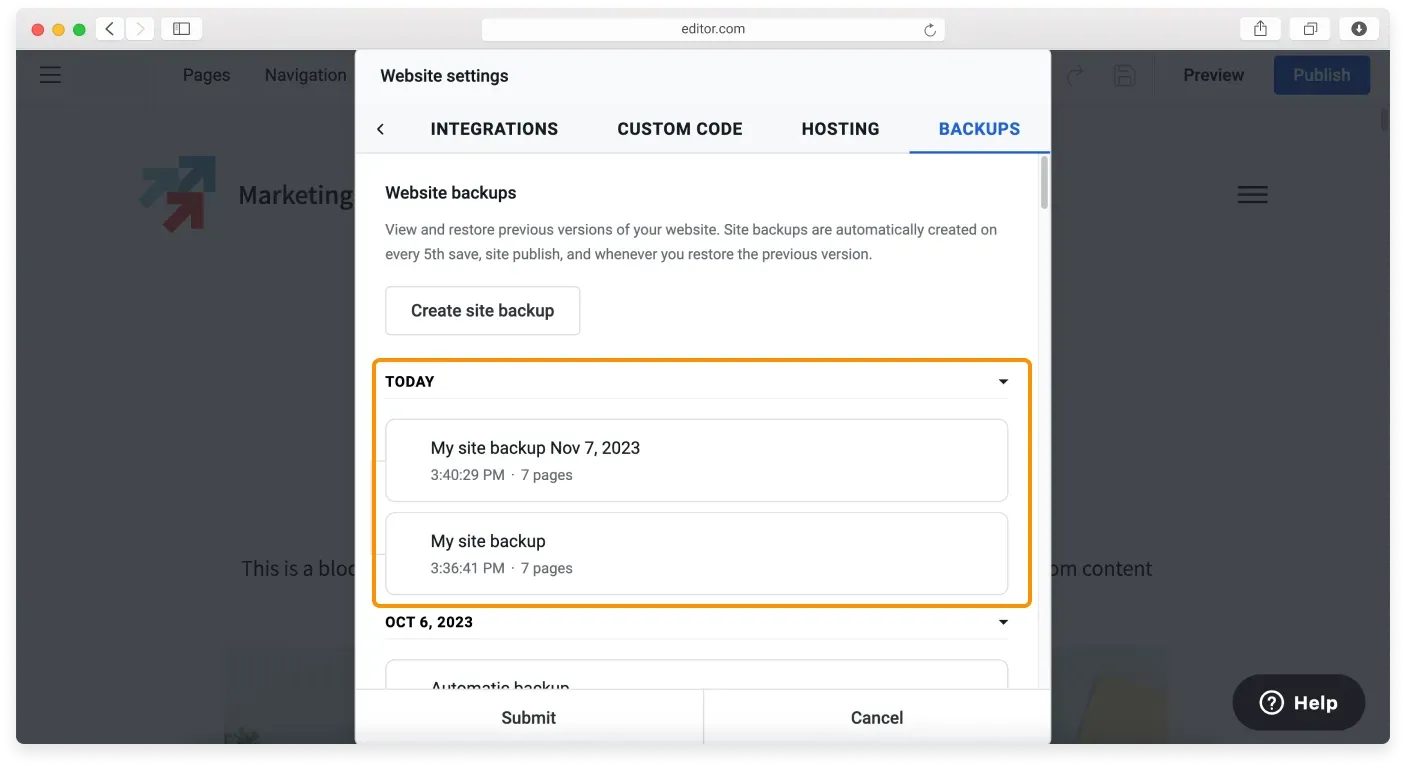
In Website settings, click the arrow in the top-right corner of the window and go to the Backups tab, where you will find a list of the automatic backups the Website Builder made for you and a button to create a new backup.
-
Click the Create site backup button to generate the backup manually.
-
Name your backup, for example with a date or a note to remind yourself what changed, then click Submit.
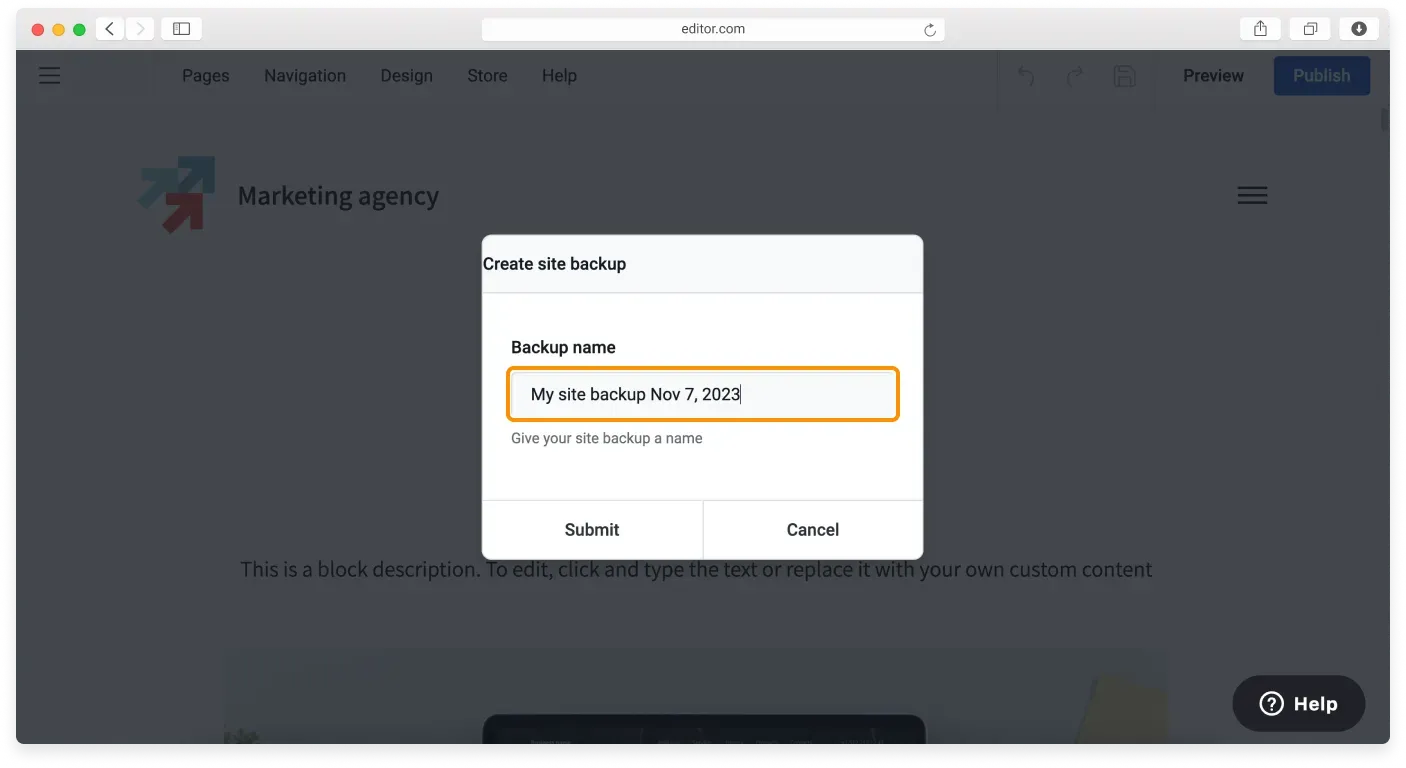
A new version of your website is saved, and it appears in the Website backups list with a date and time stamp and the number of pages backed up.
Restoring your site from a backup
If you want to restore your website to a previously saved version, click the backup in the list and confirm your choice in the warning popup that appears.
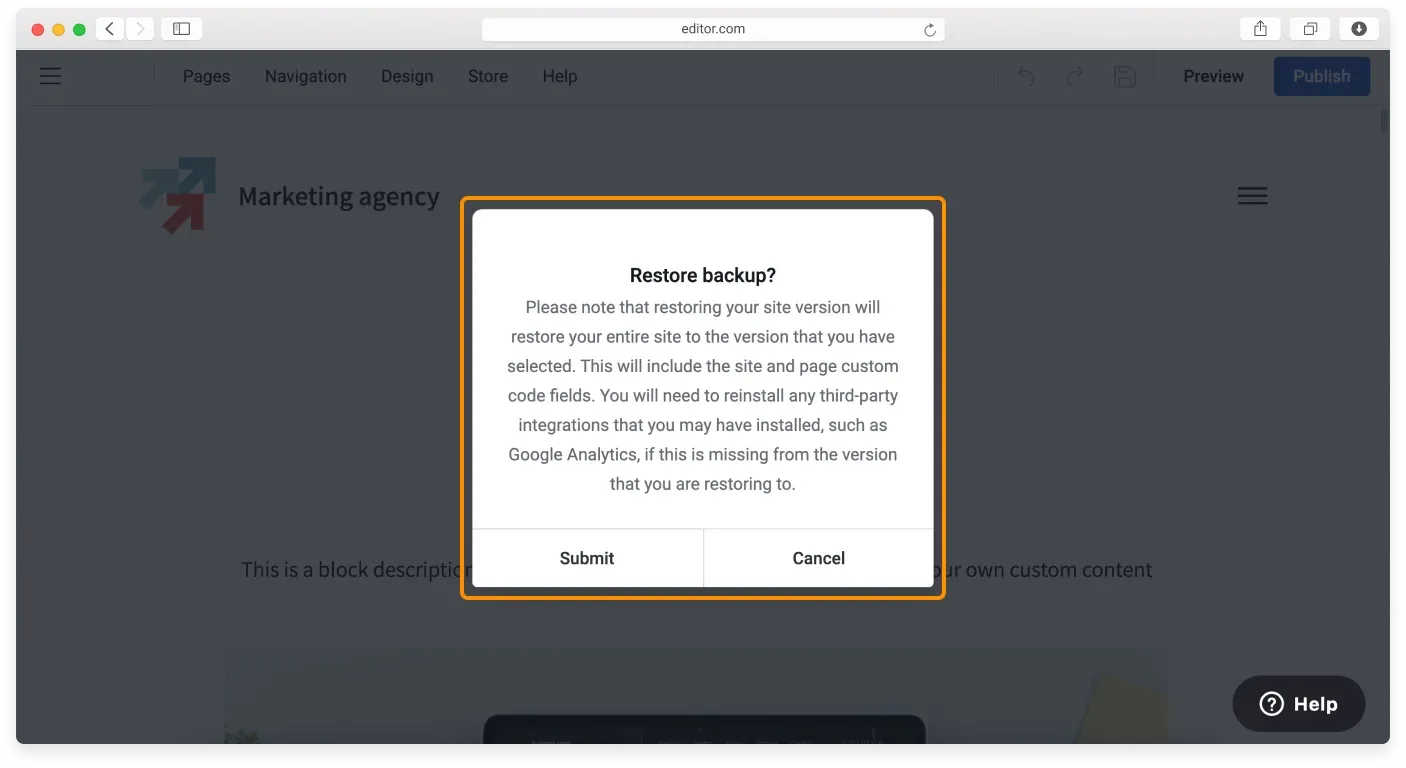
Once you click Submit, your website’s previous version is automatically restored. A new automatic backup is also created, so you can still access the current version of the site.
Related articles
Can’t find what you need?
Contact our team. We’re here 24/7 by email and ticket.