
 English
 Svenska
Kategorier
Den här artikeln finns inte på svenska än. Här är den engelska versionen.
Changing the text in your store
Rename buttons, labels, and text throughout your storefront with the Store Label Editor.
På den här sidan
With the Store Label Editor tool, you can customize text on buttons, links, and text fields in your online store. For example, you can rename “Featured products” to “Hot deals” or transform the “Add to bag” button into the “Add to cart” button.
For a multilingual store, you can change default texts in all languages.
Changing the default text
You can replace the default text in your online store with custom text in just a few clicks using the Store Label Editor. When you add another language to your store, you can customize content in that language as well.
To change the wording in your storefront:
- From your store admin, go to Settings → Edit Store Labels.
- Click + Get started.
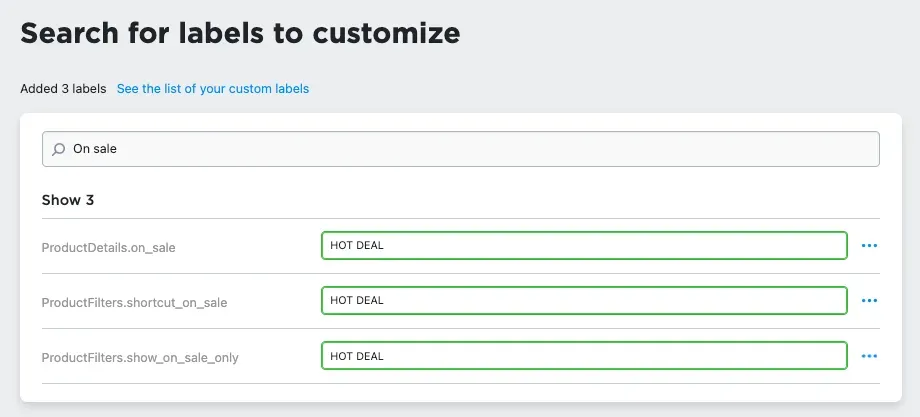
- In the search field, enter the default text you want to change. For example, “Add to bag”, “On Sale”, or “Featured Products”.
- Enter your custom text into the corresponding field. For example, “HOT DEAL” instead of “On sale”. If you get more than one search result with the same wording, change all of them so that all your buttons or labels with the same text are updated.
- (For multilingual stores) Select the text you want to change in any language and write your wording instead.
- Changes are saved automatically. If you need to undo changes, click the three dots to the right of a field and choose Reset to default.
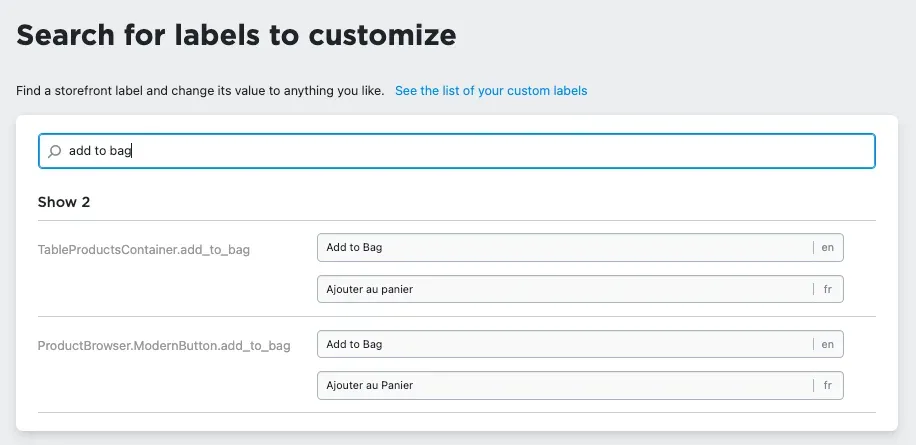
Now customers see the button or any other interface element with your custom wording.
Renaming Order Comments
To update the name of the Order Comments section, use the built-in settings in the Settings → Cart & Checkout tab.
Deleting wording in your storefront
You can delete the default text from your store with the Store Label Editor. In that case, the text is not displayed in your store. For example, you can remove the Featured Products title so that the featured products in your store appear with no heading. You can always reverse changes and restore the default wording.
To hide the default wording in your storefront:
- From your store admin, go to Settings → Edit Store Labels.
- In the search field, enter the text you want to delete. For example, “Featured Products”.
- Delete the label value. The changes are saved automatically.
- To undo the deletion, click the three dots to the right of a field and choose Reset to default.
Related topics
- Translating your store into several languages
Relaterade artiklar
- Introduction to product inventoryTrack product stock, choose out-of-stock behavior, and prevent overselling in your online store.
- Setting up taxesSet up automatic or manual taxes so the right rates apply at checkout.
- Choosing a shipping strategy for your storeCompare shipping strategies and set up shipping methods, origin, and zones for your store.
Hittar du inte det du söker?
Kontakta vårt team. Vi finns här dygnet runt via e‑post och supportärende.