
 English
 Svenska
Kategorier
Den här artikeln finns inte på svenska än. Här är den engelska versionen.
Changing website images on mobile
Replace the images in your blocks by taking a photo or uploading one from your device.
På den här sidan
You can replace any image in your pre-designed blocks with your own images. Here is how to change website images on mobile.
- Tap the image you want to change to bring up the editing menu.
- Tap the Edit Image (picture) icon.
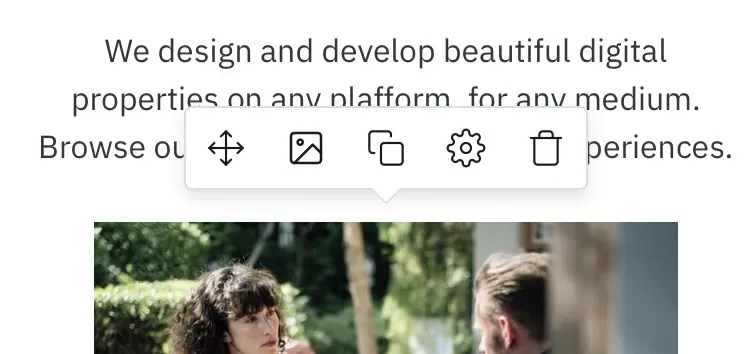
You then have three options.
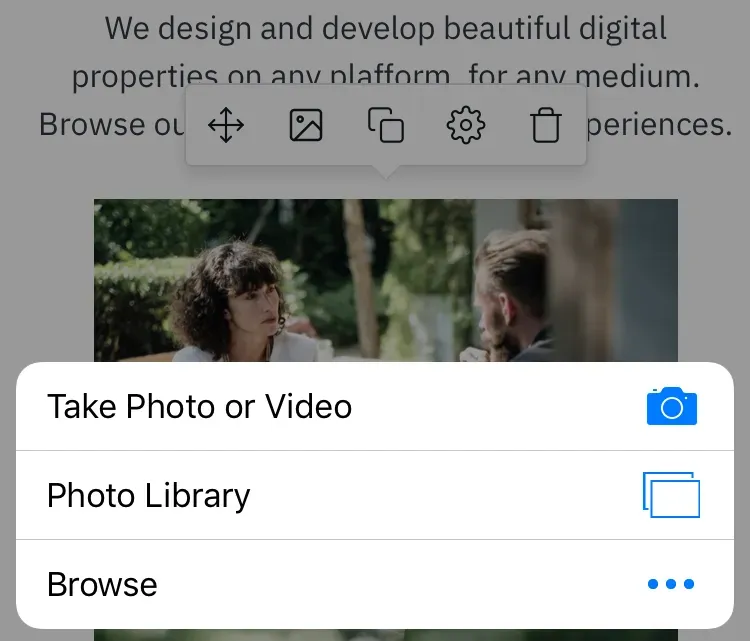
- Take Photo or Video: shoot a photo to publish on the website instantly.
- Photo Library: upload an image from the photo library on your device.
- Browse: upload a file from another location on your device.
Taking a photo to use as a new image
- Tap the block where you would like to change the image, then tap the “picture” icon in the floating menu.
- The Image Resizer tool loads. Tap the “up arrow” icon.
- In the next menu, tap the Take Photo or Video option.
- Point your camera to frame the shot you want to use. Tap Take Photo to capture it, or tap Retake if you need to try again.
- On the next screen, use the round resizing lever to refocus or resize the image. When you are happy with your selection, tap the “check” Submit icon to upload the new image to your website.
- Tap the “rocket” Publish icon in the top right corner of your mobile editor. Your website updates and your changes go live.
- If you want to cancel the change, tap the Undo arrow.
Uploading a new image from your device
- Tap the block where you would like to change the image, then tap the “picture” icon in the menu.
- The Image Resizer tool loads. Tap the “up arrow” icon.
- Choose the Photo Library option and navigate to the image you want on your website page.
- Use the Image Resizer tool to adjust the image focus and details. This step is optional.
- Tap the “check” Submit icon and the image uploads to your website.
- Tap the “rocket” Publish icon in the top right corner of your mobile editor. Your website updates and your changes go live.
- If you want to cancel the change, tap the Undo arrow.
Quickly resizing images
To resize an image, tap the black circle lever at the bottom of the image and pull it to reach the size you want.
For example, if you want to make images shorter in height, pull the lever up.
Other images adjust too
All other images in the same block adjust in the same way.
Relaterade artiklar
- About mobile editingHow the mobile Website Builder lets you create and edit your website from any phone or tablet.
- First steps to building your website on mobileSign up and use the Setup Wizard to pick a template and set up your site from your phone.
- Adding website content on mobileAdd and edit blocks, images, text, and downloadable files from your mobile device.
Hittar du inte det du söker?
Kontakta vårt team. Vi finns här dygnet runt via e‑post och supportärende.