
 English
 Svenska
Kategorier
Den här artikeln finns inte på svenska än. Här är den engelska versionen.
Managing website settings
Find and manage your site's name, favicon, cookies, languages, backups, and more.
På den här sidan
The Website Builder settings let you manage your site’s name, favicon, and cookies, as well as languages, backups, redirects, and more. In this tutorial, you will learn how to manage the basic website settings and where to find more in-depth information.
Opening website settings
To open Website settings, follow these steps:
- Click the Menu button (three horizontal lines) in the top-left corner of the Website Builder to open the Sidebar.
- Choose Settings from the menu.
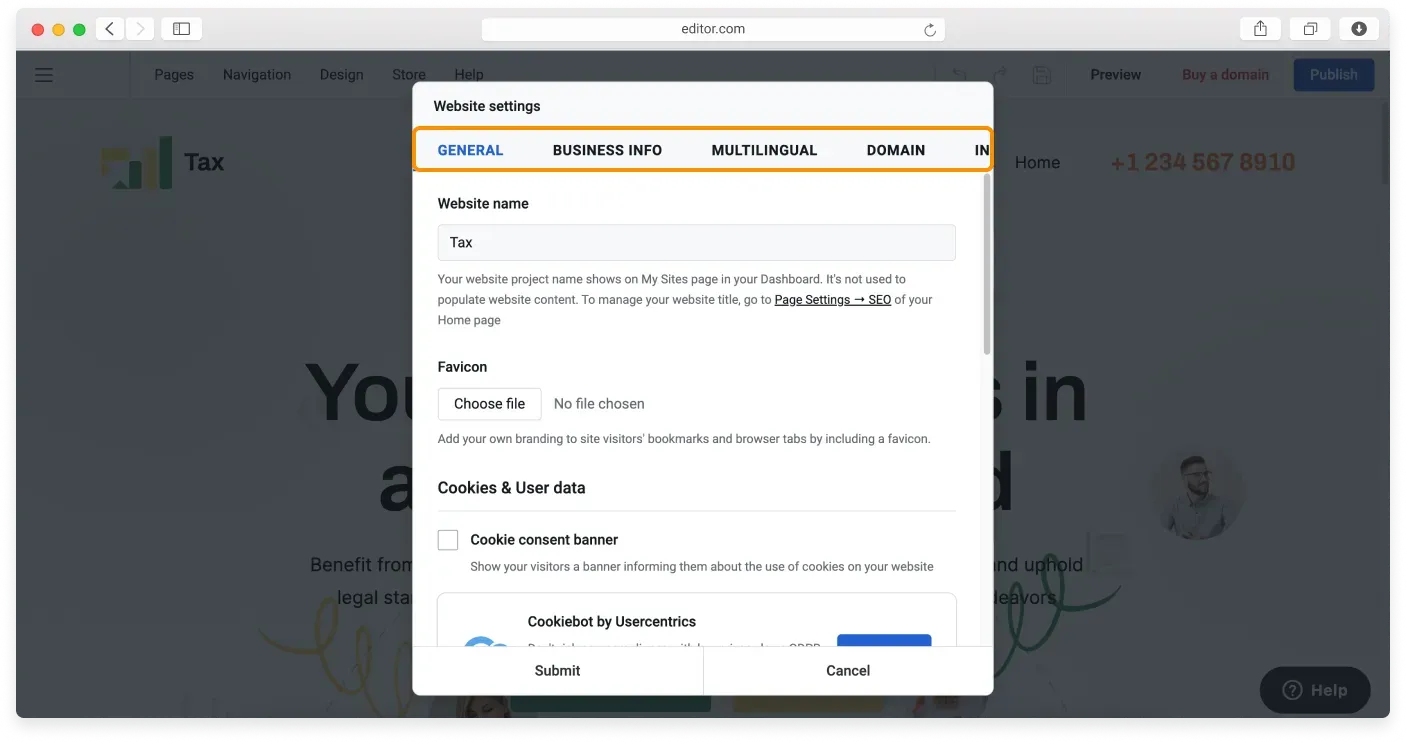
You will be taken to the Website Settings window, which has the following tabs:
- General
- Business info
- Multilingual
- Integrations
- Hosting
- Backup
General tab
In the General tab, you can manage the following:
- Your site name
- Your website favicon
- Custom code (inside the
<head>tag, after the<body>tag, and before the</body>tag) - Enable the cookie consent banner
- Switch template
- Reset site
- Site export
Custom code
Custom code can be useful for adding extra HTML, CSS, and JavaScript. You may need to upgrade your plan to access this feature.
Business info tab
This tab stores all your business information, which is automatically distributed to every section of your website where it is needed. The tab has two sections:
- Profile section, with your business name, business category, and business description.
- Contacts section, with your contact details such as address, phone, email, and working hours.
If you ever need to update any of this information, go to the Business info tab. It is your place for managing all the important details across your site. You are also redirected here when you click any business-related info in the editor.
Multilingual tab
In this tab, you can add new languages to your site. Learn more about the multilingual features of your website in the Multi-language sites section.
Integrations tab
Here you can add your Google site verification code and Google Analytics tracking ID.
Custom code tab
This tab contains fields for inserting custom code (inside the <head> tag, after the <body> tag, and before the </body> tag).
Hosting tab
In this tab, you can permanently route incoming traffic from one page to another using 301 redirects.
Backup tab
In this area, you can create a new site backup, view a list of backups, and restore a previous backed-up version of your site.
Once you are done modifying settings, click Submit to apply your changes.
Relaterade artiklar
Hittar du inte det du söker?
Kontakta vårt team. Vi finns här dygnet runt via e‑post och supportärende.