
 English
 Svenska
Kategorier
Den här artikeln finns inte på svenska än. Här är den engelska versionen.
Creating your homepage
Customize your homepage in the Website Builder by editing blocks, text, and images.
På den här sidan
After signing up and choosing a template, you land in the Website Builder, where you can edit and customize your website. We recommend starting with the homepage, as it is the first thing your visitors see when they open your site.
Your homepage should catch your visitors’ attention, give them a good idea of the rest of the content on your site, and offer a clear way to navigate to it. This article will help you customize your homepage.
Finding your homepage in the menu
You can identify your homepage in the list of pages by the house icon next to the page name.
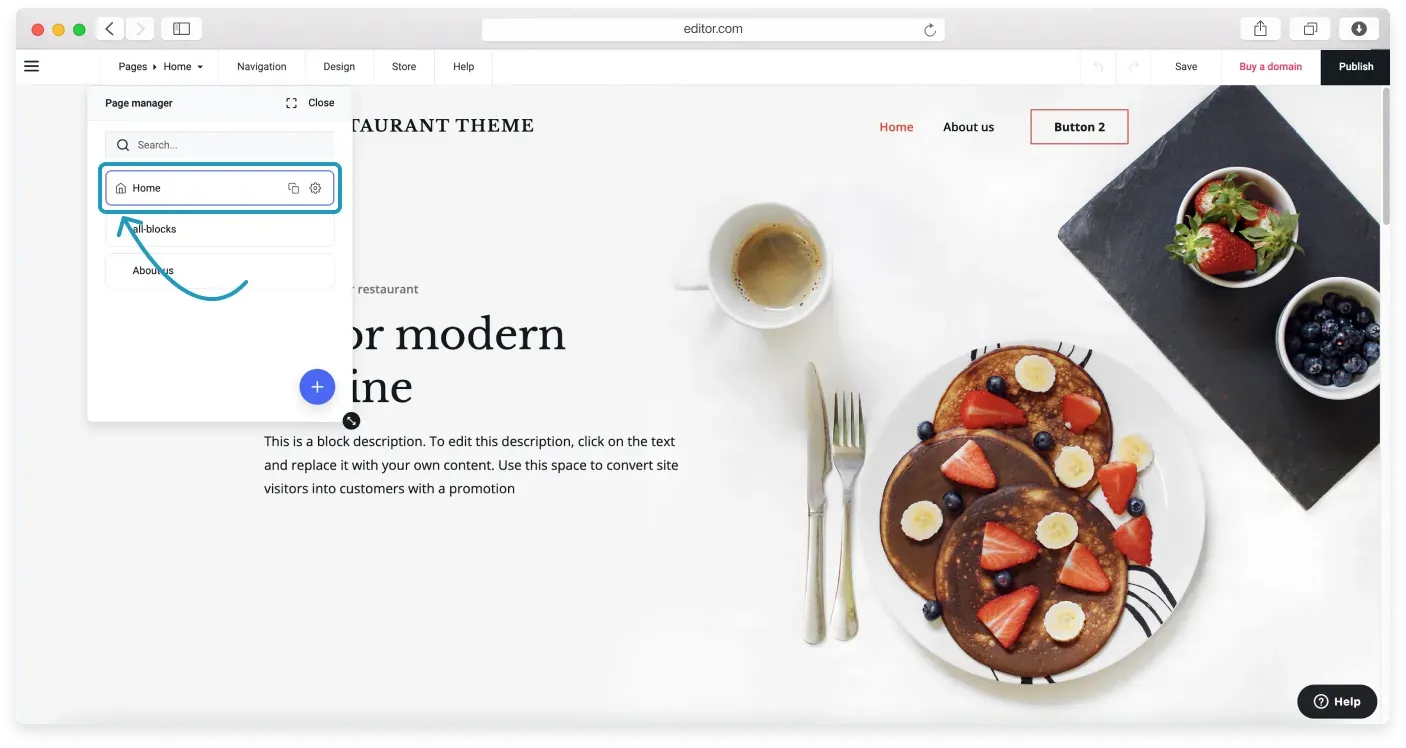
If you want to switch your homepage, click the house icon next to the relevant page.
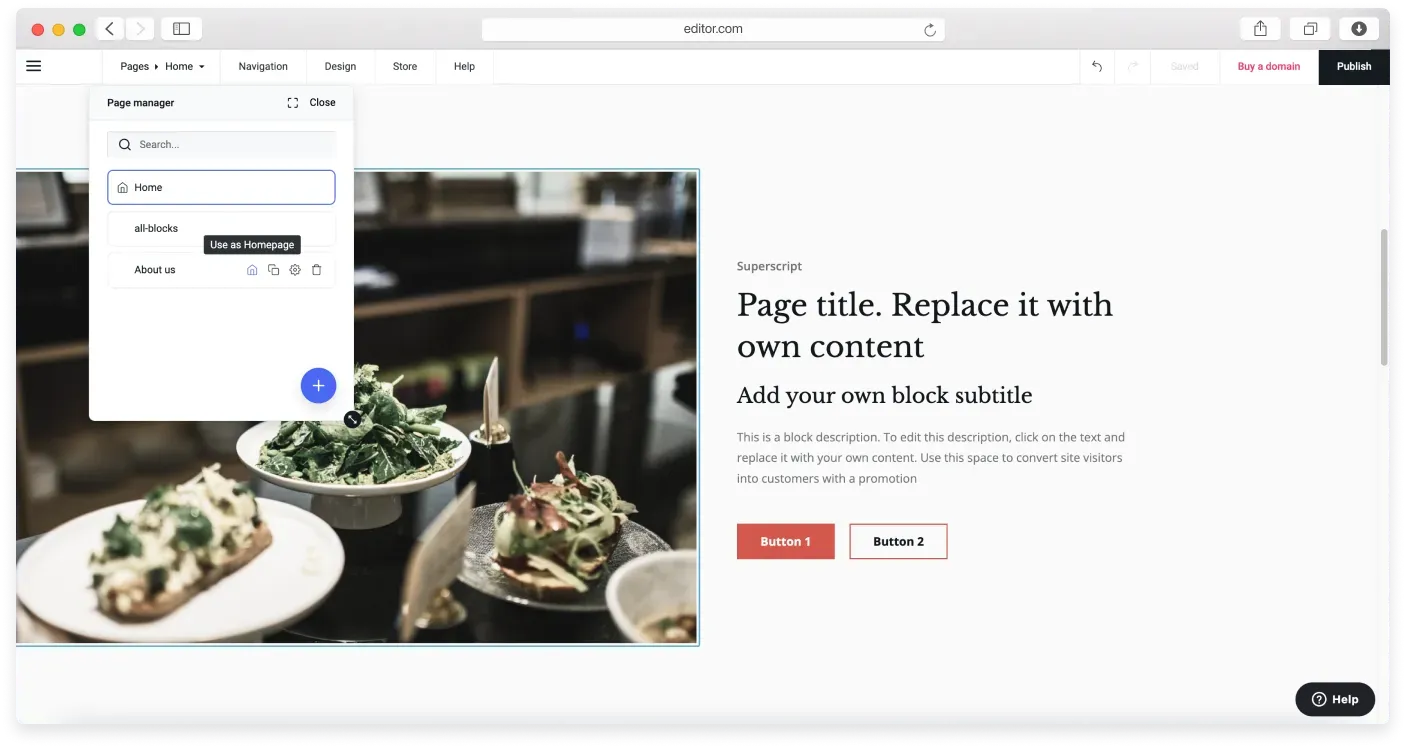
Editing blocks
You can change your site layout by adding or removing blocks and their elements. Start customizing your website by clicking the existing blocks to add text or other content. Hover over the element you want to edit and you will see its dedicated menu.
Read more about setting up your blocks in the Block settings article. You can also change the background color and background picture of every block; see the Building your site section for details.
Editing text
To add text to a page, click any pre-designed text block and start typing. You can type the content you want or copy and paste text from any text editor, such as Microsoft Word or Pages.
While editing, a text formatting toolbar opens at the top of your page. Use this toolbar to change the text formatting.
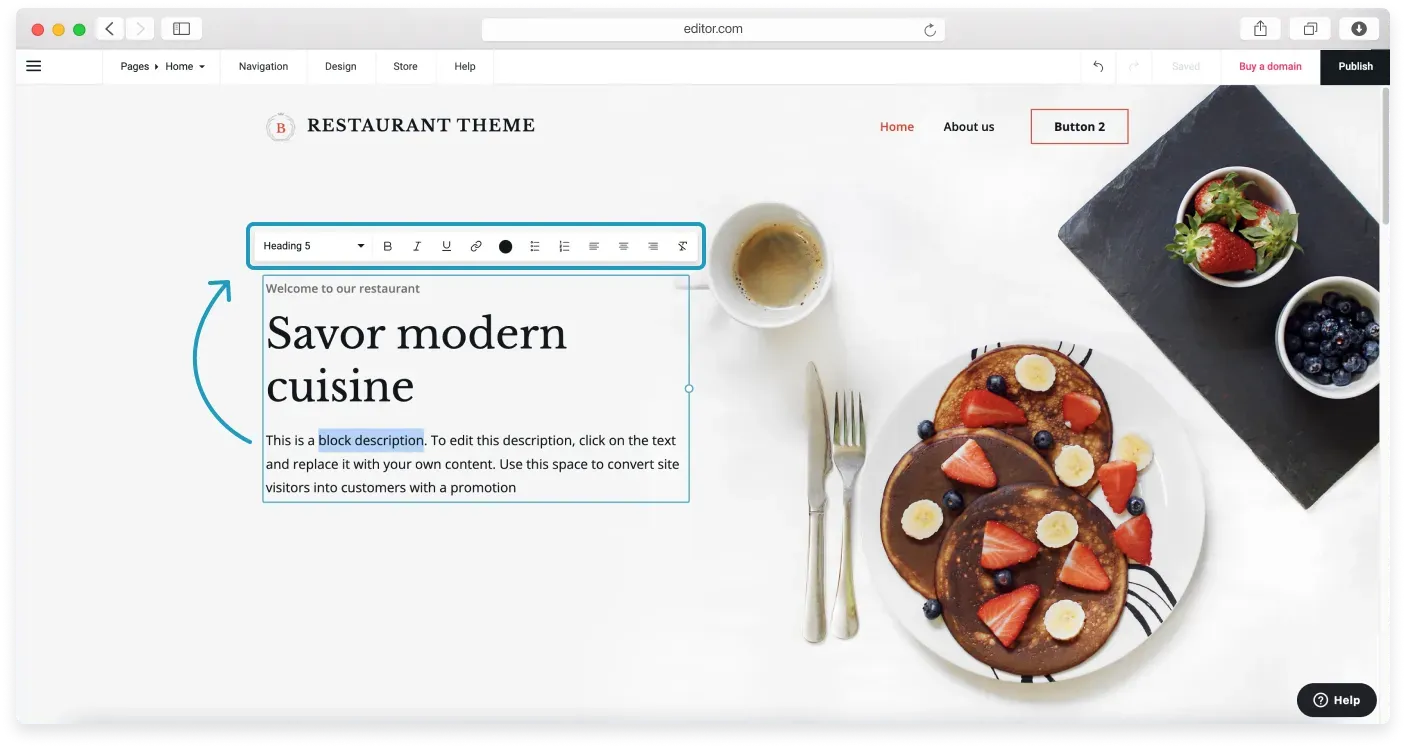
This toolbar lets you do the following:
- Make text bold, underline it, or italicize it.
- Type a heading at the top of your text and change the font format.
- Create an ordered or unordered list.
- Change the text color.
- Add a link to your text.
- Align your text.
If you want to customize your fonts and color palettes, read these in-depth tutorials:
- Customizing website fonts
- Changing a color palette
Adding images
With images, you have three options:
- Continue using the demo images from your template.
- Replace demo images with free stock photos using the integrated photo library.
- Replace demo images with your own images from your computer.
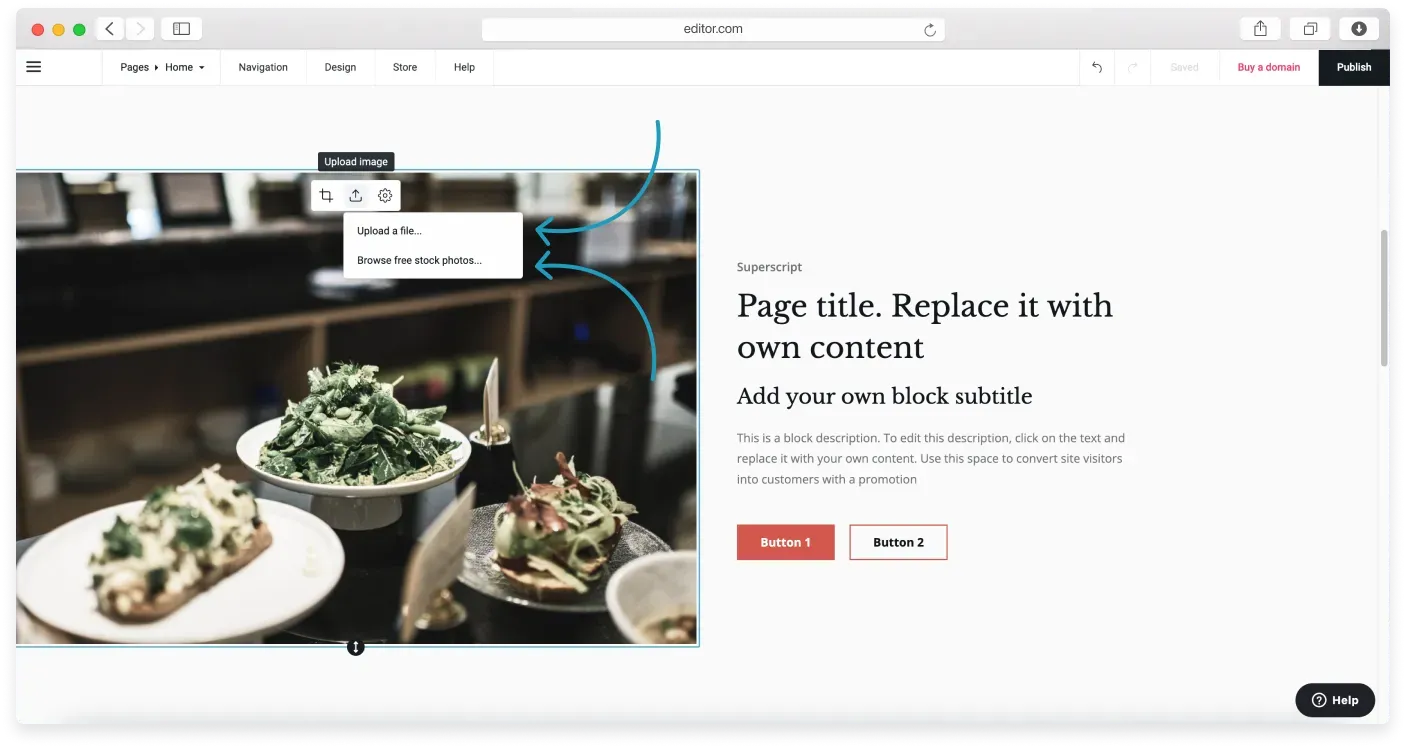
You can find detailed instructions in our Adding images tutorial.
Relaterade artiklar
Hittar du inte det du söker?
Kontakta vårt team. Vi finns här dygnet runt via e‑post och supportärende.