
 English
 Svenska
Kategorier
Den här artikeln finns inte på svenska än. Här är den engelska versionen.
Adding images
Upload your own photos or add free stock images to your website blocks.
På den här sidan
The pre-designed templates and blocks contain images that match your website theme. It’s fine to keep them. However, uploading your own images makes your website unique and shows your credibility to your visitors.
Uploading your own images instead of demo content
You can upload images to blocks directly from your computer or add free stock photos from the built-in photo library.
To upload your own image from your computer storage, follow these steps:
-
Click any demo image in your block to activate image controls.
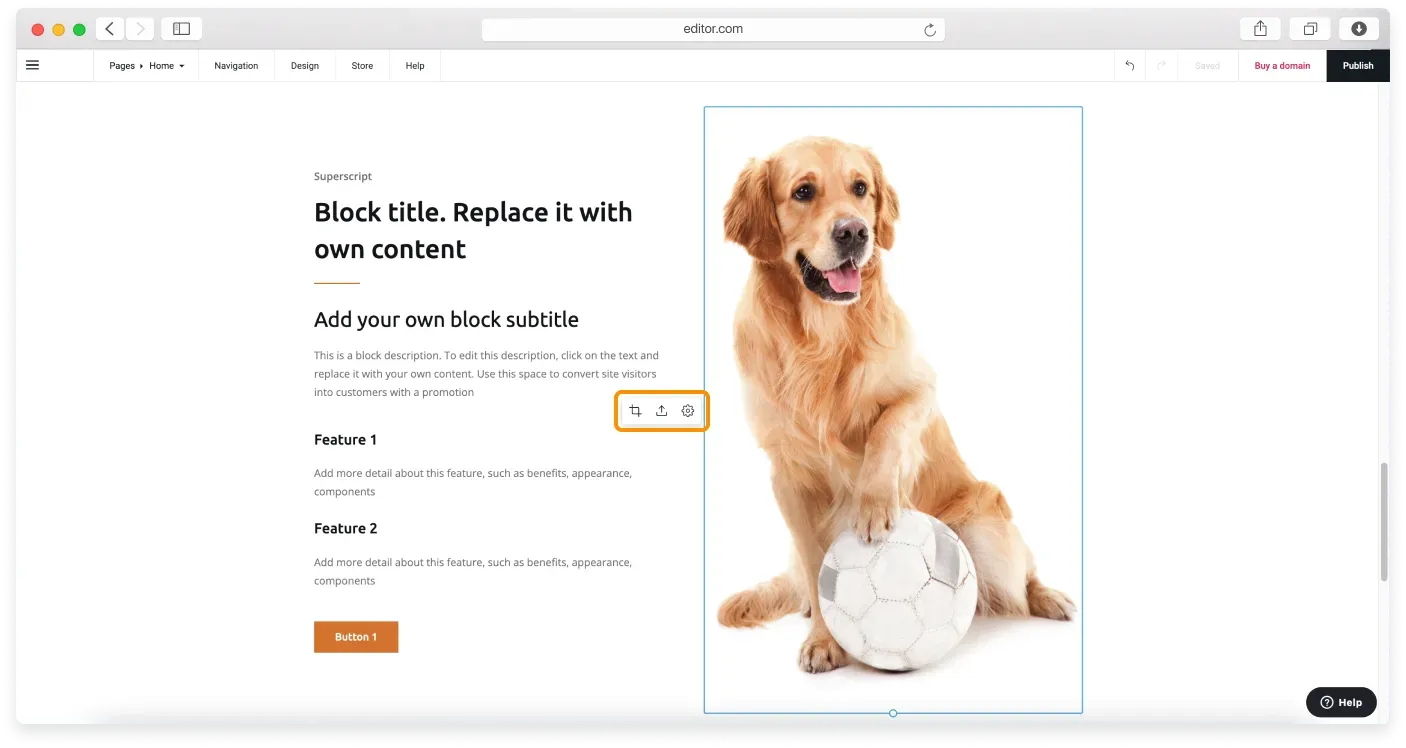
-
Click the Upload image icon and then click the Upload a file option from the drop-down menu.
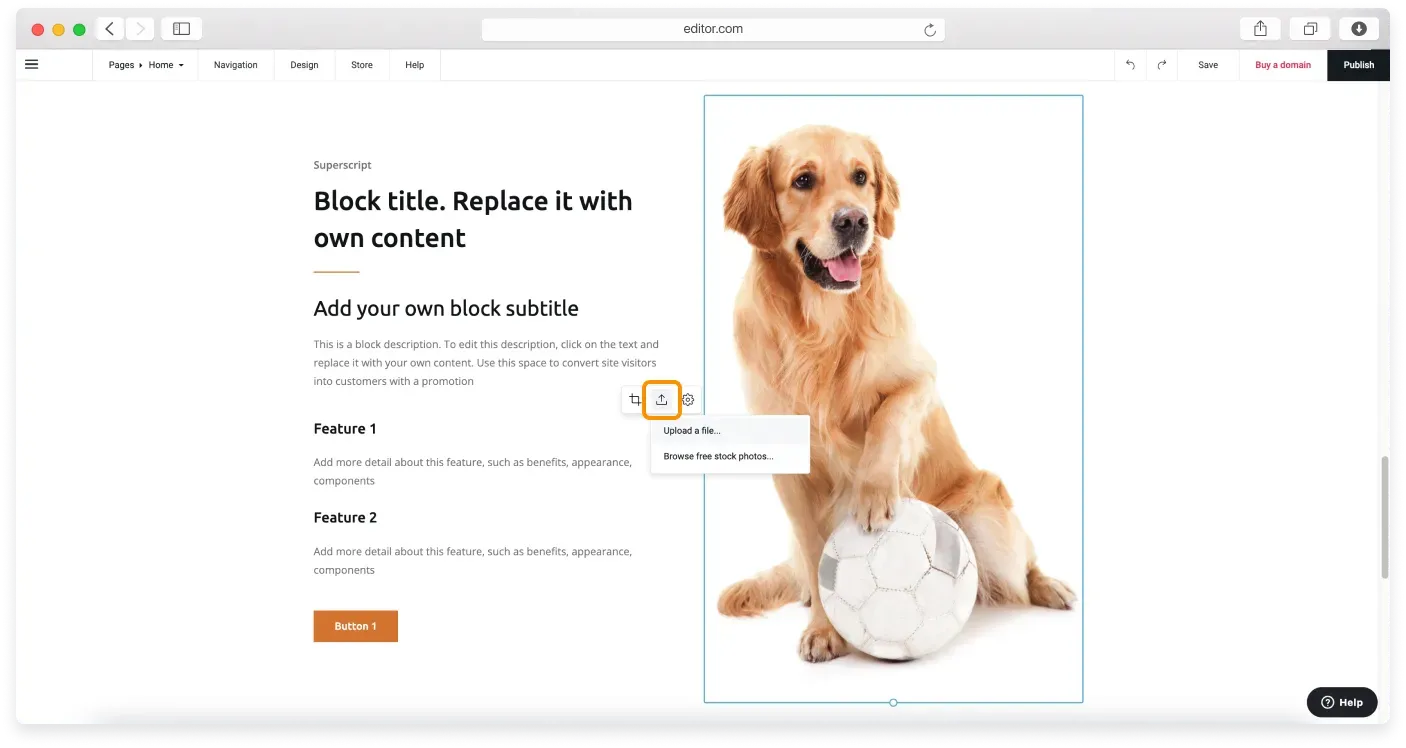
-
When your computer storage opens, find the image you want to upload, click it, then click Open. In a few seconds, your image will be uploaded to the image frame.
The Website Builder automatically adjusts the image shape for the particular block’s layout. However, you can also customize it to your preference, for example, resize it and change its focal point. Read our guide on image customization to learn more.
More images on a page
The proportions and layout of images are pre-designed to make the page look professional and modern. If you need more images on a page, you can use blocks such as the Image block or the Gallery block to display more images.
Adding images from the photo library
If you want to use a free stock image from the built-in photo library, follow these steps:
-
Click the demo image in your block to activate image controls.
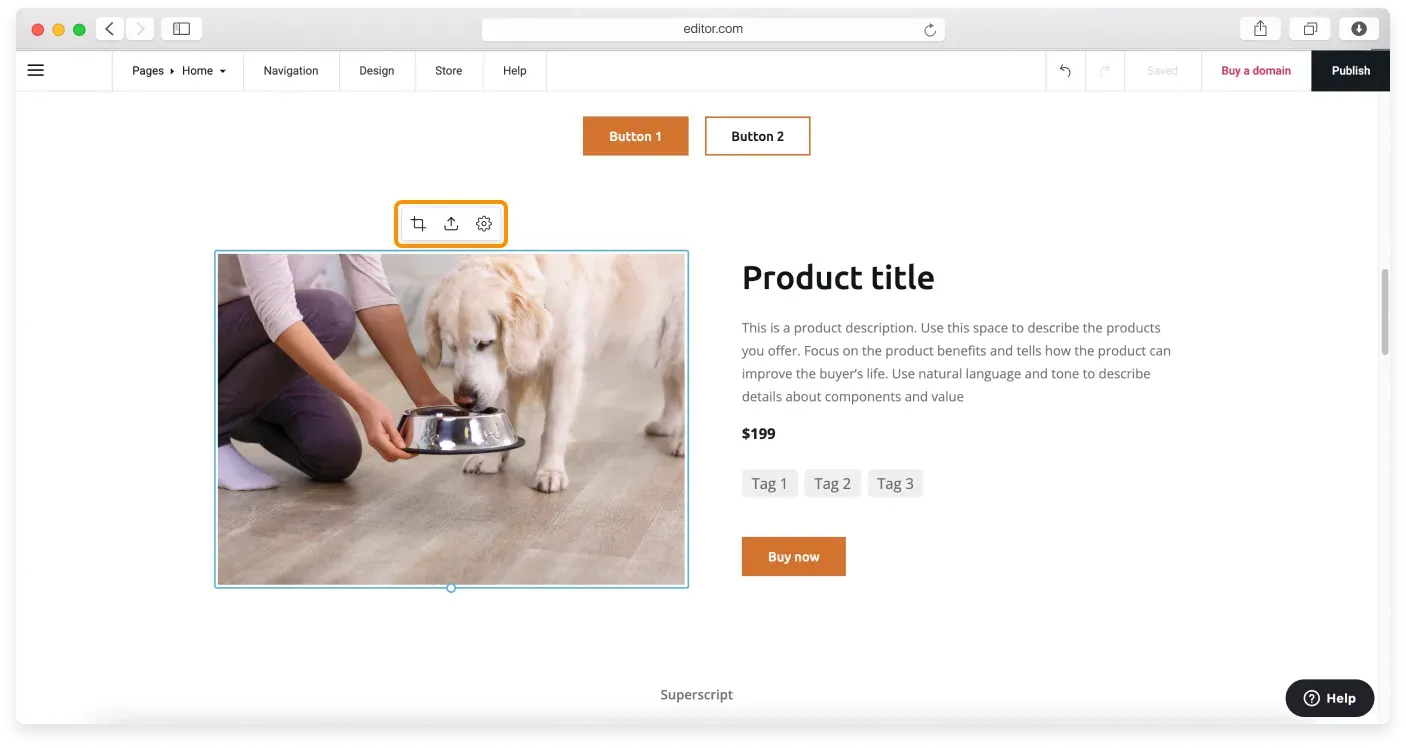
-
Click the Upload image icon and then click the Browse free stock photos option from the drop-down menu.
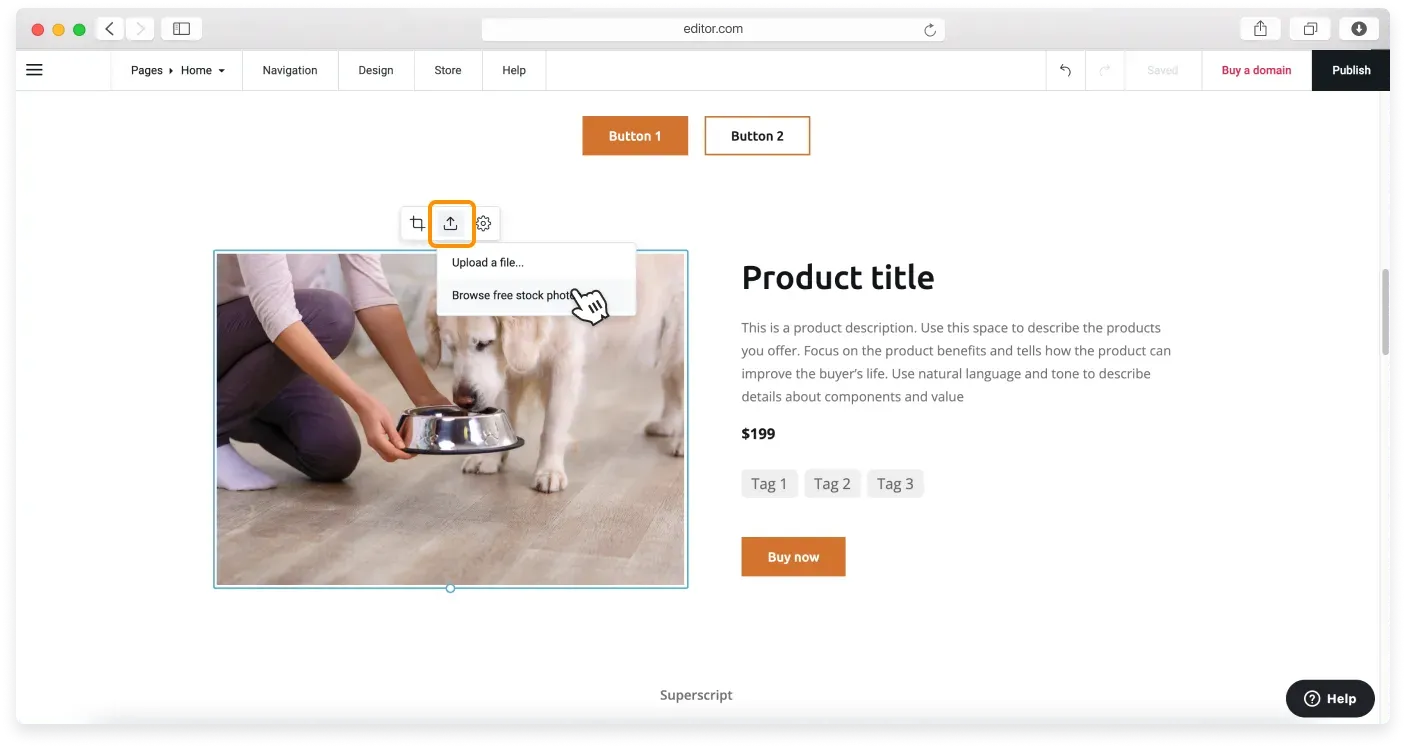
-
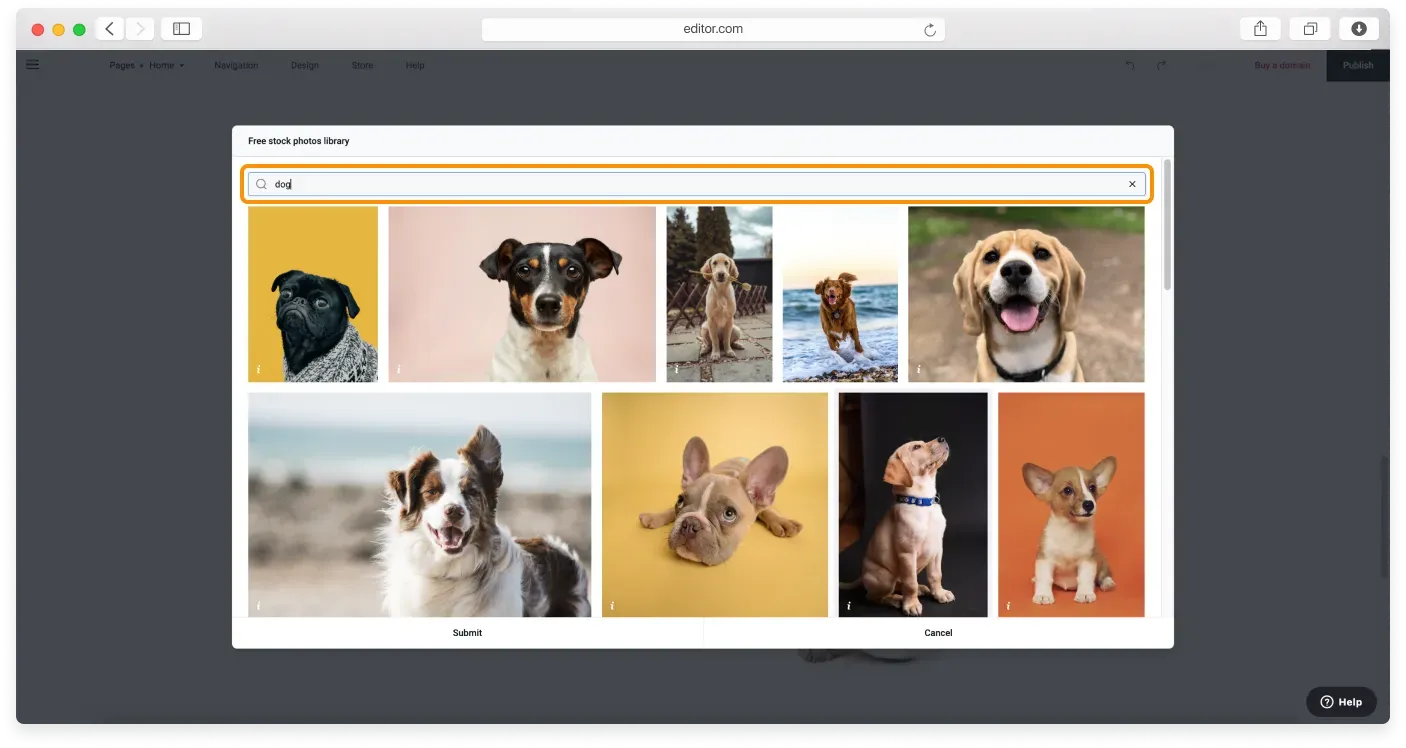
When the Free stock photos library opens, use search to find the image theme you want to upload.
-
Click the photo you like, then click Submit. In a few seconds, a new image will be uploaded to your website.
Remember to publish your website to make your changes live.
To find out how to add images to the Text block, read the dedicated tutorial.
Relaterade artiklar
Hittar du inte det du söker?
Kontakta vårt team. Vi finns här dygnet runt via e‑post och supportärende.